

Single Sign-On (SSO) For Enterprise Plan
Single Sign-On (SSO) lets your team sign in to Mokkup.ai using your organization’s existing identity provider, such as Okta or Azure AD. This eliminates the need for separate passwords, helping teams meet internal security and compliance requirements.
SSO is available as a one-time purchase add-on for customers on the Enterorise Plan and is managed by a Team Admin or Owner from the Billing section.
Note: SSO is only available to teams with an active Enterprise Plan subscription.
How SAML SSO Works in Mokkup.ai
When a team member signs in to Mokkup.ai using SSO, Mokkup.ai initiates a SAML-based authentication flow:
- The user selects Login with SSO and enters their work email.
- Mokkup.ai sends a SAML (Security Assertion Markup Language) request and redirects the user to their organization’s identity provider.
- The identity provider authenticates the user and returns a SAML assertion to Mokkup.ai through the configured callback URL.
- Mokkup.ai validates the assertion and completes the sign-in process.
This process ensures secure authentication while keeping access management centralized with the organization’s identity provider.
Configure SSO
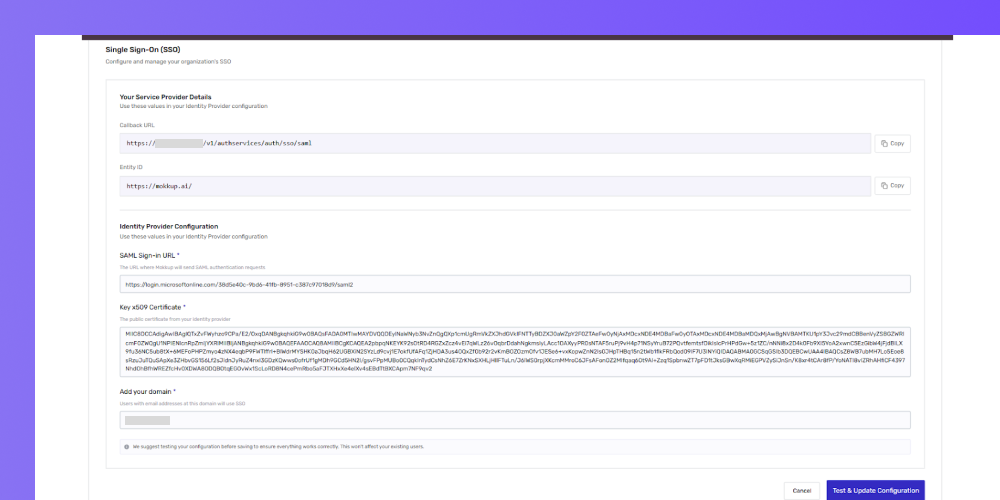
The Team Admin completes the SSO setup by first testing the connection with the identity provider and then entering the required configuration details.
Identity providers
Mokkup.ai currently supports SAML-based Single Sign-On with the following identity providers:
Select one of the supported identity providers and use the SAML details from your provider to complete the configuration.
Test SSO Configuration
- Enter the SAML Sign-in URL and x509 Certificate provided by your organization’s identity provider.
- Click Test & Update Configuration to initiate the test.
- After successful authentication, the identity provider sends a SAML assertion to the Mokkup.ai callback URL.
- Mokkup.ai validates the assertion and redirects you back to the configuration page with a success message.
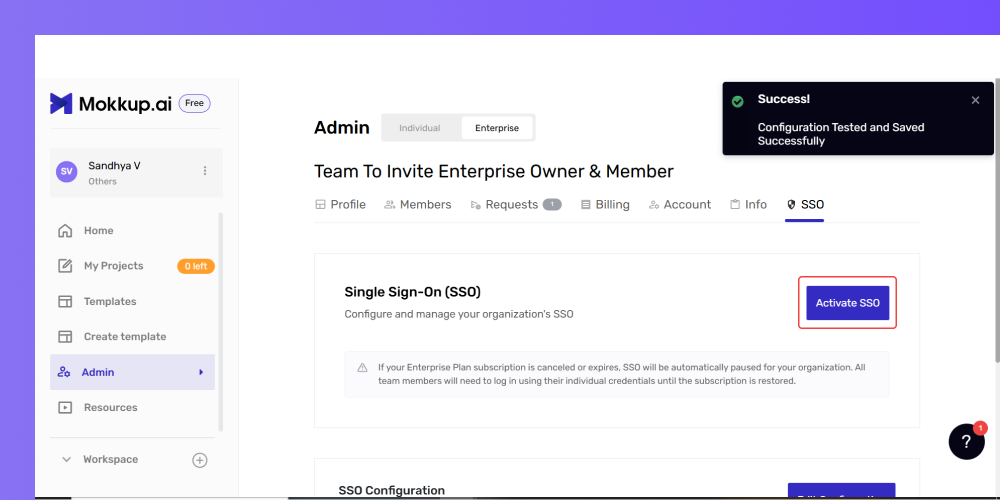
After a successful test, you can confirm the remaining details on the SSO tab:
- SAML Sign-in URL: The login URL provided by the identity provider.
- x509 Certificate: The public certificate used to validate SAML responses.
- Domain: Select a verified domain that should use SSO.
The following values are generated by Mokkup and are displayed as read-only:
- Callback URL: Use this value when configuring Mokkup.ai in your identity provider.
- Entity ID: Identifies Mokkup.ai as the service provider.
Once all fields are validated, the Admin can activate SSO for the selected domain.
Manage Team Members With SSO
Once SSO is active:
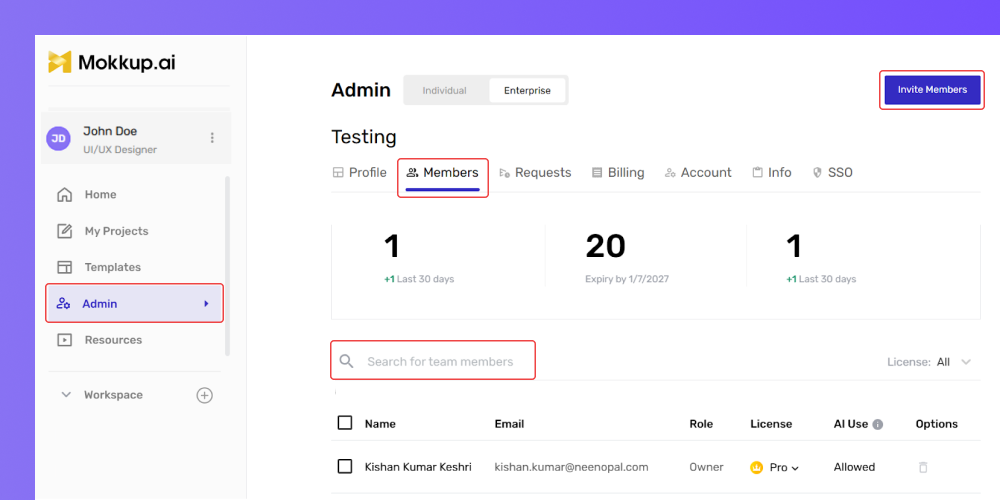
- Go to Admin → Members.
- Invite new users or manage existing members.
- Users with email addresses that match the configured domain can sign in using SSO.
Note: When a user signs in using SSO, whether they are a new sign-up or an existing user, they are automatically added to the team, and a license is assigned. If no licenses are available, the user is added as a free user.
Team Member Login Experience
Logging in with SSO
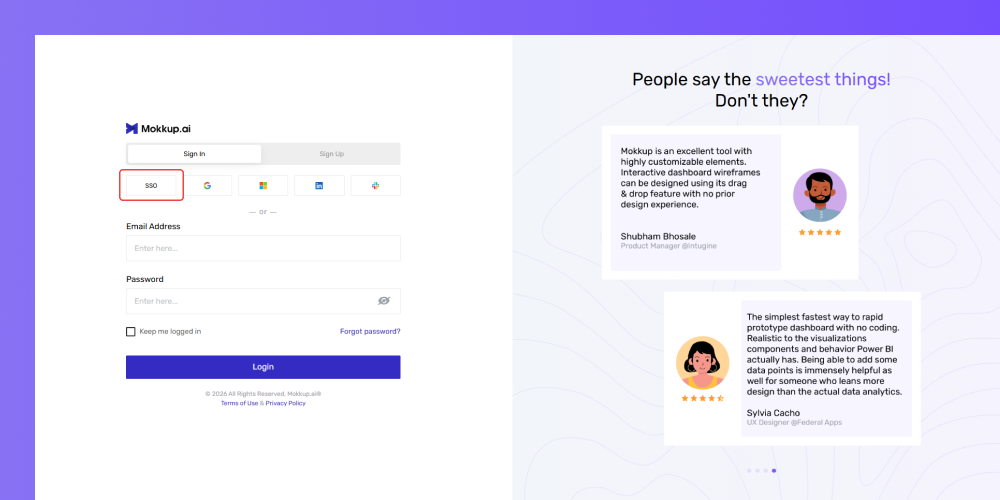
On the Mokkup login page, team members can:
- Click Login with SSO.
- Enter their work email address.
- Authenticate through their organization’s identity provider.
If this is their first time logging in with SSO, a Mokkup account is automatically created and added to the default team.
Using the Standard Login On An SSO Domain
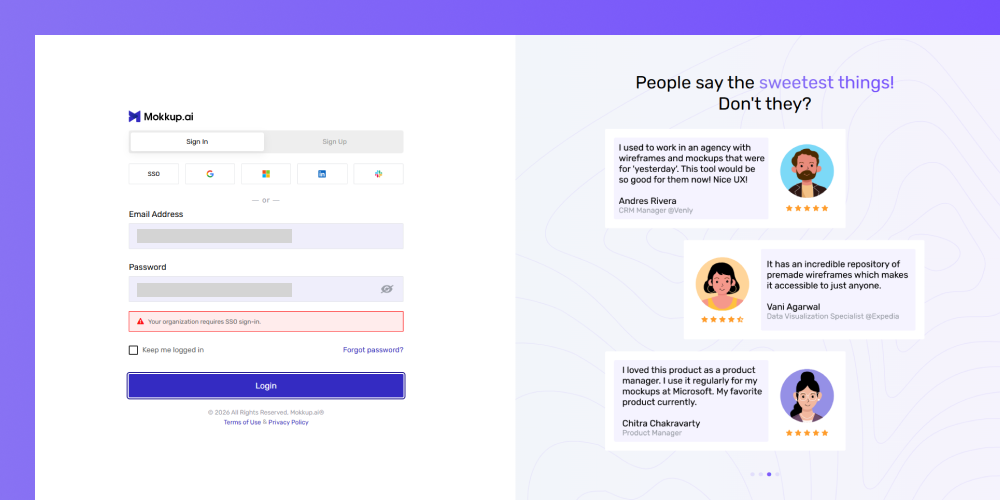
If a team member enters an email address that belongs to an SSO-enabled domain on the standard email and password login form:
- The password field is disabled.
- A message appears explaining that the organization uses SSO.
- A clear message is shown to continue with Login with SSO.
This message is informational and helps guide users to the correct login method.
What Happens if SSO is Disabled
SSO stops working if:
- The Team Admin disables SSO, or
- The Enterprise Plan subscription has been canceled or has expired.
When this happens:
- Team members must log in using their email and password.
- Users who previously only used SSO may need to create a password using the "Forgot Password" feature.
Note: Admins and users are notified when SSO is automatically disabled due to a change in their subscription.
Need Help?
If you have questions about setting up SSO or encounter issues during configuration, please contact admin@mokkup.ai for support. Include details about your identity provider and any error messages you encounter.
Frequently Asked Questions
Q1. Who can set up and manage SSO in Mokkup?
SSO can be configured and managed only by a Team Admin or Owner on the Enterprise Plan.
Q2. What happens when a user from an SSO-enabled domain signs in for the first time?
When a user signs in using SSO for the first time, a Mokkup account is automatically created for them, and they are added to the team. A license is assigned if one is available. If no licenses are available, the user is added as a free user.
Q3. What happens if the Enterprise Plan subscription is canceled or expires?
If the Enterprise Plan subscription is canceled or expires, SSO is automatically disabled. Admins and users are notified, and team members must sign in using their email and password instead.