

How to Configure Entra ID SSO for Mokkup Enterprise
Adding and Configuring the App in Entra ID
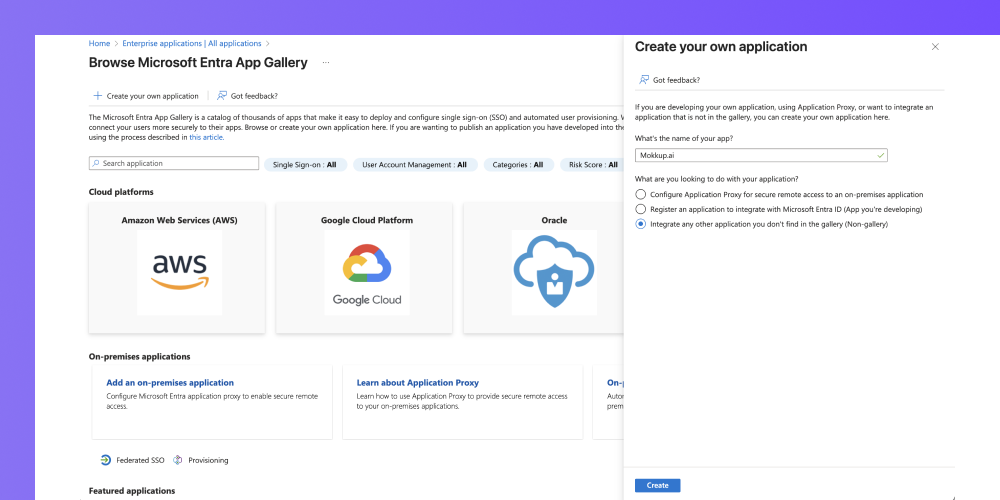
1. Go to Entra ID Enterprise applications.
2. Create your own application
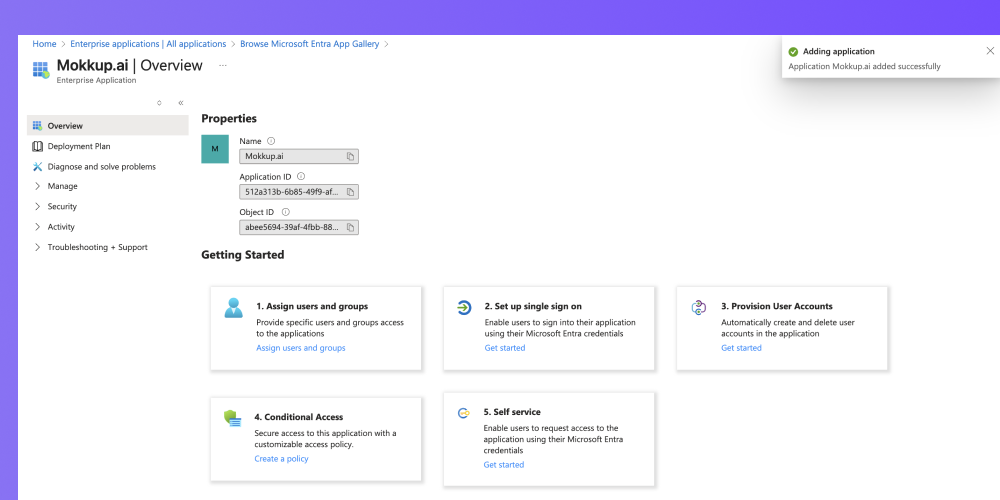
3. Click Set up single sign-on(or select Single sign-on from the left side and select the SAML sign-on method)
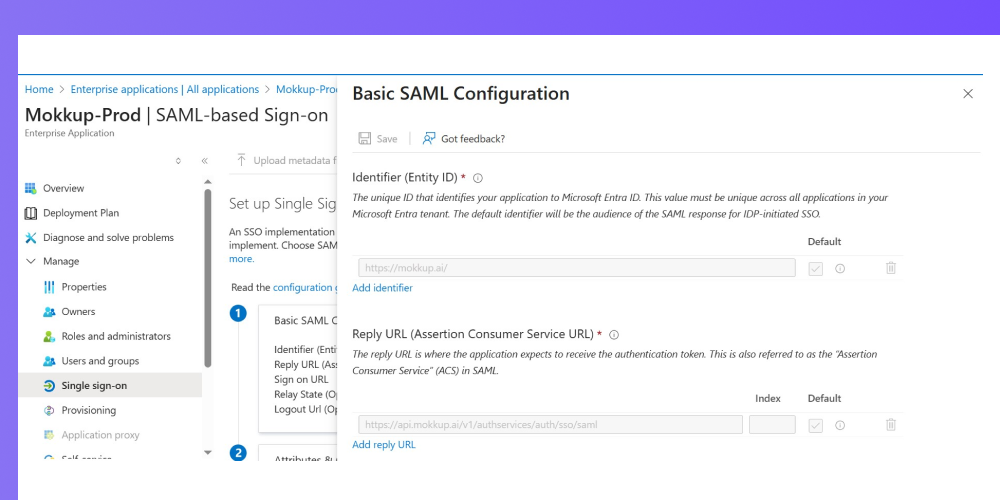
4. You will see that the Basic SAML Configuration is already in place.
-
- Add Entity Id :- https://mokkup.ai/
- Add Reply URL (Assertion Consumer Service URL) :- https://api.mokkup.ai/v1/authservices/auth/sso/saml
Configuring SSO in your Mokkup Enterprise
1. Open the Base64 downloaded file in a text editor, and then copy the x509 certificate from the file.
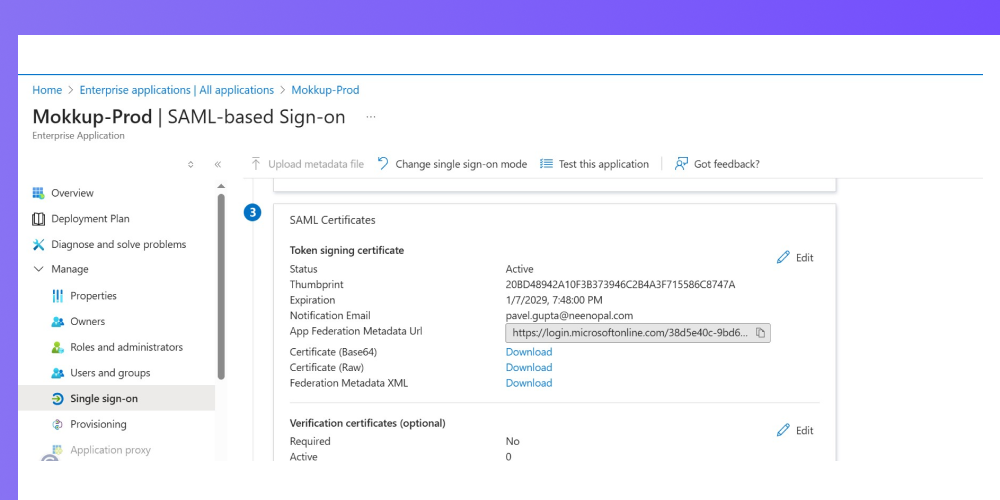
2. In Mokkup, under Admin > Enterprise > SSO, paste the copied x509 certificate into the Key x509 certificate box.
3. In the Microsoft Entra settings UI, copy the Login URL, and then go to the Mokkup Admin > Enterprise > SSO, and paste it into the SAML Sign-in URL box.
4. In the Mokkup Admin > Enterprise > SSO page, on the Users from these domains will sign in using SSO section, ensure that you add at least one company domain.
5. Click Test & Save Configuration.
Your SSO configuration is now complete.