
What is a Special Education IT Operations Dashboard?
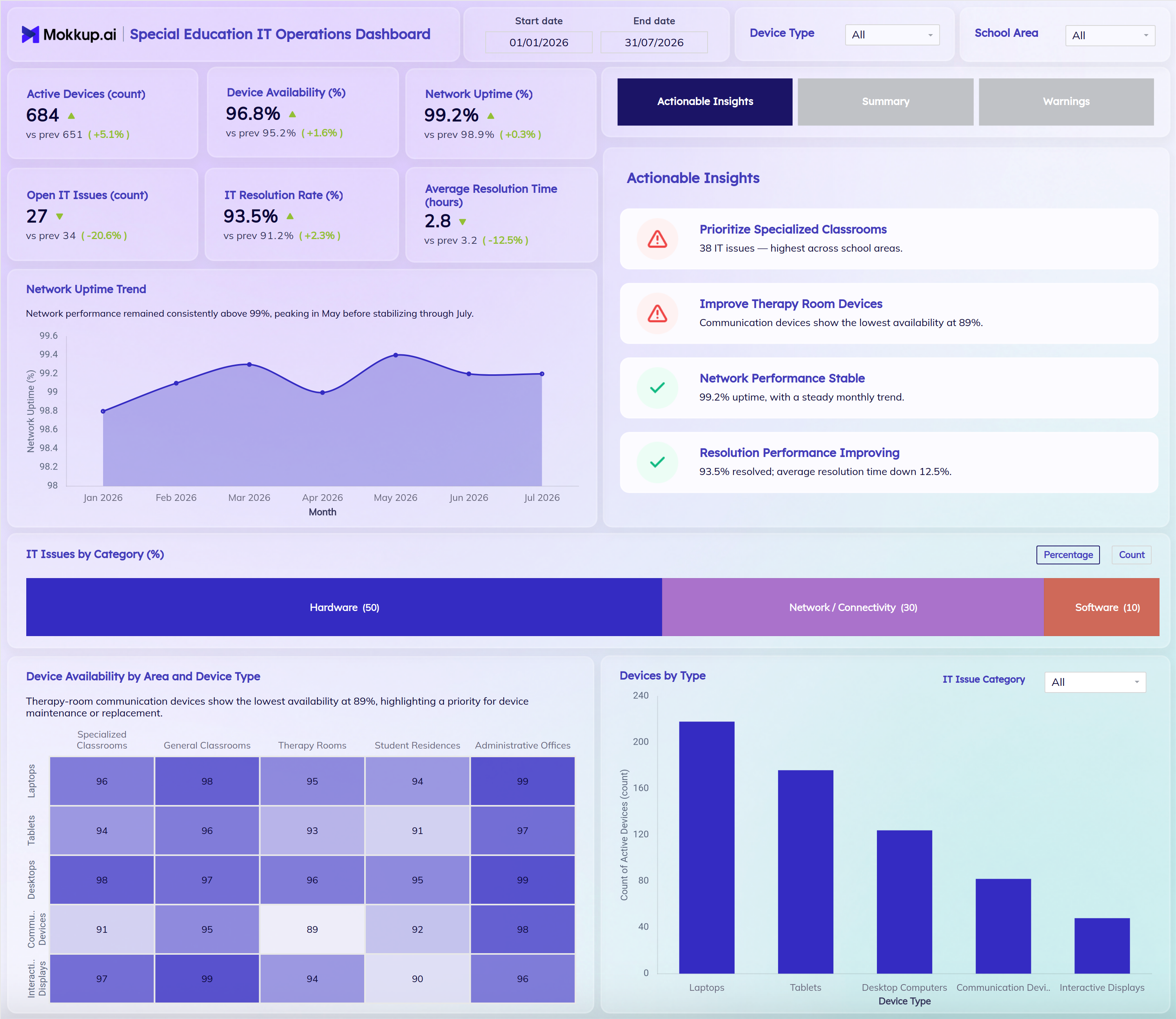
The Special Education IT Operations Dashboard is a reporting template that helps school district IT teams track device performance, network reliability, and support ticket resolution across special education programs. It works as a network uptime monitoring dashboard tool and a device and ticket tracker, combining active device counts, availability rates, and issue resolution metrics in one view. Each KPI card shows the current value, the previous period's value, and the % change, with an up or down arrow, so IT teams can see at a glance whether performance is improving.
A built-in insights panel with Actionable Insights, Summary, and Warnings tabs points out priorities, such as the school area with the most issues or the device group with the lowest availability. IT coordinators use the dashboard to oversee assistive technology across specialized classrooms, general classrooms, therapy rooms, student residences, and administrative offices, replacing scattered helpdesk spreadsheets with a single source of truth. Filters for date range, device type, and school area let districts adapt this special education IT operations dashboard to their own campus structure and reporting needs.
How to Create a Special Education IT Operations Dashboard
You don't need to build your report from scratch. Just start with a ready-to-use dashboard template from Mokkup, add your data and export it however you like. Here's how to do it:
1. Create or Log in to Your Mokkup Account
Start by signing up on Mokkup.ai using your email. If you already have an account, just log in, and you'll be good to go.
2. Choose and Customize Your Dashboard Template
Find the Special Education IT Operations Dashboard template in the Templates section. Use the drag-and-drop editor to adjust KPIs, edit filters, rename school areas or device types, or add elements based on your data.
3. Export to Your BI Tool
Once your dashboard wireframe is ready, use the BI Tool Export feature to send it directly to Power BI or Tableau for further analysis and enhancements. You can also download the dashboard as a PDF, PNG, or JPEG, embed it on a platform, or invite your team to collaborate.
Note: This is a Pro template. You'll need a Pro subscription on Mokkup to use and customize this dashboard wireframe. Upgrade anytime to unlock full access.
Special Education IT Operations Dashboard Example
A special education IT operations lead opens this dashboard each week to check whether devices across specialized classrooms, therapy rooms, and student residences are staying available and connected. Instead of pulling numbers from separate helpdesk and inventory systems, they scan one screen. The KPI cards compare active devices, availability, uptime, open issues, resolution rate, and average resolution time against the previous period, so it is clear whether open tickets are going down and tickets are being closed faster.
Next, the lead checks the Actionable Insights tab. It shows which area to prioritize, for example, specialized classrooms with the highest number of IT issues, and which devices need attention, such as communication devices in therapy rooms with the lowest availability. The Summary and Warnings tabs give a quick overview and flag risks without the lead having to open every chart.
From there, IT coordinators use the Device Availability by Area and Device Type heatmap as a device availability rate tracking dashboard view to find the exact location and device pair that needs hardware support. They review the monthly Network Uptime Trend to catch connectivity dips before they affect teaching. The IT Issues by Category bar, switchable between percentage and count, works as an IT issues by category tracking dashboard view. It shows whether hardware, network and connectivity, or software problems are driving the workload. The Devices by Type chart, with its own IT Issue Category filter, shows which device classes make up the fleet and which ones are linked to a particular type of issue.
The result is a team that directs support to where it matters most, closes tickets faster, and can show school administrators steady improvement in device reliability. Instead of reacting to one-off complaints, IT staff plan maintenance and staffing around the areas and device types that generate the most support demand.
How to Analyze Data in a Special Education IT Operations Dashboard
Here is how you can analyze data from this dashboard:
- Apply Global Filters: Set the date range, then use the Device Type and School Area filters to focus on specific devices (laptops, tablets, desktops, communication devices, interactive displays) or locations.
- Read Period-over-Period KPI Changes: Check the "vs prev" value and % change on each KPI card to see whether availability, uptime and resolution are improving, and whether open issues and resolution time are going down.
- Start with the Insights Panel: Use the Actionable Insights tab for priorities, the Summary tab for a quick overview and the Warnings tab for risks that need attention.
- Monitor Network Uptime Trend: Use the monthly Network Uptime Trend chart, the core view of this network uptime monitoring dashboard tool, to spot dips before they disrupt teaching.
- Break Down IT Issues by Category: Use the IT Issues by Category bar as an IT issues by category tracking dashboard view, and switch between Percentage and Count to see which issue type drives ticket volume.
- Pinpoint Availability Gaps: Use the Device Availability by Area and Device Type heatmap to find which location and device pair needs attention first.
- Analyze the Device Fleet: Review the Devices by Type chart to see which device category makes up most of the active fleet, and use its IT Issue Category filter to see devices linked to a specific issue type.
Benefits of a Special Education IT Operations Dashboard
The following are the benefits of using this dashboard:
- Centralized IT Visibility: Brings device counts, availability, and issue metrics for special education programs together in one structured template.
- Clear Performance Direction: Shows the previous-period comparison and % change on every KPI, so teams can instantly see if IT performance is improving.
- Ready-Made Insights: Actionable Insights, Summary, and Warnings tabs point out priorities and risks without manual analysis.
- Location-Level Availability Tracking: Tracks device availability rates across specialized classrooms, therapy rooms, student residences, and other school areas at the same time.
- Less Manual Reporting: Pre-built KPI tiles and chart layouts reduce the need to compile helpdesk tickets by hand.
- Smarter Issue Planning: A category breakdown of IT issues, by percentage or count, supports support planning and workload sharing.
- Targeted Hardware Decisions: The availability heatmap guides device maintenance, replacement, and staffing decisions for each area.
- Aligned Support Efforts: Serves as a special education school IT support dashboard that keeps resolution efforts focused on the areas generating the most tickets.
- Shared View for Leadership: Gives IT leads and school administrators the same view of technology support performance.
KPIs to Track in a Special Education IT Operations Dashboard
The following key KPIs can be tracked by using this dashboard:
- Active Devices (count): total number of devices currently in use across all school areas, showing the size of the fleet IT teams support. Compared with the previous period.
- Device Availability (%): share of devices working without extended downtime, the core metric of any device availability rate tracking dashboard.
- Network Uptime (%): how consistently the network stays connected, which is critical for classrooms and therapy rooms that rely on connected devices all day.
- Open IT Issues (count): number of support tickets still unresolved at a given time, helping teams gauge current workload. A fall compared with the previous period is a positive sign.
- IT Resolution Rate (%): percentage of tickets closed out of all tickets raised, the figure at the center of any IT resolution rate tracking tool.
- Average Resolution Time (hours): average time taken to close a support ticket, from open to resolved. A fall here means faster support.
Frequently Asked Questions
1. What industries benefit most from this Special Education IT Operations Dashboard?
School districts, special education program administrators, and campus IT departments benefit most, especially teams supporting specialized classrooms, therapy rooms and student residences. It also works well as a special education school IT support dashboard for organizations managing shared device fleets across multiple sites.
2. Can this dashboard track device availability by school area?
Yes. The Device Availability by Area and Device Type heatmap and the School Area filter let teams compare availability across specialized classrooms, general classrooms, therapy rooms, student residences and administrative offices.
3. What does the IT Resolution Rate KPI measure?
The IT Resolution Rate KPI measures the percentage of IT support tickets closed out of the total raised. As an IT resolution rate tracking tool, it shows whether ticket closure is improving or slipping over time.
4. What do the Actionable Insights, Summary and Warnings tabs show?
Actionable Insights lists priorities, such as the school area with the most issues. Summary gives a quick overview of performance. Warnings flags risks, such as low device availability. Together they help IT teams act without reviewing every chart first.