

Real-Time Collaboration in Mokkup
Overview
Mokkup’s real-time collaboration feature allows teams to work together on wireframes simultaneously. Users can see edits as they happen, making teamwork seamless and efficient. This feature eliminates version conflicts, speeds up design iterations, keeps everyone on the same page, and cuts down mockup creation time.
Who can use this feature?
- Available only for Pro users.
- Free users can view or comment, but cannot edit in real-time.
How Access Works in Personal Space?
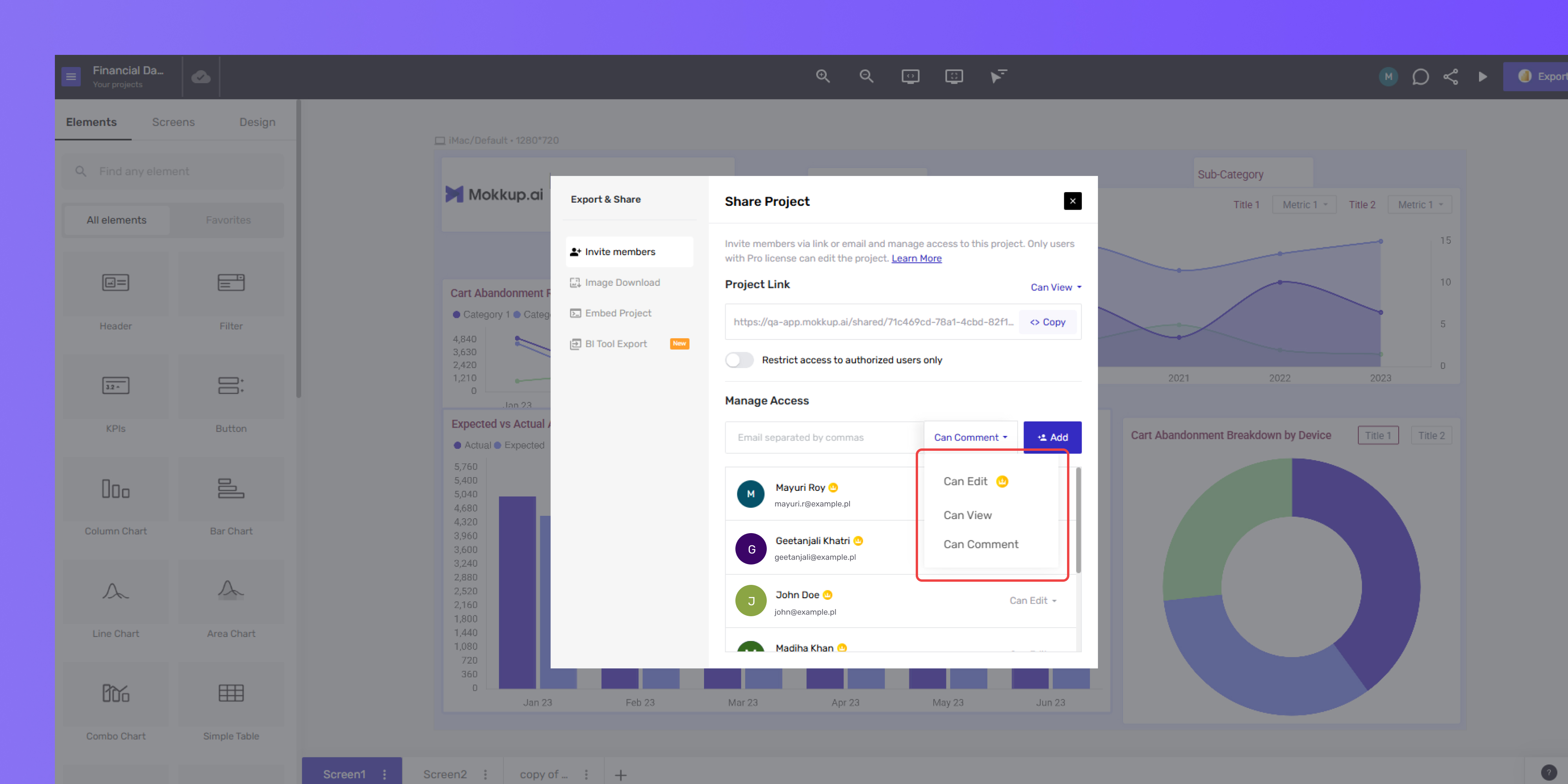
In Personal Space, you can control access at the project level by assigning one of three roles:
- Can View: User can only view the project.
- Can Comment: User can view and leave comments.
- Can Edit: User can make changes to the project.
Project owners & Editors can manage permissions.
How Access Works in Workspace?
The Workspace in Mokkup.ai lets teams organize, share, and manage projects with role-based access and simple permission controls. Both Free and Pro users can create workspaces and manage folders efficiently. Learn more about what a workspace is → Read more
Mokkup supports permissions at three levels in a workspace: Workspace, Folder, and Project.
A. Workspace-Level Permissions
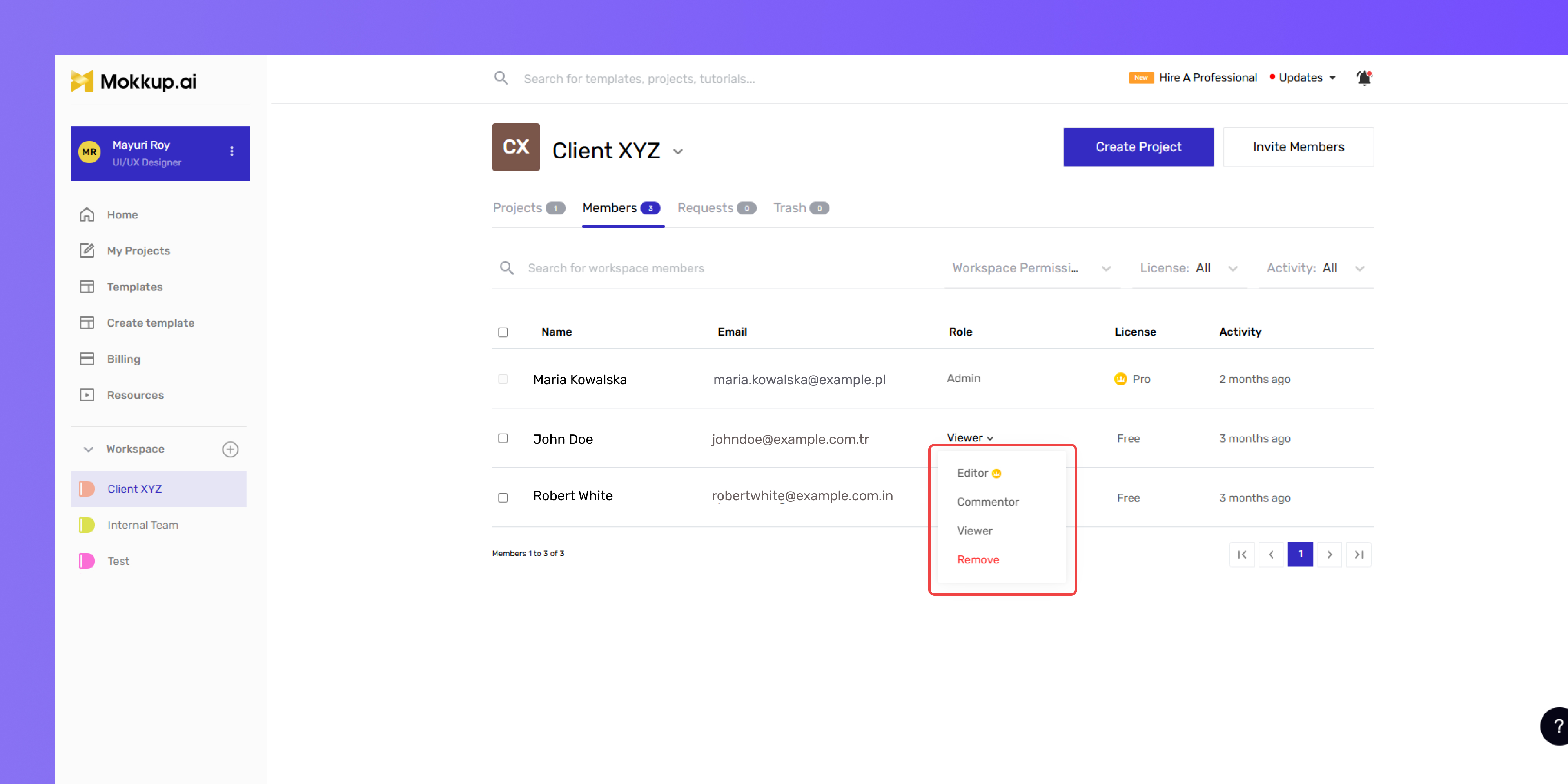
These apply across all folders and projects in the workspace:
- Can View: View access only.
- Can Comment: View + comment access.
- Can Edit: View, comment, and edit across workspace projects.
Only Workspace Admins can assign workspace-level roles.
B. Folder-Level Permissions
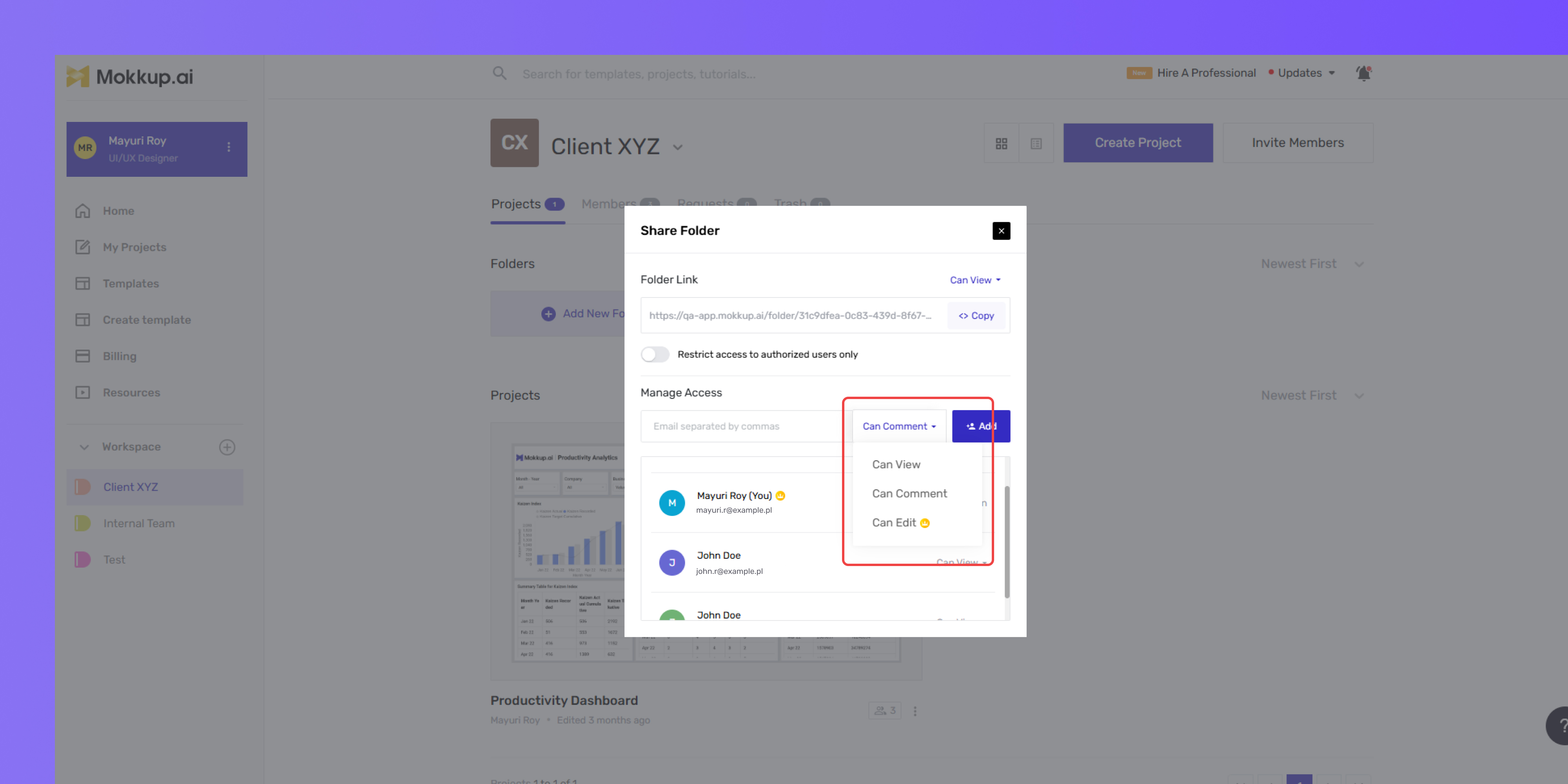
These apply to a specific folder and its contents:
- Can View: View projects in the folder.
- Can Comment: View and comment.
- Can Edit: View, comment, and edit, and create projects in the folder.
C. Project-Level Permissions
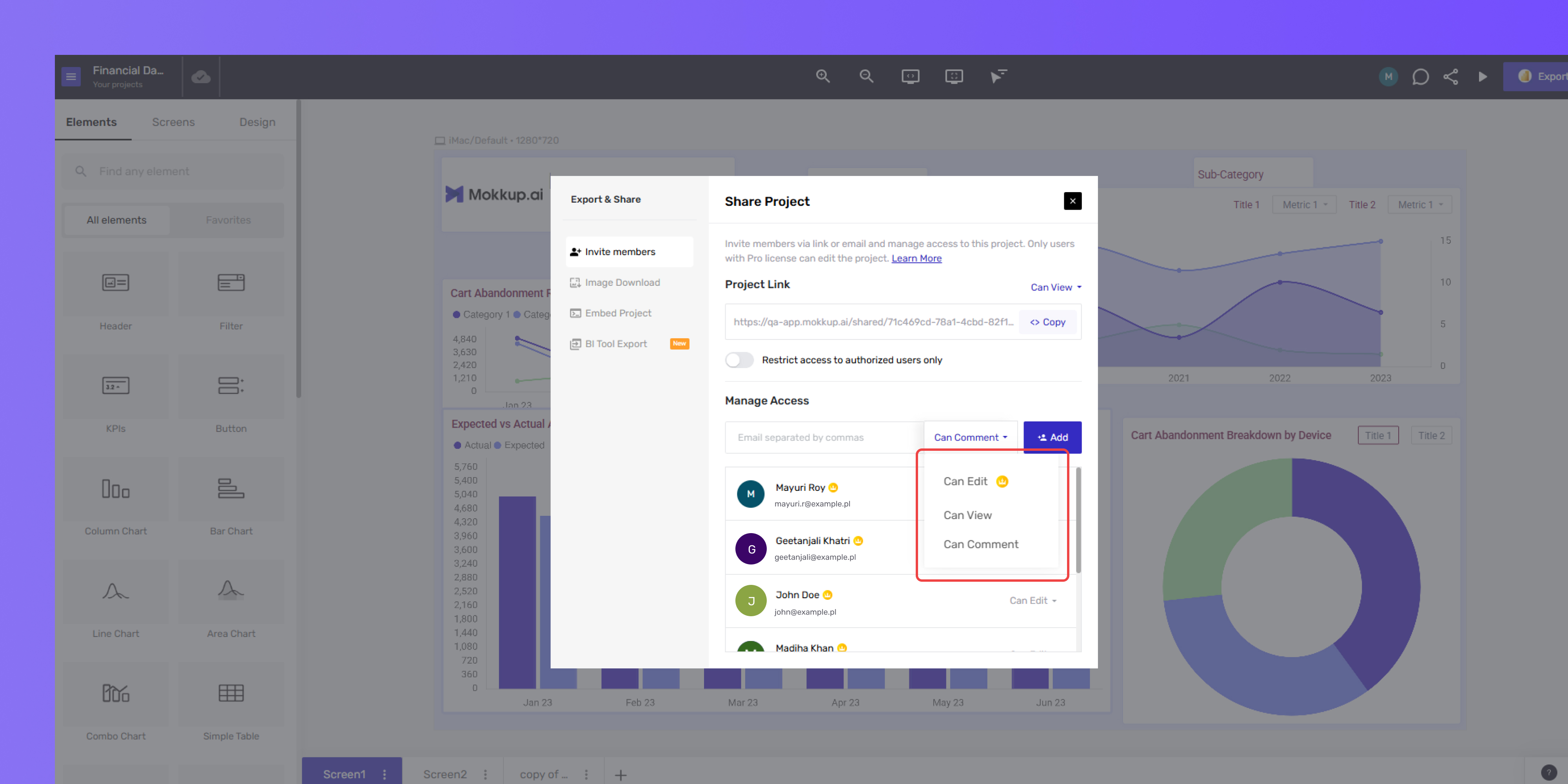
These apply to individual projects:
- Can View: View only.
- Can Comment: View and comment.
- Can Edit: View, comment, and edit the project.
Real-Time Editing
Mokkup’s real-time editing functionality allows multiple Pro users to work on the same project simultaneously. This ensures team members can work simultaneously and helps speed up project completion timelines.
Key Features:
- Instant Updates: Any change made by one user is immediately visible to others in the project. No need to refresh or reload the page.
- Simultaneous Editing: Multiple users can edit different parts of the wireframe at the same time without interruptions.
- Element Locking: To prevent conflicts, Mokkup automatically locks an element when one user is editing it, ensuring others cannot override changes.
- Active User Indicators: This shows which team members are currently working on the project. Each user is assigned a unique color, making it easy to track who is making changes.
These features make collaboration smoother, reducing miscommunication and ensuring that all edits are accounted for.
Live Cursor & Chats
Stay connected with your team using quick, lightweight chats and reactions. Just press / to open the live chat bar, type your message or reaction. Messages are temporary — they’ll disappear after a few seconds and aren’t saved anywhere.
- Click the hamburger menu on the top left.
- Go to the Cursor Activity dropdown.
- Click on “Show Cursors” to turn the cursor display on or off, based on your viewing preference.
- You can also enable or disable Live Chat as needed.
- ESC to exit the chat mode anytime
Note: Live Chat will be automatically disabled if “Show Cursors” is turned off.
Shared Themes in Team Projects
Mokkup makes it easier to maintain design consistency across teams with Shared Themes. When a Pro user applies a custom theme to a project, that theme becomes automatically visible to everyone added to the project as a Shared Theme.
How it Works?
- If you're working on a project and create a custom theme, it will appear as a shared theme for other collaborators in that project.
- Likewise, if another Pro user creates and applies a custom theme, you’ll see it listed as a shared theme when you open the project.
- Shared themes are project-specific. They won’t show up in your other projects unless you recreate them as a custom theme.
Important Notes:
- Only Pro users can create and access custom themes.
- Custom themes you create will be available in all of your projects.
- Shared themes will only appear in the project where they were applied.
- You can’t directly apply a shared theme; however, you can manually recreate a shared theme as your own custom theme if you want to reuse it elsewhere.
Frequently Asked Questions
1. Who can use real-time collaboration in Mokkup?
Only Pro users can edit wireframes in real time. Free users can view or comment, but they can’t make live edits.
2. Can multiple users work on the same project at once?
Yes. Mokkup allows simultaneous editing for Pro users, with real-time updates and active user indicators to avoid conflicts.
3. How does element locking work during collaboration?
When a user starts editing an element, Mokkup automatically locks it. Others won’t be able to edit that element until it’s released, helping prevent overlapping changes.
4. Can Free users join a Workspace and collaborate?
Yes, Free users can join a Workspace and view or comment on shared projects. However, they’ll need to upgrade to Pro to edit in real time.
5. How do I enable or disable the live cursor?
Go to the hamburger menu > Cursor Activity, then toggle “Show Cursors” on/off.
6. Is chat history saved during real-time collaboration?
No. Messages and reactions in Live Chat are temporary and disappear after a few seconds. Nothing is stored or saved.