

Workspace Management
Overview
The Workspace feature in Mokkup.ai provides a structured environment for teams to organize, share, and manage projects and folders with clear permission structures. It allows both Free and Pro users to create workspaces and manage access efficiently. It includes clear permission structures, role-based access, and user-friendly project and folder management tools.
This guide provides a comprehensive overview of Mokkup.ai's Workspace feature, ensuring clarity on permissions, access levels, workspace management, and special cases to help users maximize their workspace efficiency.
Creating a Workspace
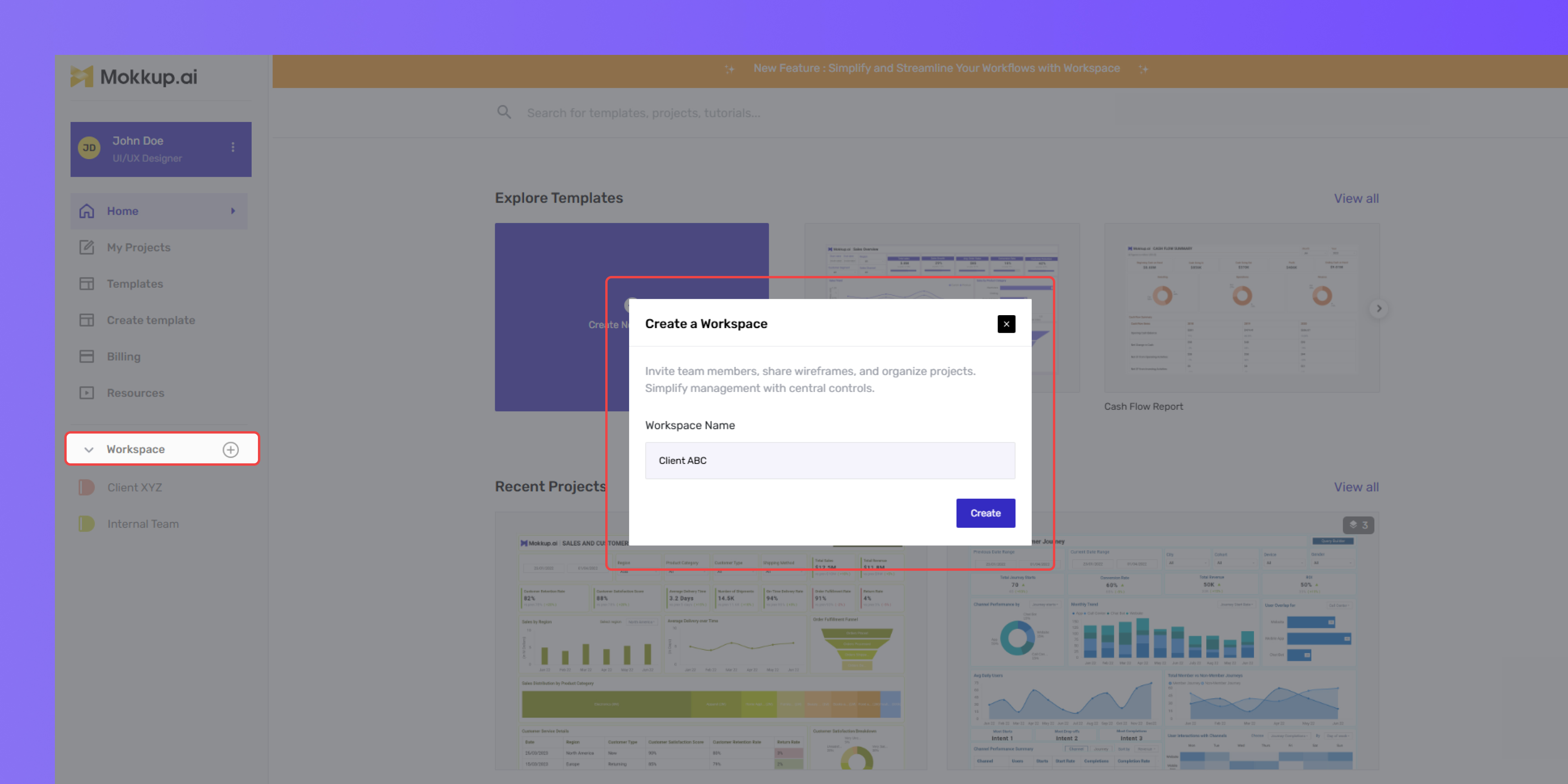
Follow these steps to create a new workspace:
- Sign in to your Mokkup account.
- Click "Create Workspace" from the left-hand menu.
- Provide a name for your workspace and customize settings as needed.
- Click "Create" to complete the setup.
- Once created, you can start adding projects, setting permissions, and collaborating with your team.
Note: Both Free and Pro users can create a workspace, but Free users have limited features compared to Pro workspace admins.
Terminologies
- Workspace Admin: Create workspace and manage workspace settings, permissions, and member access (Available for free and for pro users).
- Creator: Can create projects and folders and edit their own projects (Pro required).
- Folder Owner: Workspace member who can create a folder and manage its permissions, including access and sharing settings.
- Project Owner: Workspace member who can create the project
- Viewer: Can only view projects within workspace/folders
- Commenter: Can view and leave comments on projects
Permissions and Roles
Mokkup offers different roles within a workspace, each with specific permissions for managing projects, folders, and team collaboration. Below is a breakdown of permissions at the workspace, folder, and project levels.
Workspace-Level Permissions
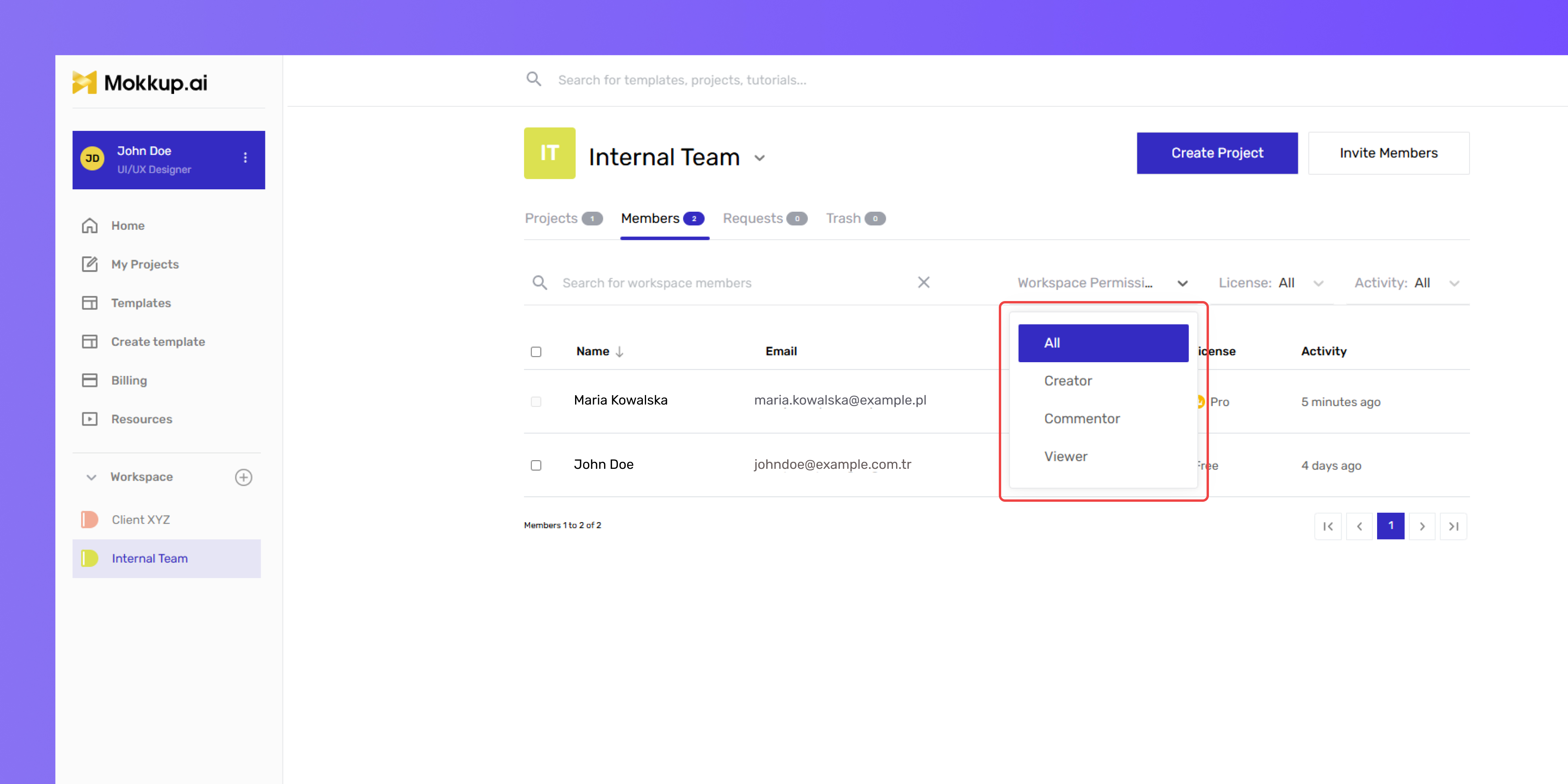
Workspace Admins can perform the following actions and set these permissions for members:
Note: Both Free and Pro users can be Workspace Admins, but Free Admins will have limited functionality.
- Can View: Admins can view all folders and projects within the workspace. They can also grant workspace members access to view projects. (Available for Free & Pro workspace members)
- Can Comment: Admins can view and leave comments on projects. They can also allow workspace members to comment on projects. (Available for Free & Pro workspace members)
- Can Create: Admins can create new projects/folders within the workspace. They can also grant workspace members permission to create new projects and folders. (Only available for Pro workspace members)
Folder-Level Permissions
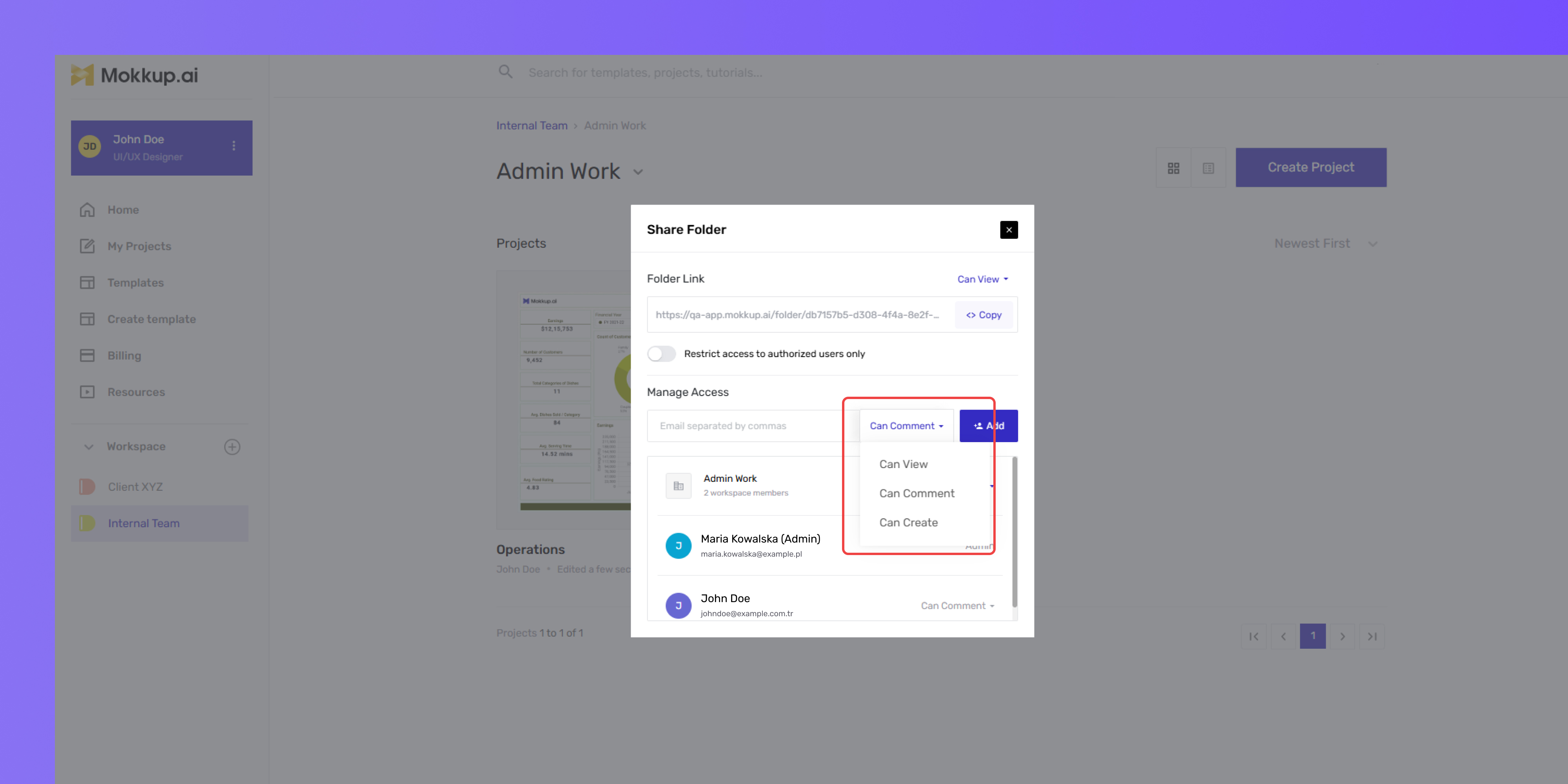
Folder Owners can perform the following actions and set permissions for workspace members:
Note: Only Pro users can be Folder Owners.
- Can View: Folder Owners can view all projects within a folder and grant workspace members access to view projects/folders. (Available for both Free & Pro workspace members)
- Can Comment: Folder Owners can view and leave comments on projects within a folder and grant the same access to workspace members. (Available for both Free & Pro workspace members)
- Can Create: Folder Owners can create new projects within a folder and grant workspace members permission to do the same. (Members must have a Pro license to create projects within the folder)
Project-Level Permissions
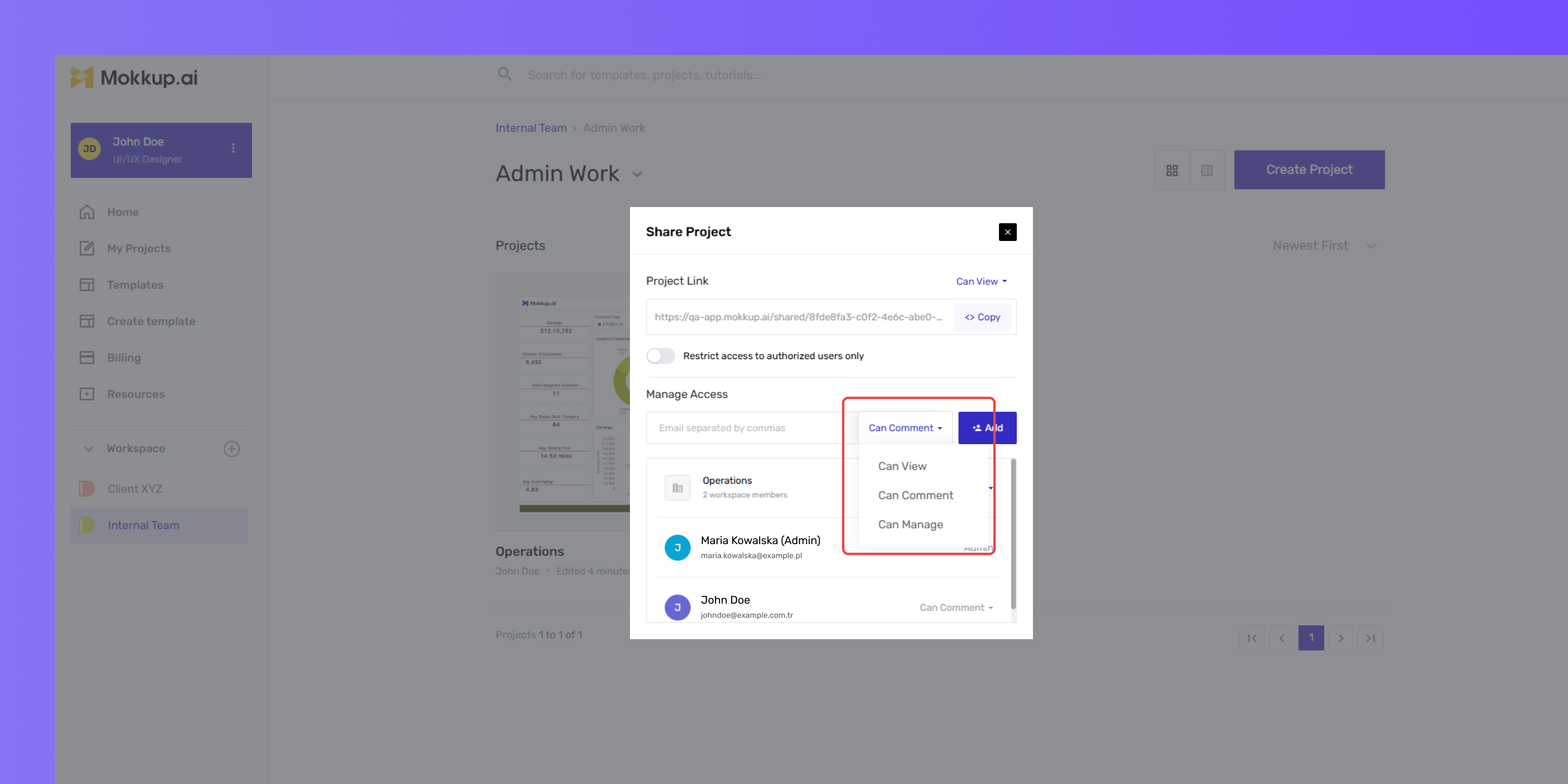
Project Owners can perform the following actions and set permissions for members:
Note: Only Pro users can be Project Owners.
- Can View: Project owners can view all project details and grant workspace members access to view them. (Available for both Free & Pro workspace members)
- Can Comment: Project Owners can view and leave comments on projects and grant the same access to workspace members. (Available for both Free & Pro workspace members)
- Can Manage: Project Owners can edit, move, rename, and delete projects and grant workspace members permission to do the same. (Members must have a Pro license to manage projects)
Member Responsibilities
In Mokkup, each team member has a specific role that determines their level of control over projects and folders. From creating and managing content to setting access permissions, these roles ensure smooth collaboration within a workspace. Below is a detailed breakdown of what each role can and cannot do:
Workspace Admins
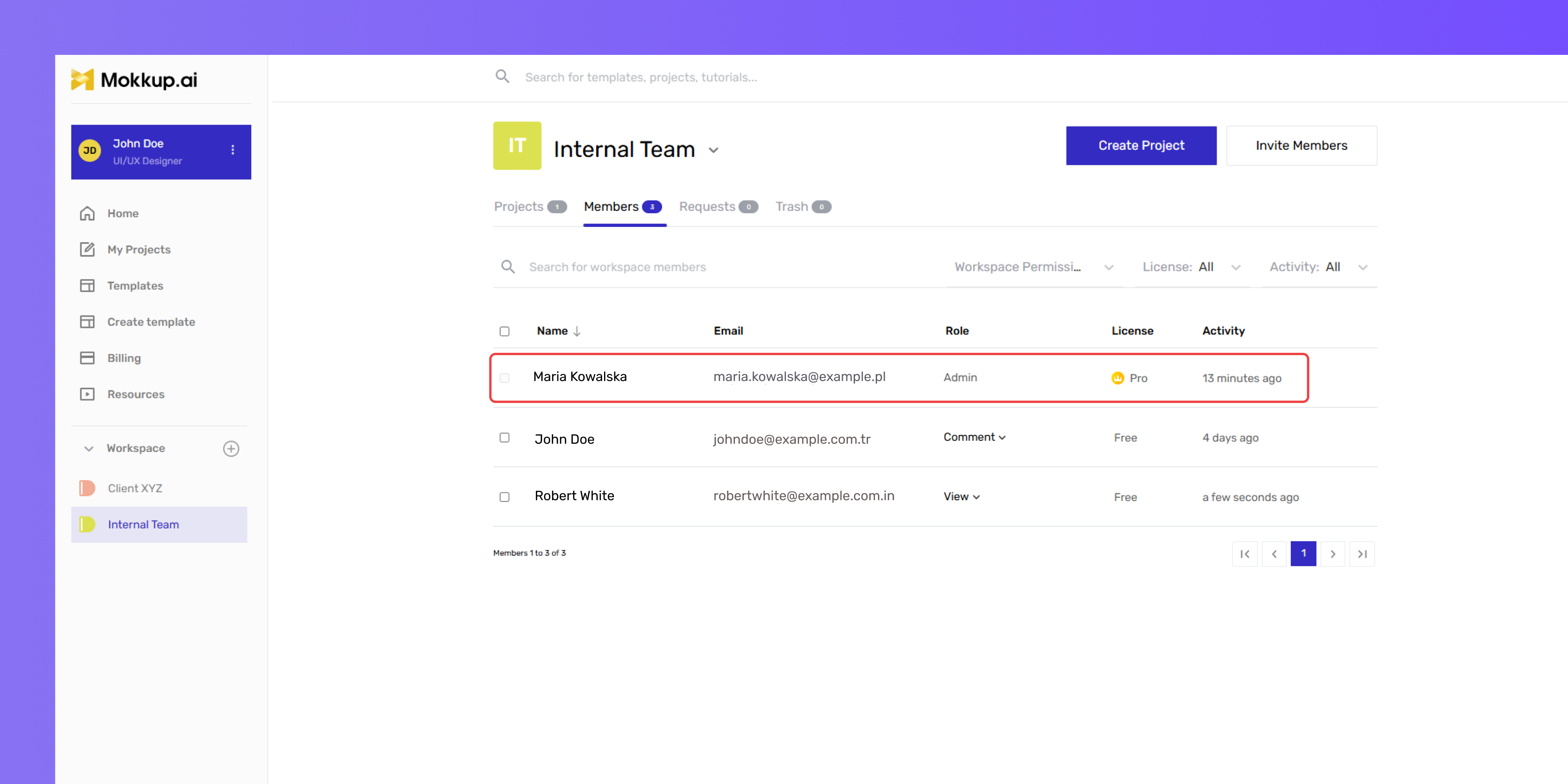
- Have full control over the workspace, including user and project management.
- Can create, edit, move, rename, and delete any projects or folders.
Note: Requires a Pro license to perform these actions
- Can transfer ownership of their own projects or folders.
- Can approve or remove members from the workspace.
- Can restore deleted projects
Note: Requires a Pro license to perform these actions
Creators
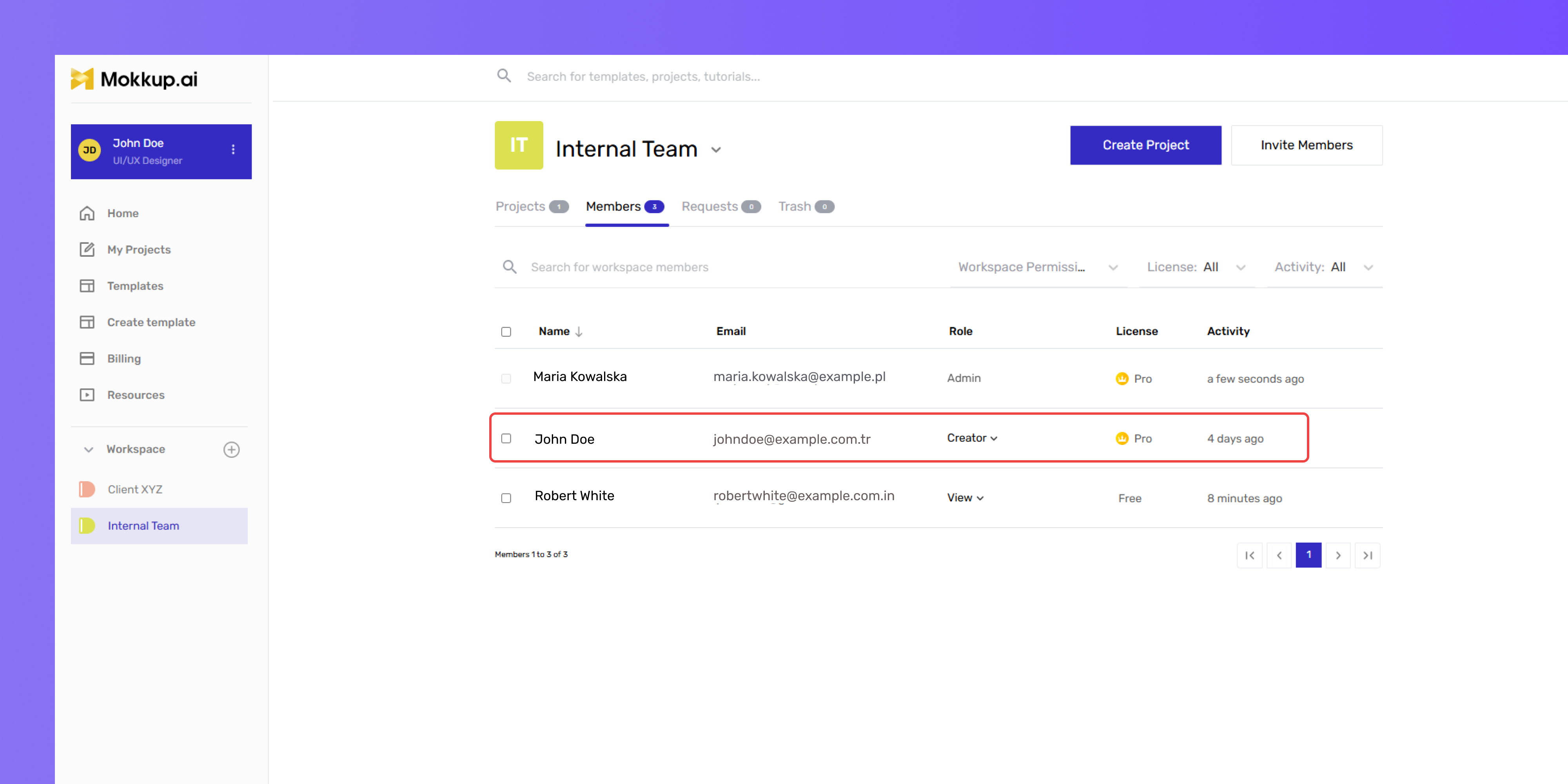
- Can create and manage projects within folders they have access to.
- Can view and comment on other projects based on assigned permissions.
- Can move, rename, and transfer ownership of projects they created.
- Must be a Pro user to have this role.
- Free users cannot be Creators – If Creator permissions are assigned, they will automatically join as Commenters instead.
- They can share other member’s projects and folders.
- Request Workspace admins to add members to the workspace.
Viewers/Commenters
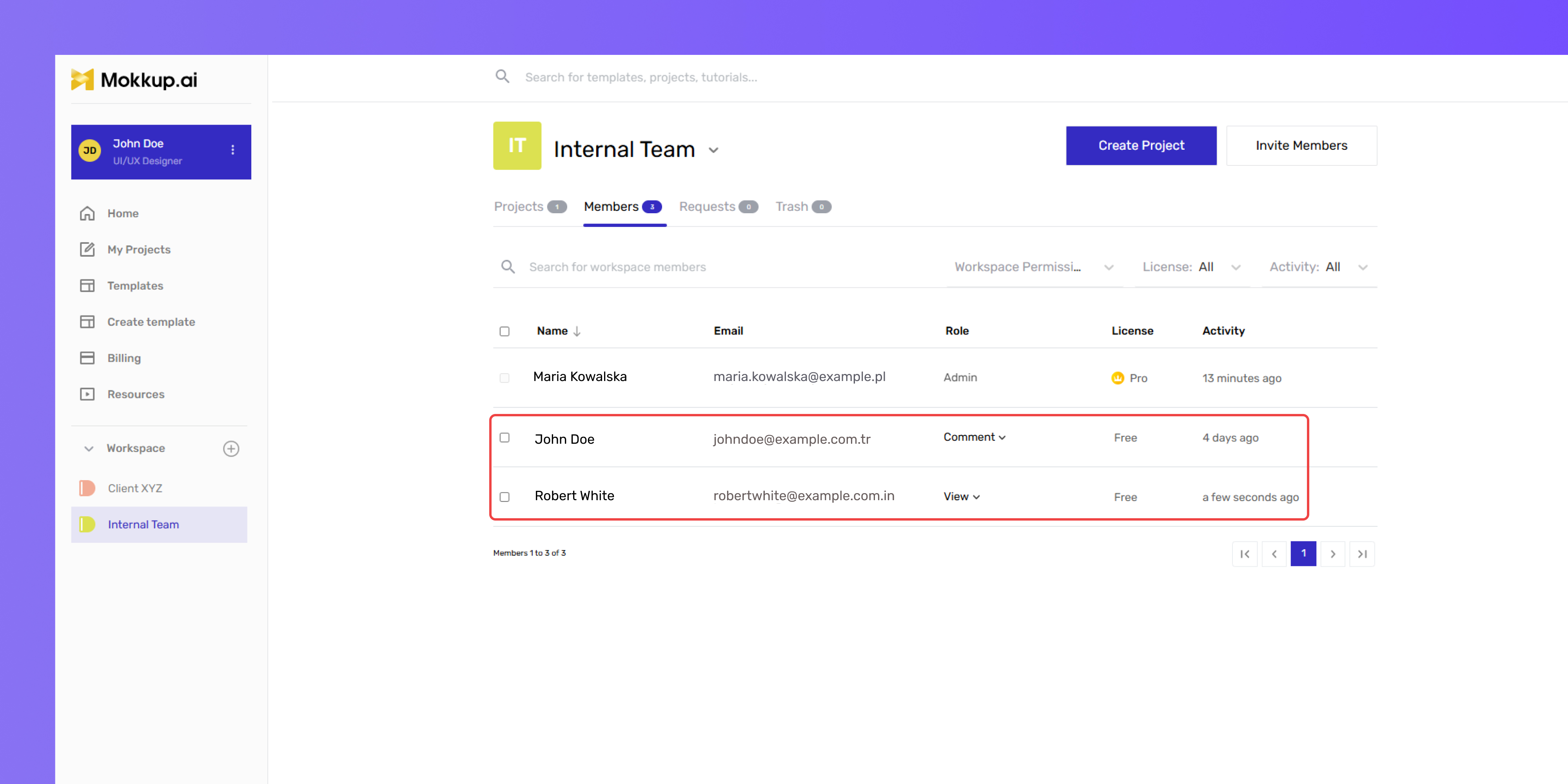
- Can only view and comment on projects.
- Cannot create, edit, move, rename, duplicate, or delete any projects or folders.
- Must request access from the workspace admin to gain additional permissions.
- Free users can only be Viewers or Commenters and must upgrade to Pro to request Creator access from the workspace homepage.
Project Owners
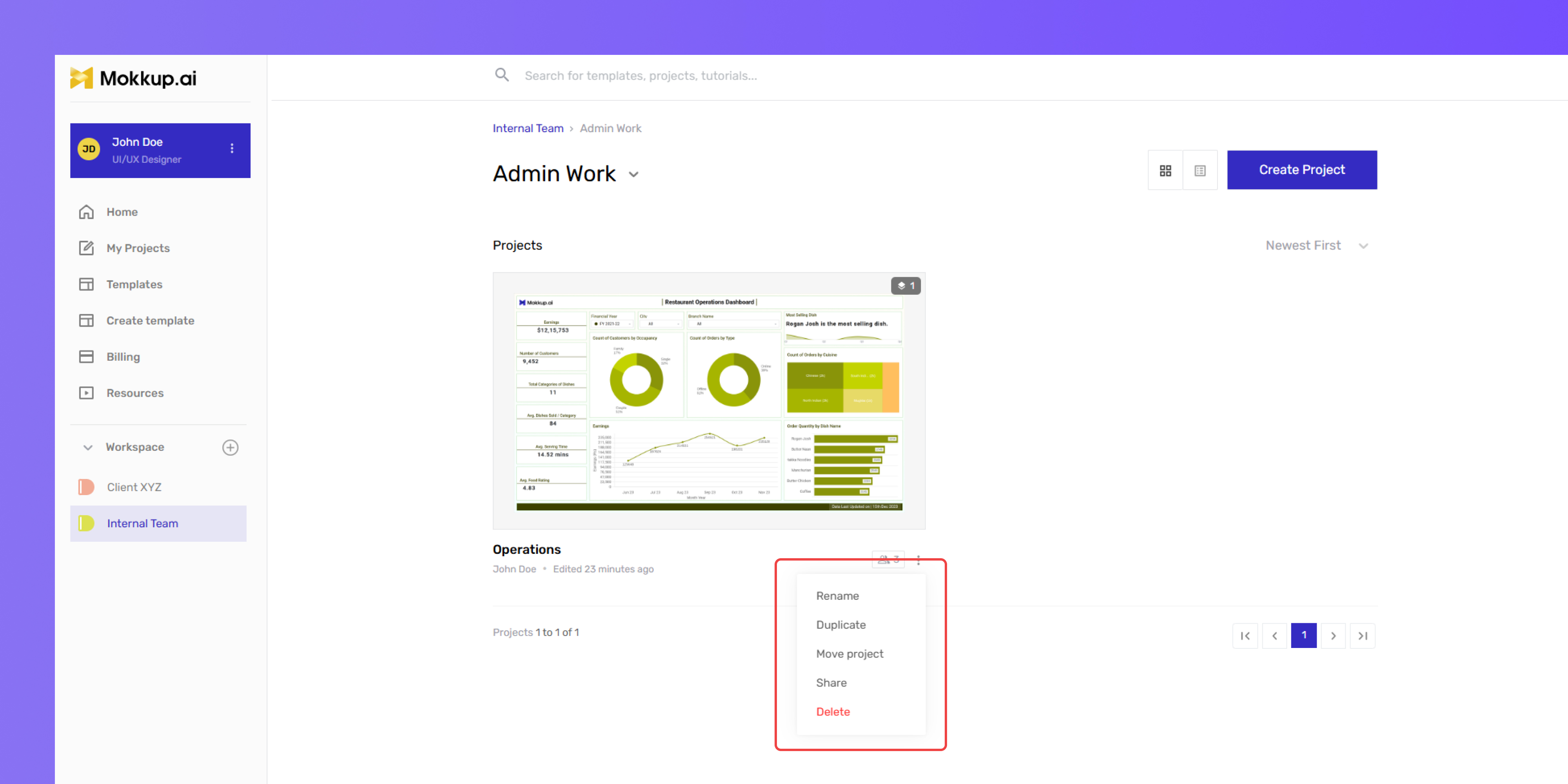
- Automatically own the projects they create.
- Can create, edit, move, rename, and delete their own projects.
- Can transfer ownership of their projects to others.
- Can share projects and folders with team members.
Folder Owners
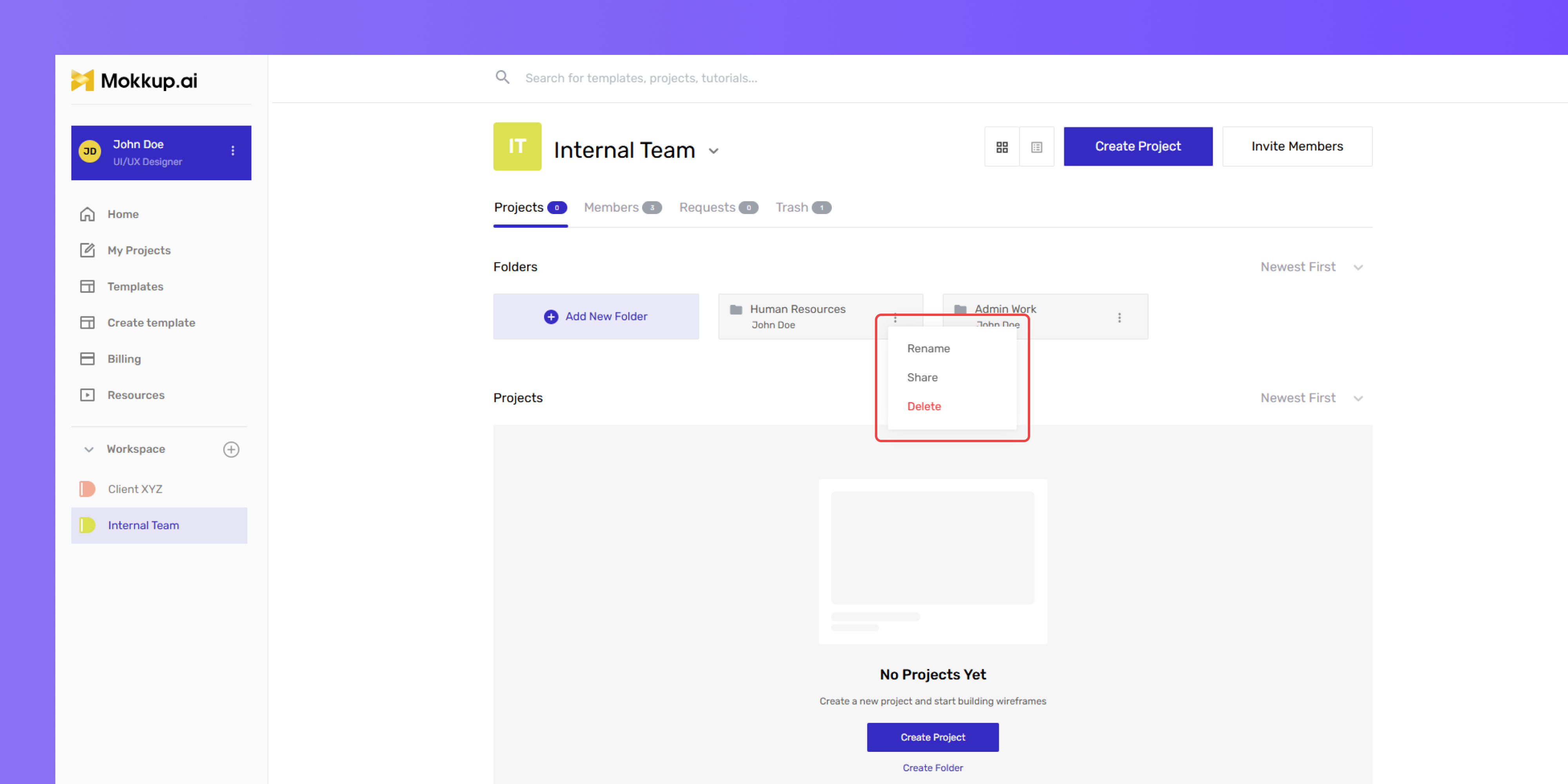
- Own the projects they create within any folder.
- Can transfer ownership of their folders.
- Can share projects and folders with others.
Access & Licenses
Mokkup provides different levels of access based on the user’s license type. Below are the permissions for Free Users and Pro Users in a workspace.
Free Users
Free users have limited control over projects and workspace management. Their permissions include:
Workspace Management
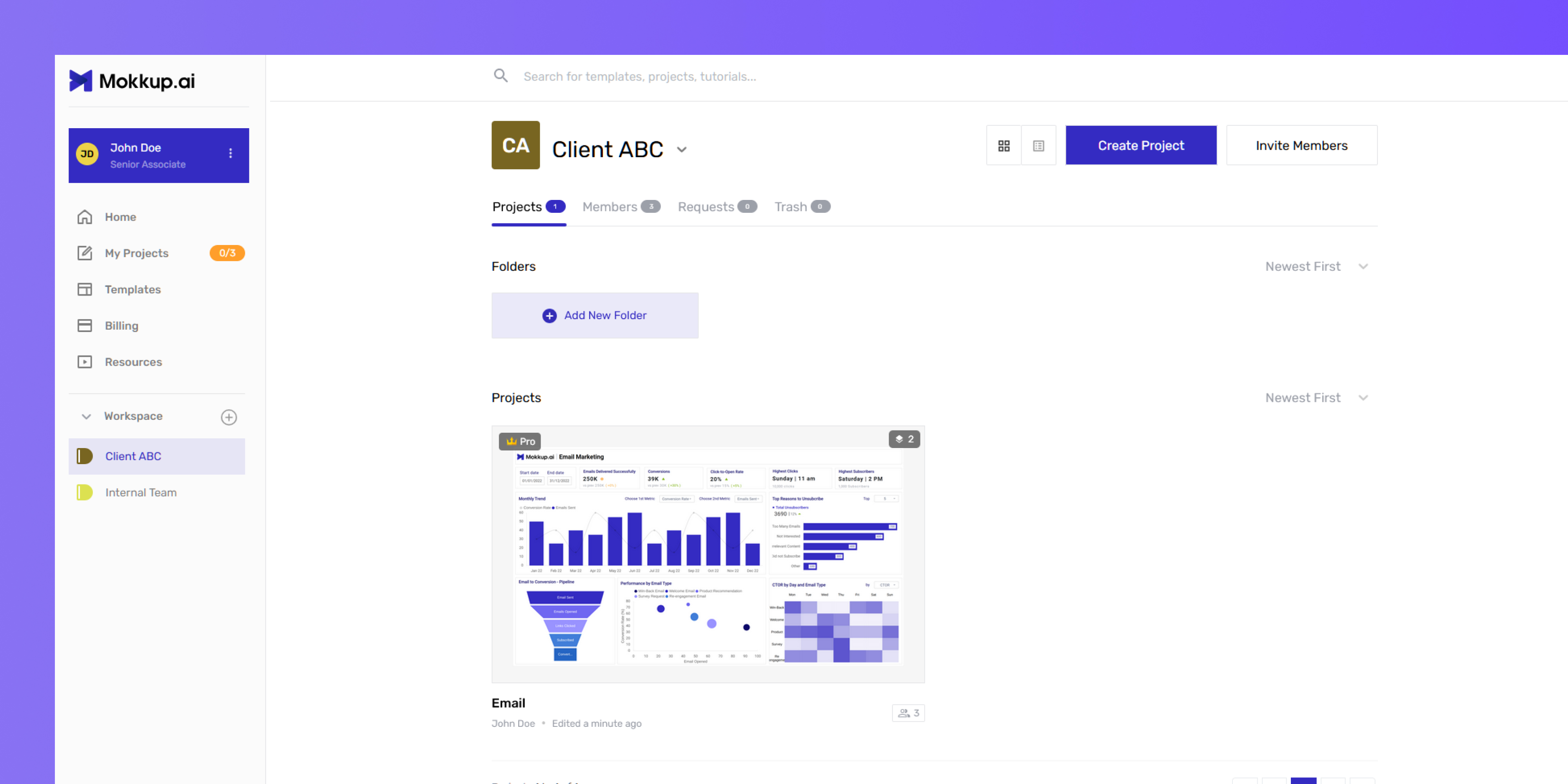
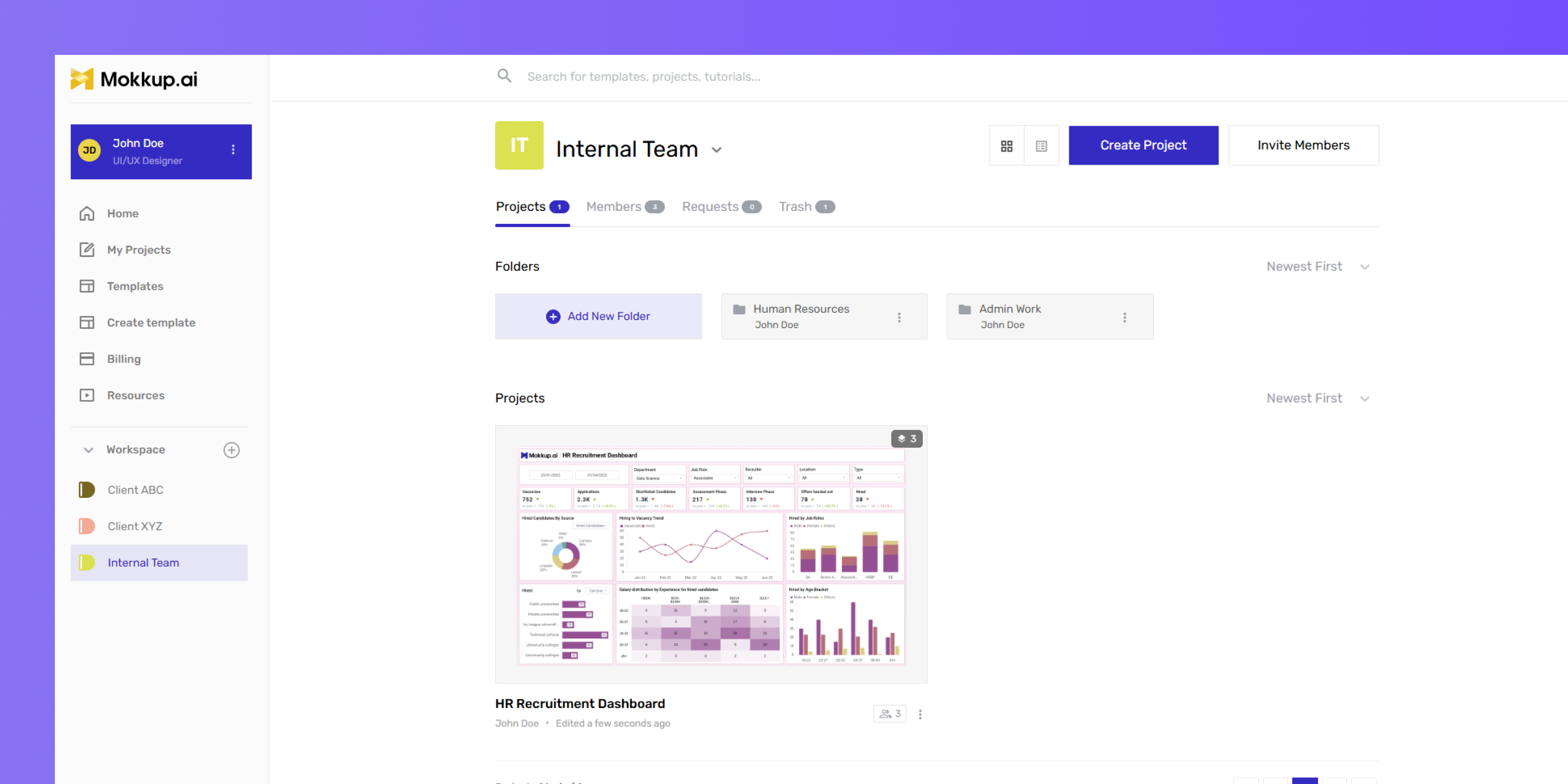
- Can create a workspace
- Can invite members to the workspace
- Can delete the workspace
- Can transfer workspace ownership
- Can restore a workspace
Project & Folder
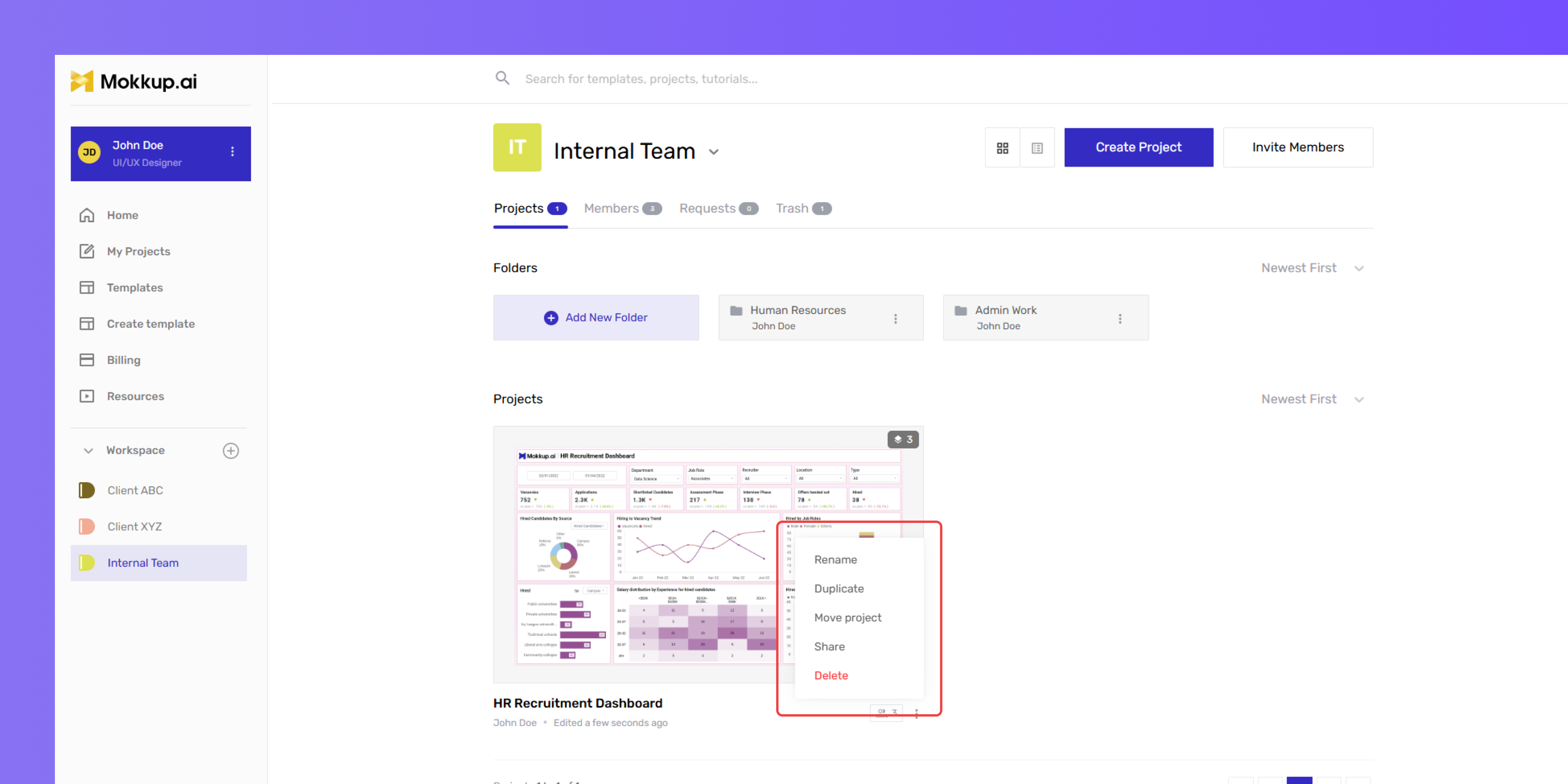
- Free users have comment-only access and must upgrade to create projects and folders.
- Will need to upgrade to Pro to create, edit, move, or rename projects and folders.
- Ownership of projects and folders cannot be transferred to free users in the workspace.
Permissions & Sharing
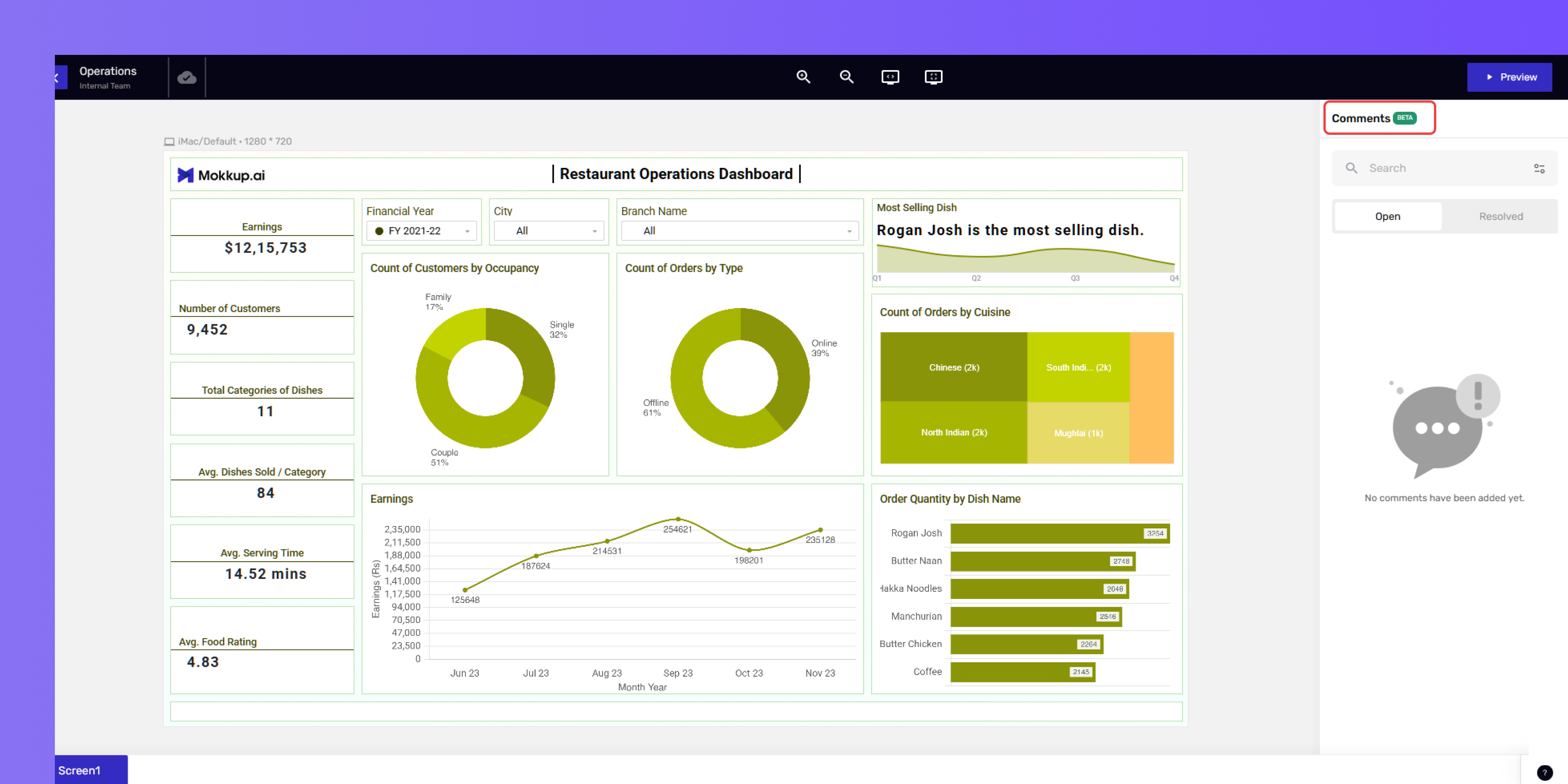
- Can only comment on all projects where permissions are given.
- Cannot set permissions on folders or projects.
- Cannot share projects or folders.
Pro Users
Pro users have full access to workspace and project management, with enhanced collaboration features.
Workspace Management
- Can create a workspace
- Can invite members to the workspace
- Can delete the workspace
- Can transfer workspace ownership
Project & Folder
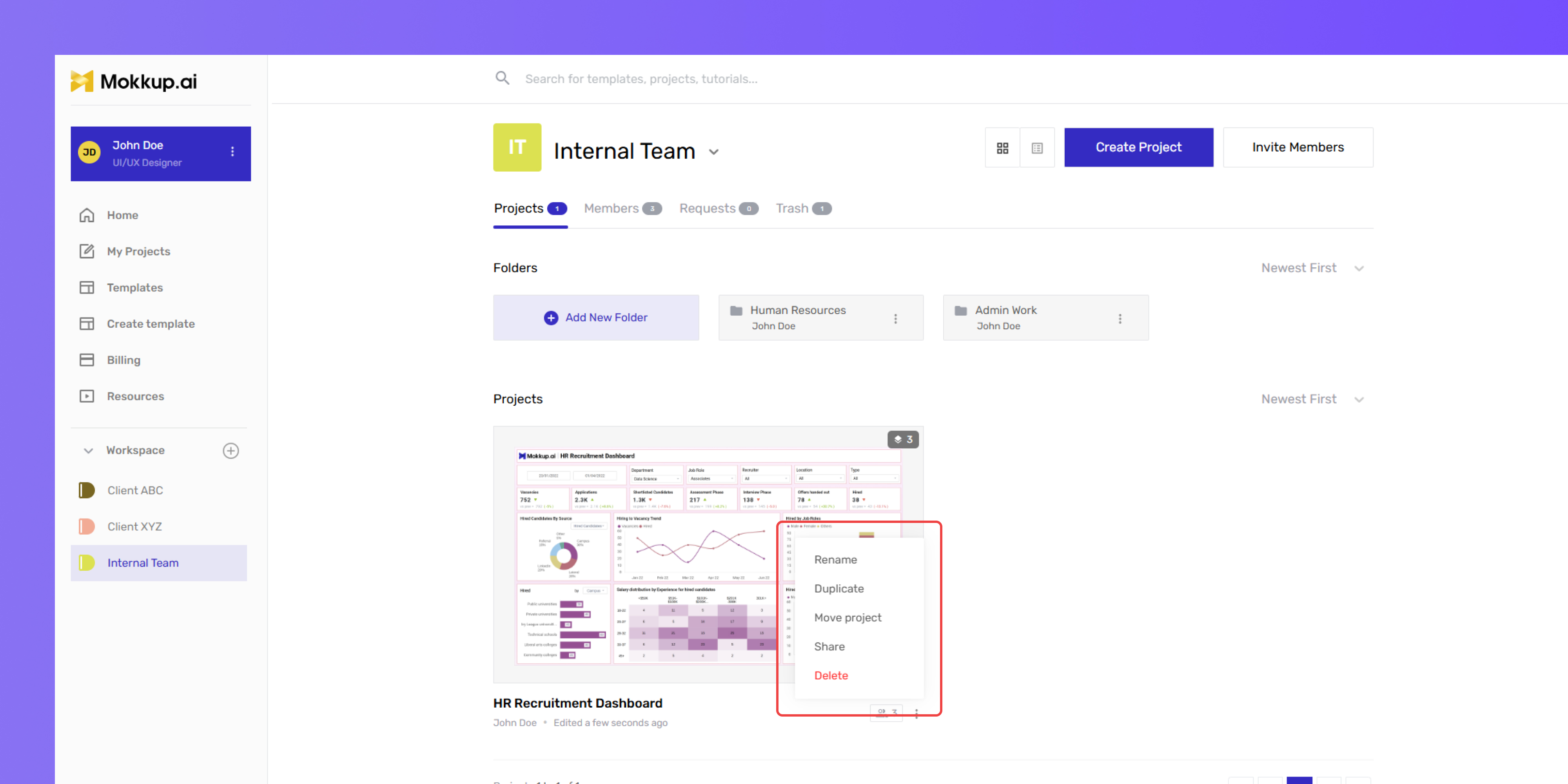
- Can create, edit, move, duplicate, and rename projects and folders.
- Can transfer ownership of projects and folders.
Permissions & Sharing
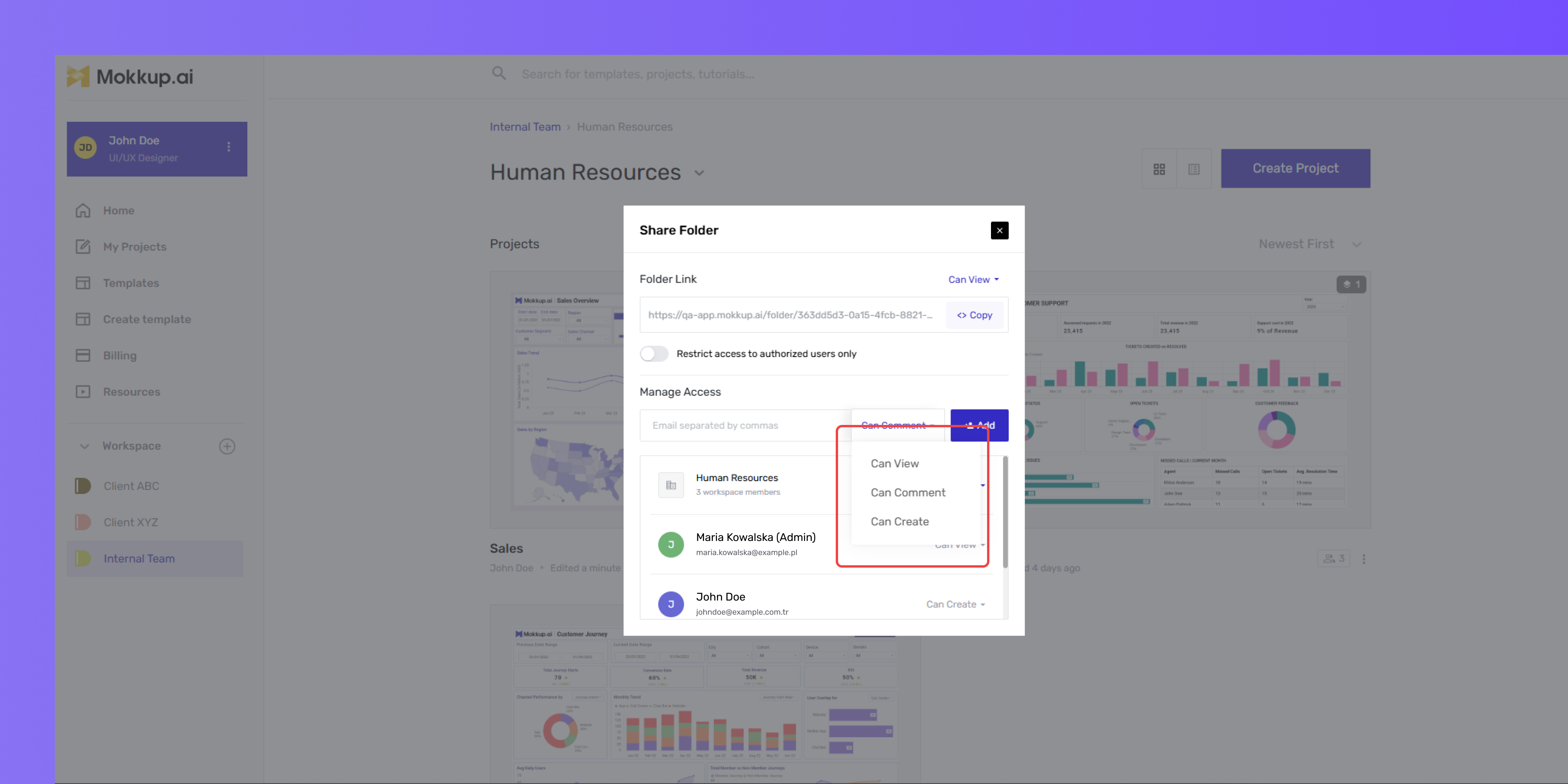
- Can set permission levels to manage access for viewing, editing, or managing projects and folders.
- Can do everything except edit another user’s projects unless ownership is transferred.
Ownership & Restoration
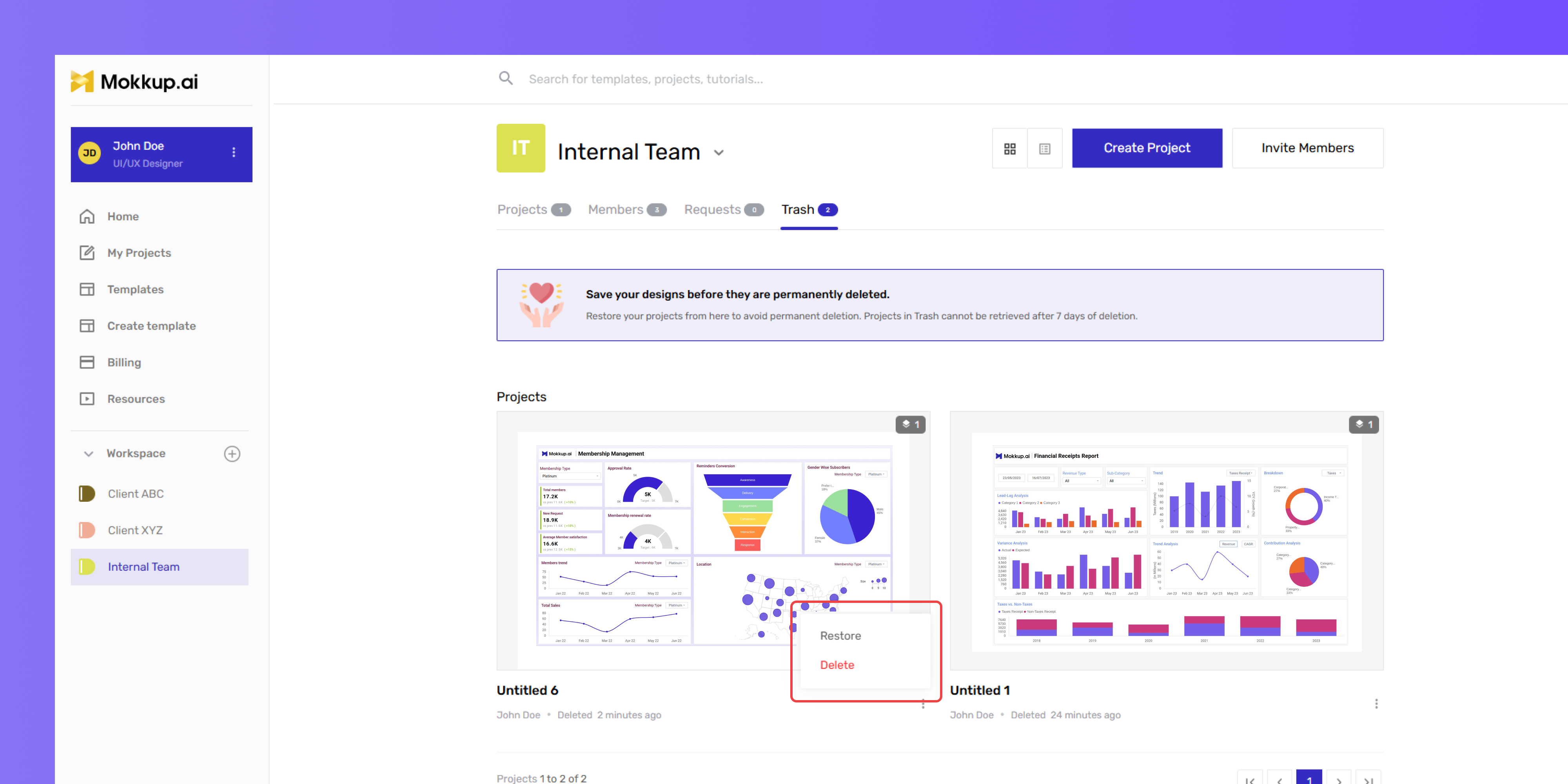
- Can restore a team.
- Can restore another creator’s project from the trash.
Any user, whether free or Pro, can create a workspace in Mokkup. However, free workspace admins have limitations on certain actions, especially around project and folder management. Here's a comparison of what Free and Pro Workspace Admins can do within the workspace:
1. Workspace Management:
- Free admins: Can create & delete workspace, invite members into the workspace, transfer workspace/team ownership
- Pro admins: Can create & delete workspace, invite members into the workspace, transfer workspace/team ownership
2. Project & Folder Management:
- Free admins: Cannot create, edit, move, duplicate, or rename projects/folders
- Pro admins: Can create, edit, move, duplicate, and rename projects/folders
3. Access & Permissions:
- Free admins: Can view & comment on other projects. Cannot transfer ownership of projects/folders, cannot set permissions on folders/projects, cannot restore deleted projects. Can only comment on projects in the workspace.
- Pro admins: Can view & comment on other projects. Can transfer ownership of projects/folders, set permissions on folders/projects, and restore deleted projects. Can do everything except edit others' projects unless ownership is transferred.
4. Sharing & Team Management:
- Free admins: Can add/remove members in the workspace and share projects/folders.
- Pro admins: Can add/remove members in the workspace and share projects/folders.
Transitioning from Pro to Free
When a user in a workspace transitions from Pro to Free, their permissions will be adjusted based on the Free plan's limitations. They will lose access to Pro-only features, such as creating and editing projects, setting project permissions, and managing folders. However, they will still retain view or comment access to shared projects, depending on their assigned role. If they were a Workspace Admin, they can continue managing member access and settings, as this role is available to both Free and Pro users.
Workspace Projects
- Cannot edit or open their own projects.
- Can view or comment on projects shared with them based on ‘Can Manage’ permission.
Deleting a Workspace
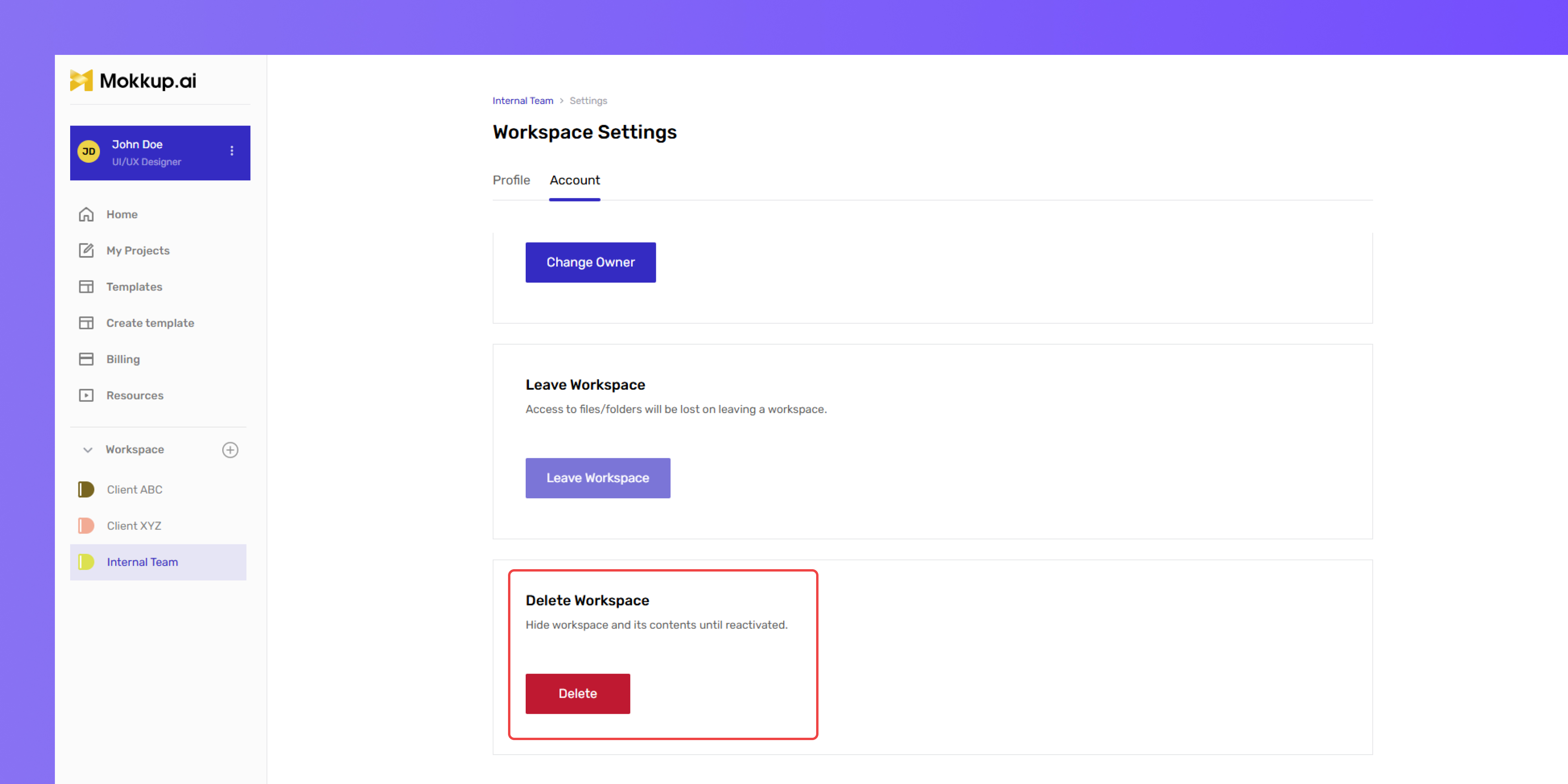
- Only the Workspace Admin can delete a workspace.
- A 28-day recovery period is available before permanent deletion.
Transferring Workspace Ownership
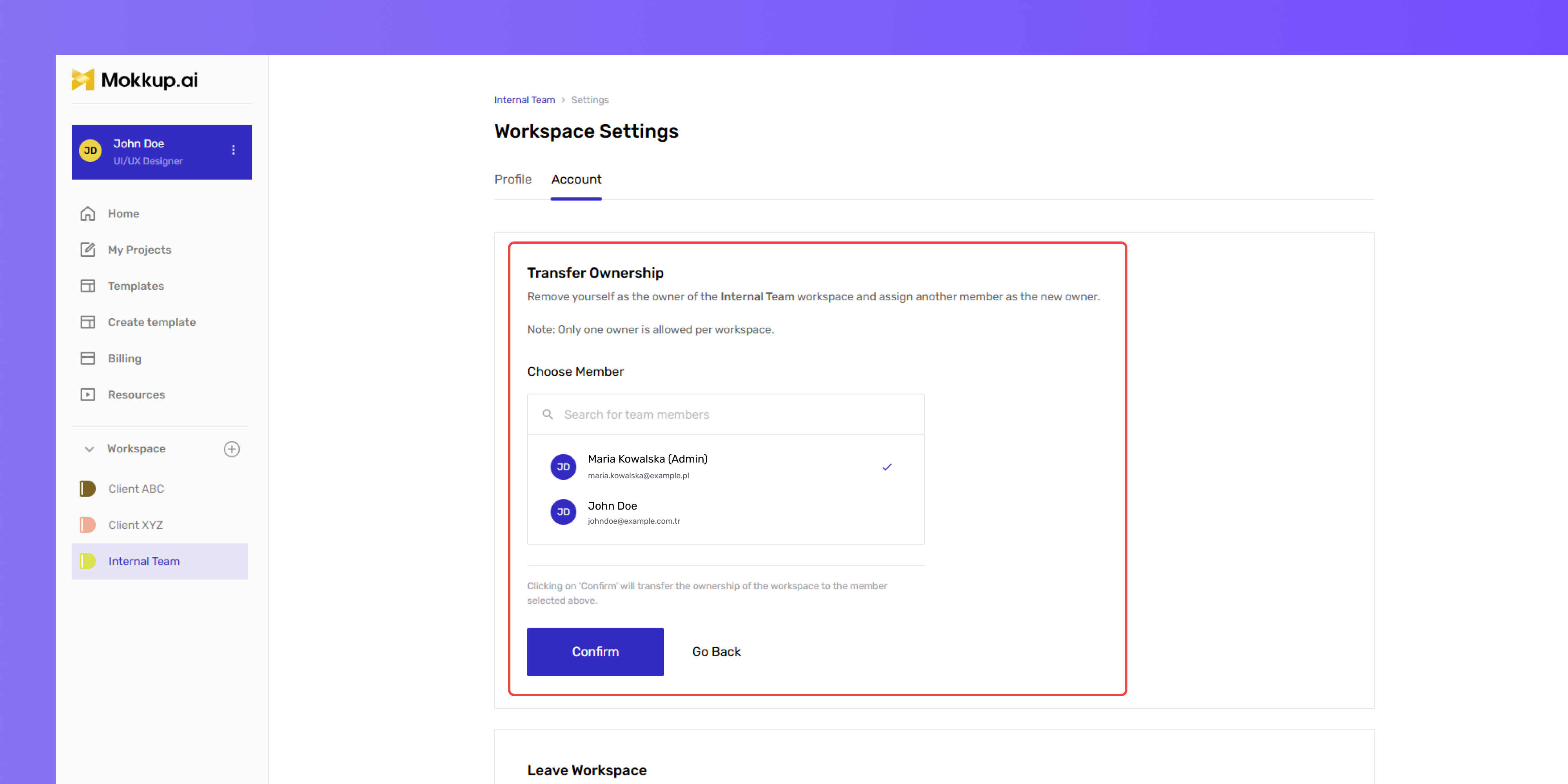
- A workspace can only have one admin at a time.
- Ownership must be transferred before a workspace admin leaves the team.
- Transferring ownership automatically grants full Admin rights to the new admin.
Moving Projects and Folders Between Workspaces
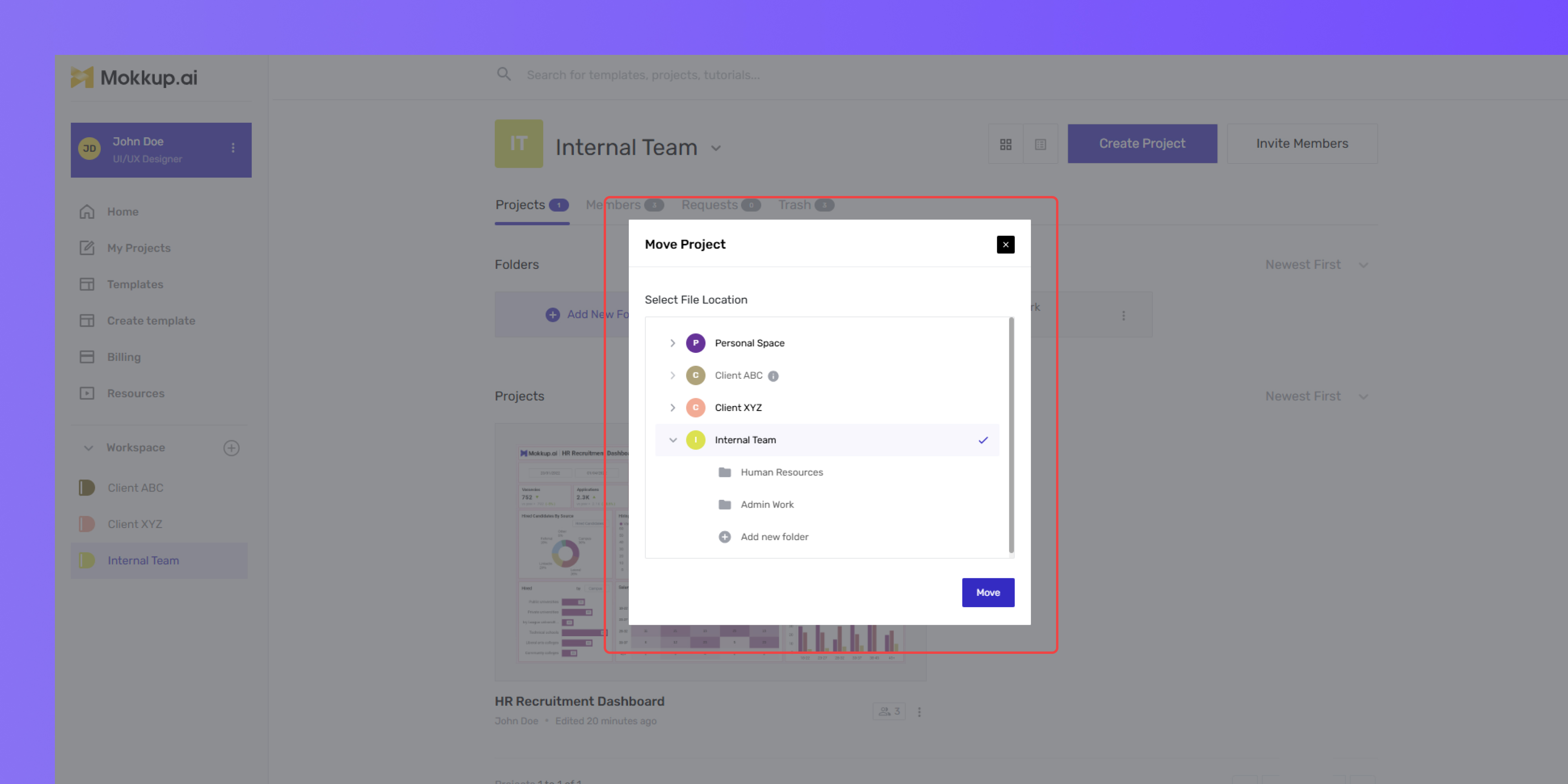
- Workspace Admins can move Projects and folders across workspaces.
- Project/Folder Owners need approval from both workspace admins to move Projects.
- Transferred Projects inherit the permissions of the destination workspace.
- Projects can be moved from a Personal workspace to a Team Workspace only by a Pro Workspace Admin or Creator in the destination workspace.
Trash Management
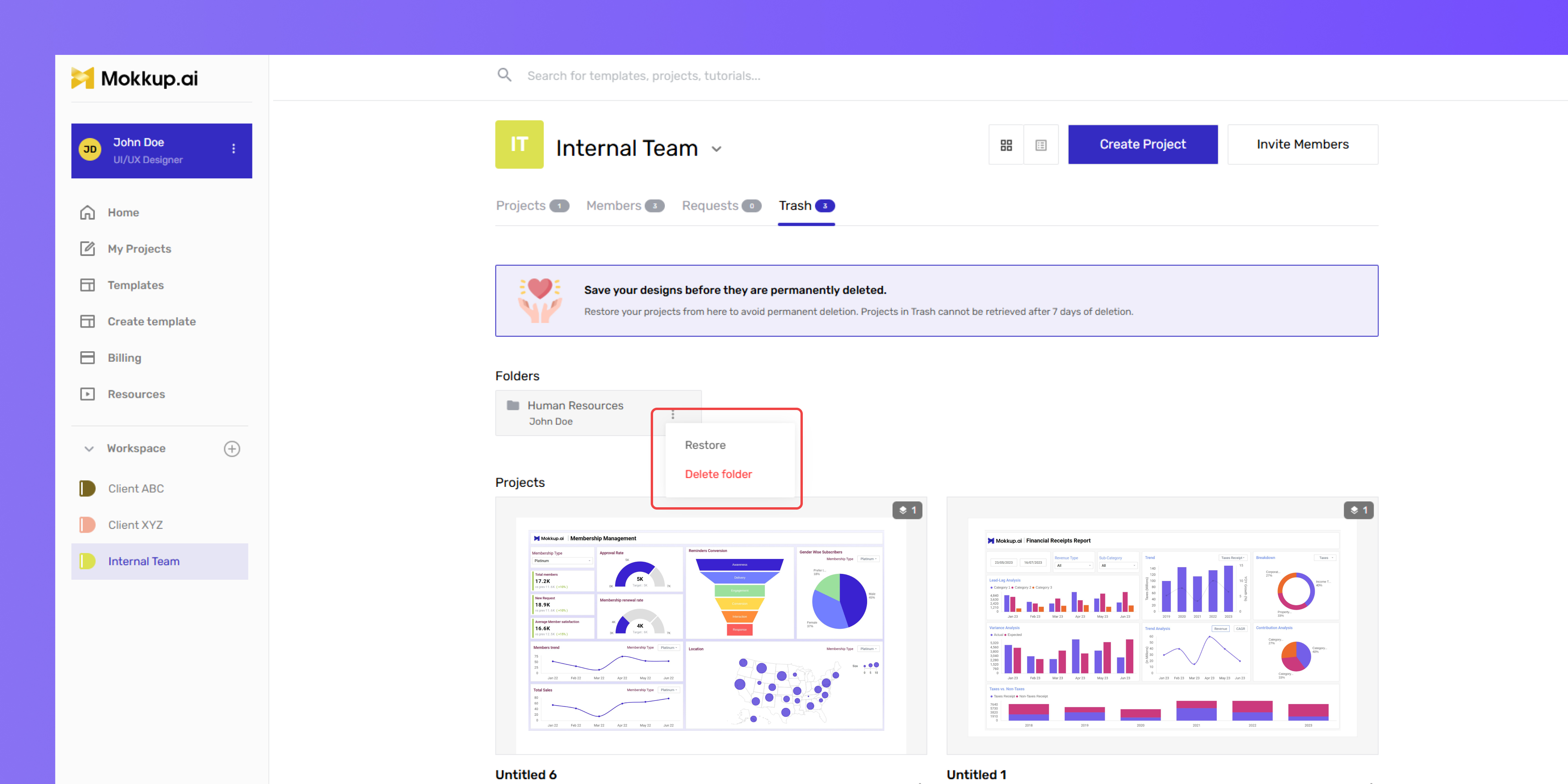
- Pro Workspace Admins: Can see, restore, and delete projects of all members.
- Pro Creators: Can only restore their own projects.
- Free Admins and Creators: Cannot restore their own or others' projects.