

Upgrading to the Enterprise Plan
The Enterprise Plan is designed for teams that want unlimited access to Coins without worrying about top-ups or usage limits. It provides a predictable annual billing model and unlocks advanced admin controls, simplified member management, and a friction-free experience for every licensed user in your team.
If you're ready to upgrade your existing Pro or Teams subscription to the Enterprise Plan, this guide walks you through each step, from accessing the upgrade flow to understanding proration, Stripe Balance credits, and how licenses are automatically reassigned.
Upgrading to the Enterprise Plan
Step 1: Go to the Billing Section
- Open your browser and go to Mokkup’s homepage.
- Click on the Pricing tab from the menu.
- Scroll to find the "Mokkup Enterprise" option.
- Alternatively, log in to your Mokkup account.
- Click on Admin from the left navigation panel → Individual tab → Billing tab
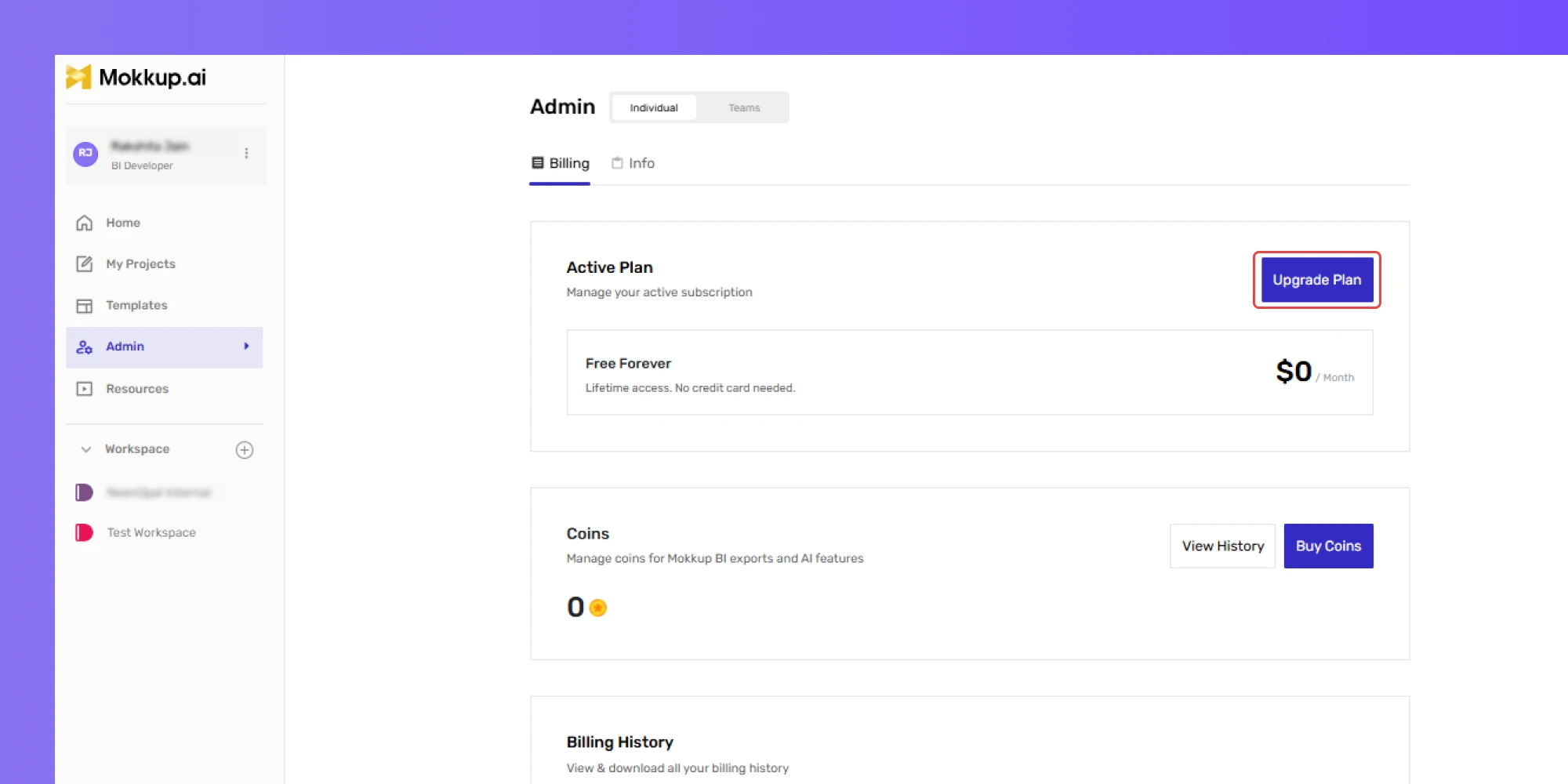
Note: If you're currently part of a team, you’ll see your team’s billing details at the top.
Step 2: Start the Upgrade Flow
- Look for the ‘Enterprise Plan’ upgrade banner or button.
- Click ‘Upgrade to Enterprise’.
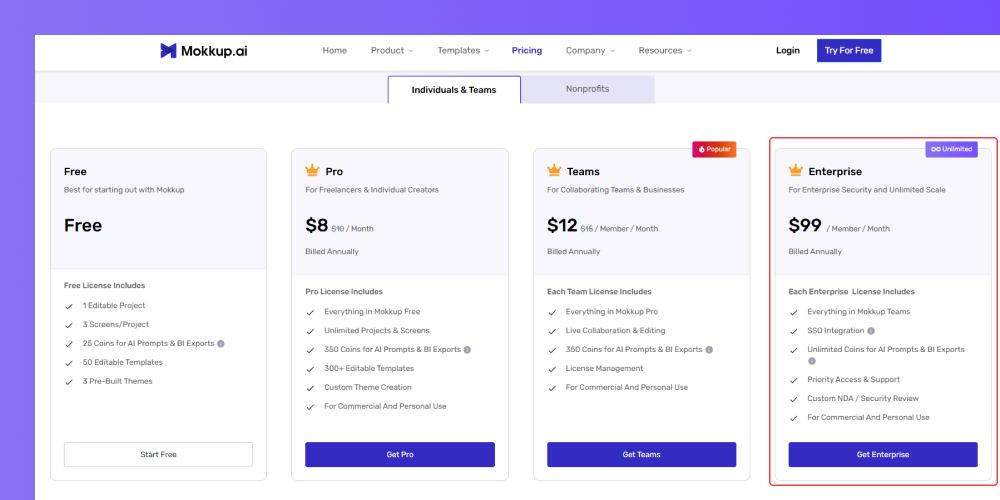
Note: If you are not a Team Admin, you will see a message requesting that you contact your Team Admin to initiate the upgrade. Non-admin users cannot upgrade on behalf of the team. Or you can leave the current team and then start with the enterprise
Step 3: Review Your Team & License Details
When you enter the upgrade screen, enter your Company Name and Enterprise Image (optional).
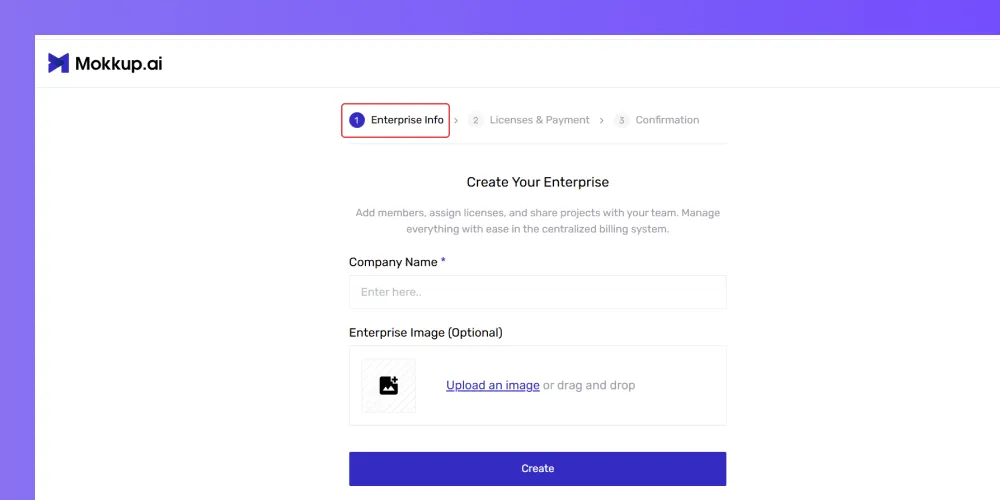
- Pre-fills the number of Enterprise Plan licenses to match your existing Pro licenses
- Shows your current billing cycle
- You can increase or reduce licenses as needed.
Note: A minimum license requirement does not apply. You can upgrade even with a single license.
Step 4: Complete the Checkout
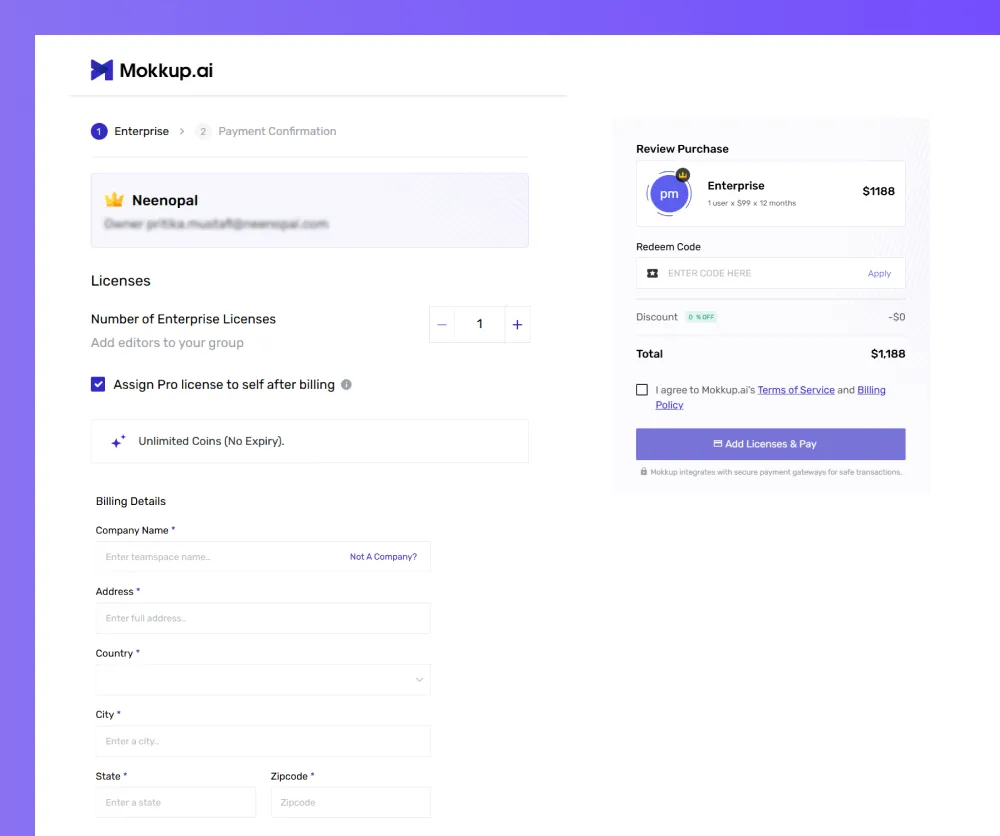
- Review your total payable amount
- Confirm the number of licenses you want to purchase under the Enterprise Plan.
- Enter your Billing Details (Company Name, Address, Country, City, State, Zipcode).
- Agree to Mokkup.ai's Terms of Service and Billing Policy.
- Click Add Licenses & Pay.
- Complete the payment on the next screen.
Once processed, you'll receive confirmation that your team is now on the Enterprise Plan.
What Happens After You Upgrade
1. All Team Pro Licenses Convert to Enterprise Licenses
- If you purchased an equal or higher number of Enterprise seats, all current Pro users become licensed Enterprise users automatically.
- If you purchased fewer seats:
-
- The system revokes licenses from the most recently assigned users first.
- Their status changes to Free User.
2. Additional Coin Purchases Are Disabled
- Enterprise users have Infinite Coins: no top-ups are needed.
- No one in the team will be able to purchase additional Coins.
- Buy Coins buttons and Request Coins options will not be available for Enterprise members.
Frequently Asked Questions
1. Can I upgrade mid-cycle?
Yes, upgrades are allowed anytime.
2. Can I buy fewer licenses than my current users?
Yes, but excess users lose license access immediately.
3. Can I switch back to the Teams Plan?
Only at renewal.
4. Will unused Coins be refunded?
No. All refunds are applied to the Stripe Account Balance and used for future payments.