

Adding & Removing the Team License
Managing your team’s Mokkup license count is simple, allowing you to increase or reduce the number of Pro licenses as needed. Here’s how:
Adding the Team License
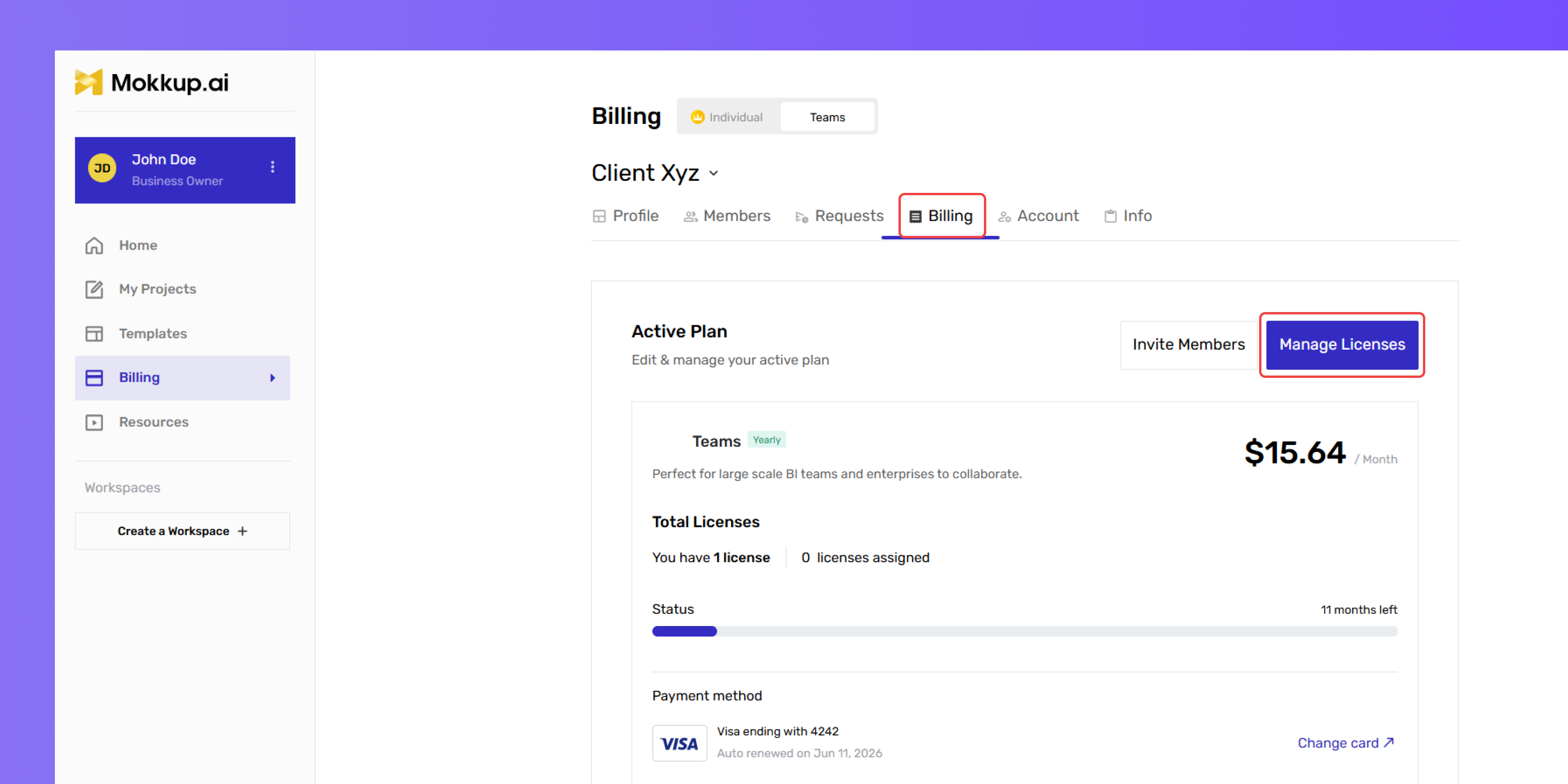
- Go to the Billing section under your plan settings.
- In the Active Plan section, click on Manage Licenses.
-
On the Manage Licenses page (as shown below), adjust the total number of licenses.
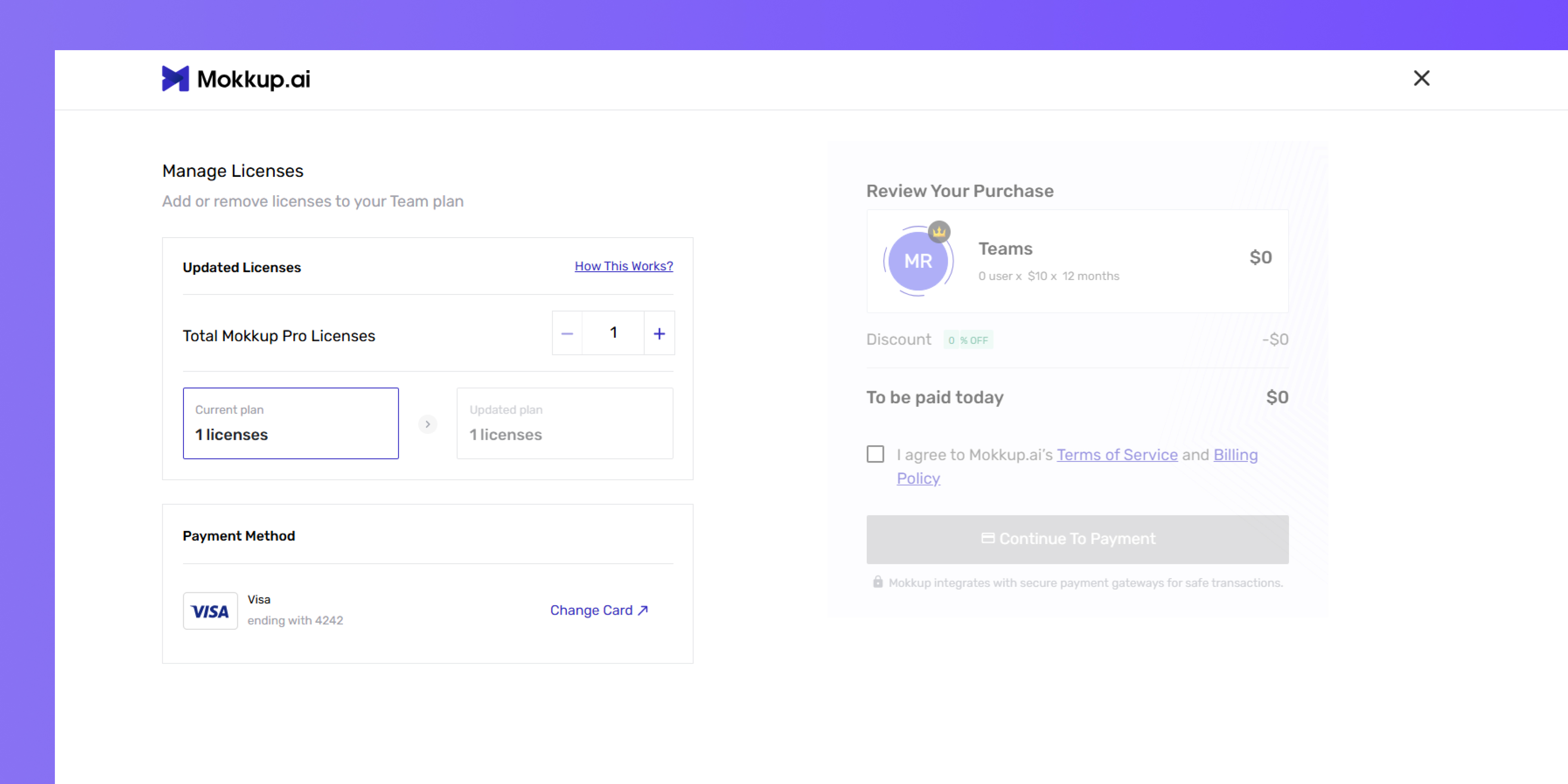
- Confirm the changes to increase the license count.
- Check your email for a confirmation notification.
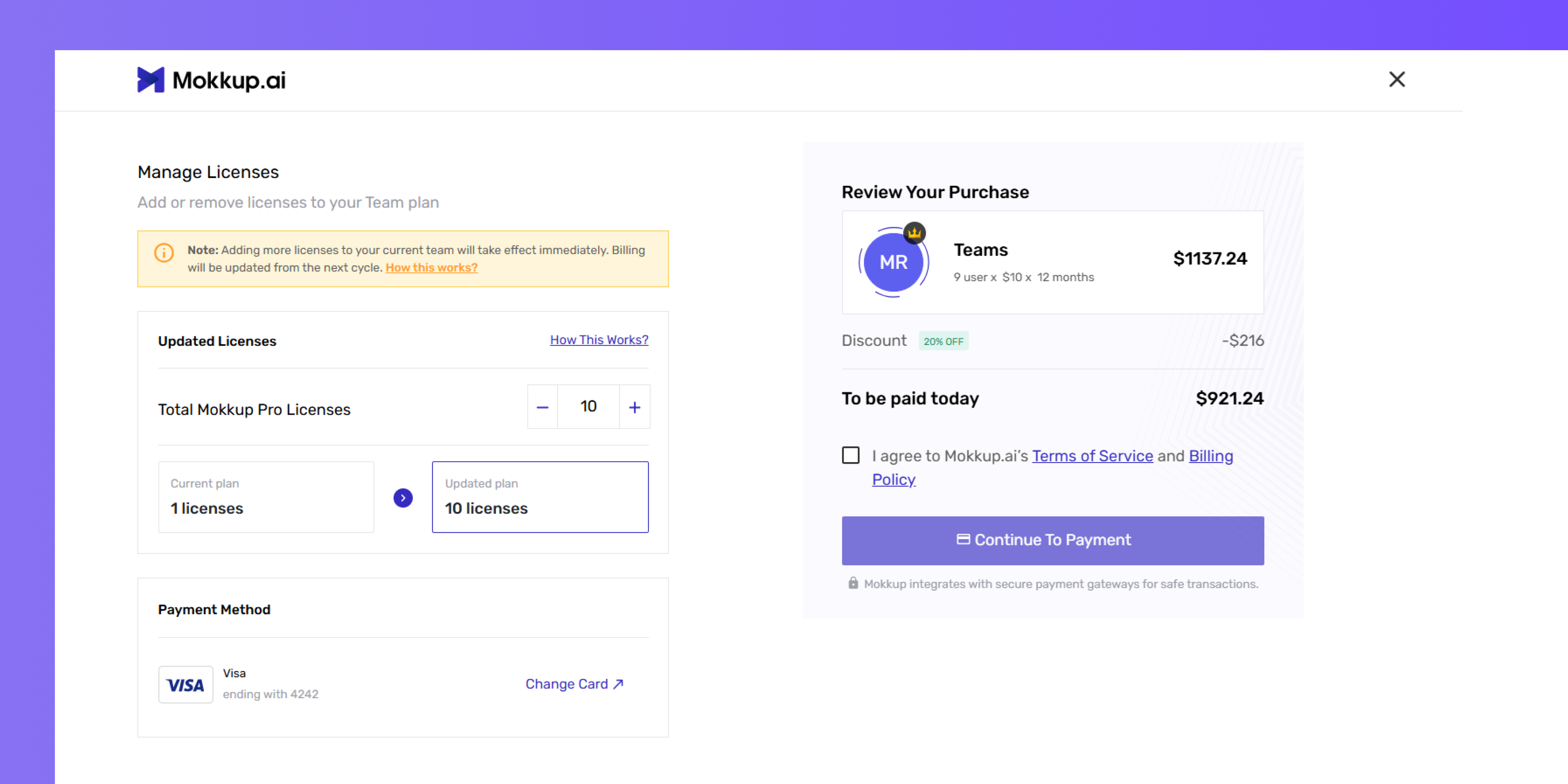
Note: Billing for the additional licenses will be calculated on a pro-rata basis.
Removing the Team License
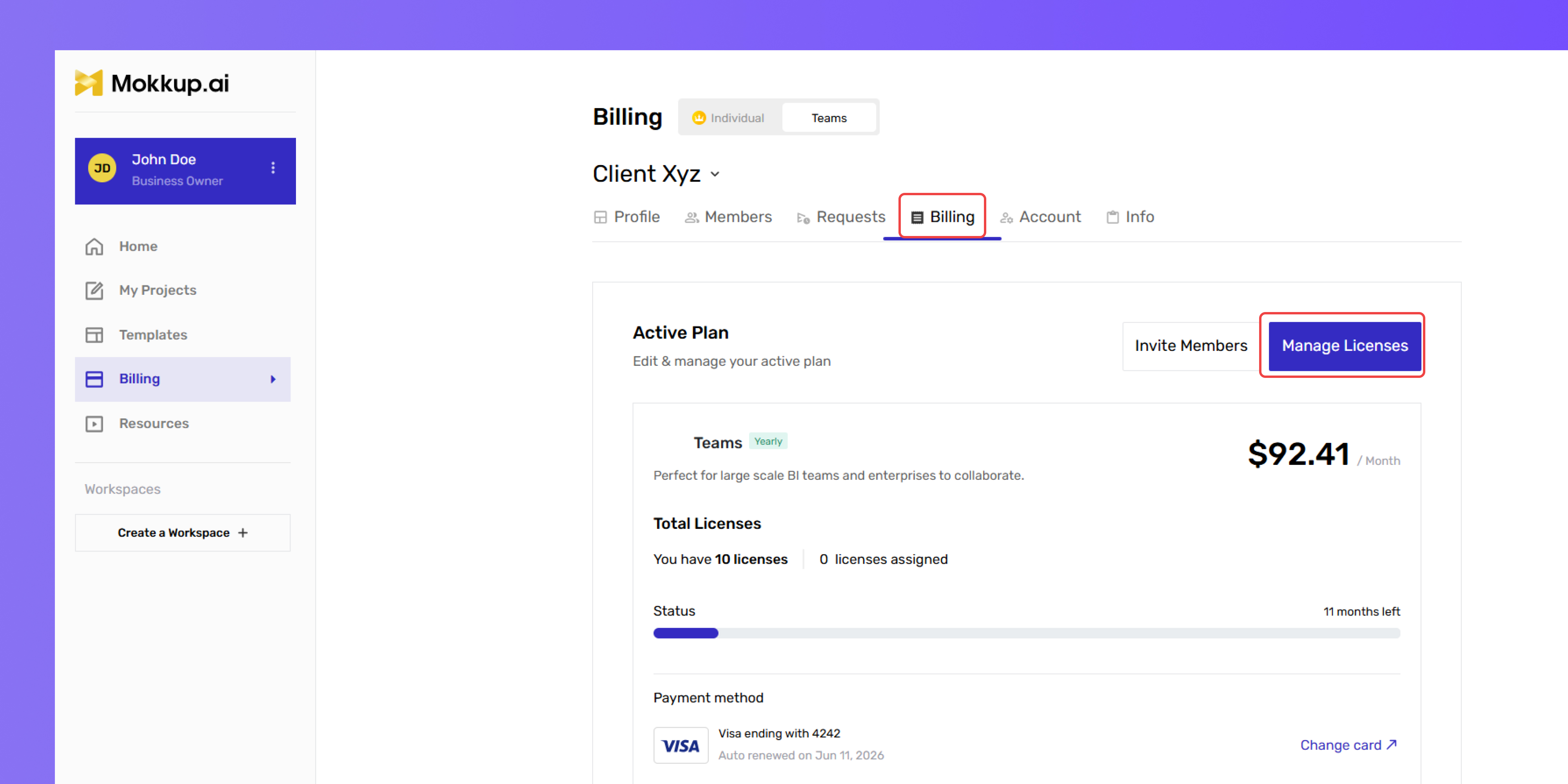
- Open the Billing section under your plan settings.
- Click on Manage Licenses in the Active Plan section.
-
On the Manage Licenses page (as shown below), adjust the total number of licenses.
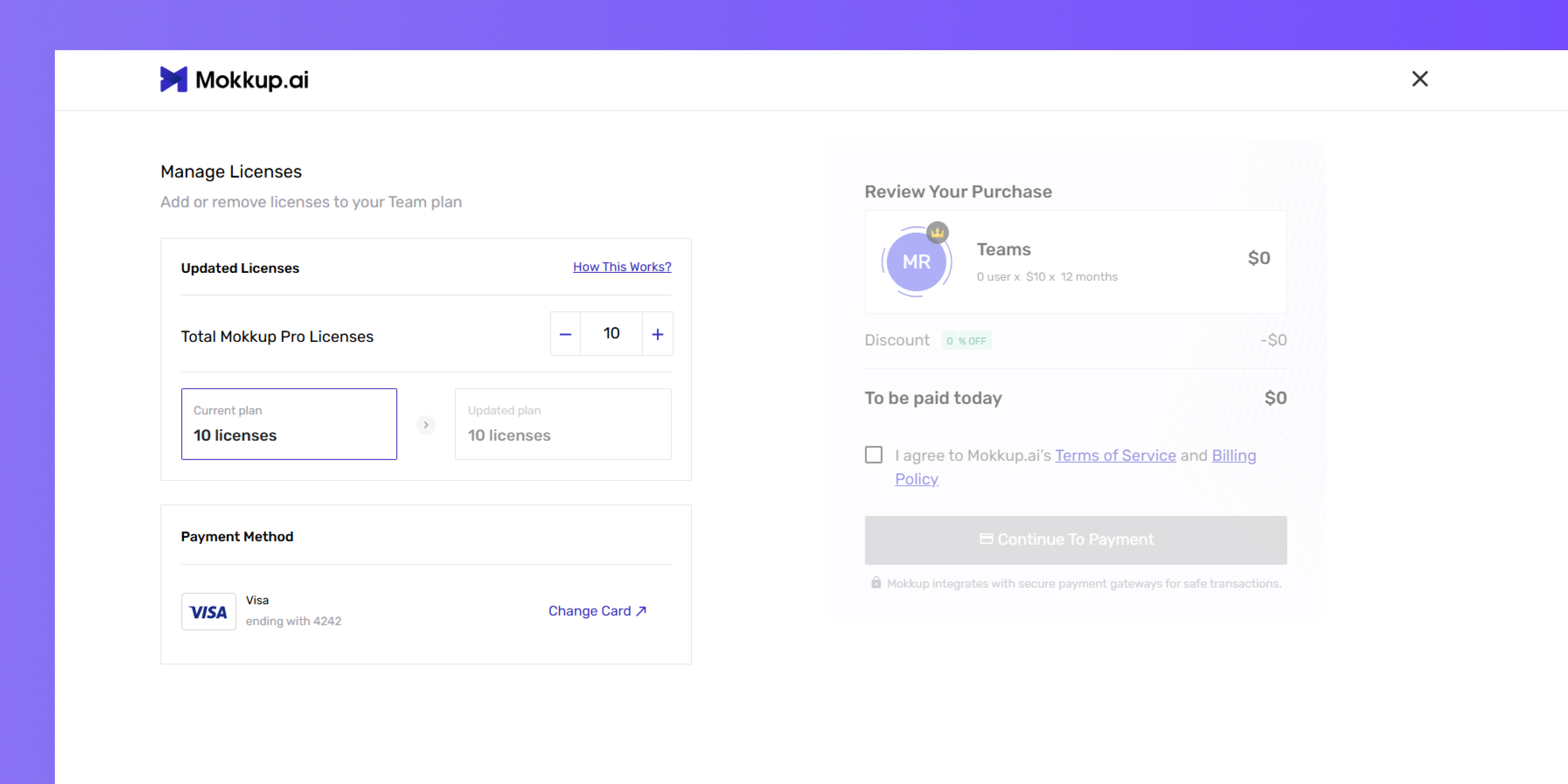
- Reduce the total number of licenses using the decrement (-) button.
- Confirm the downgrade.
Please note, that removing licenses won’t affect the current billing cycle. Billing will be updated from the next cycle.
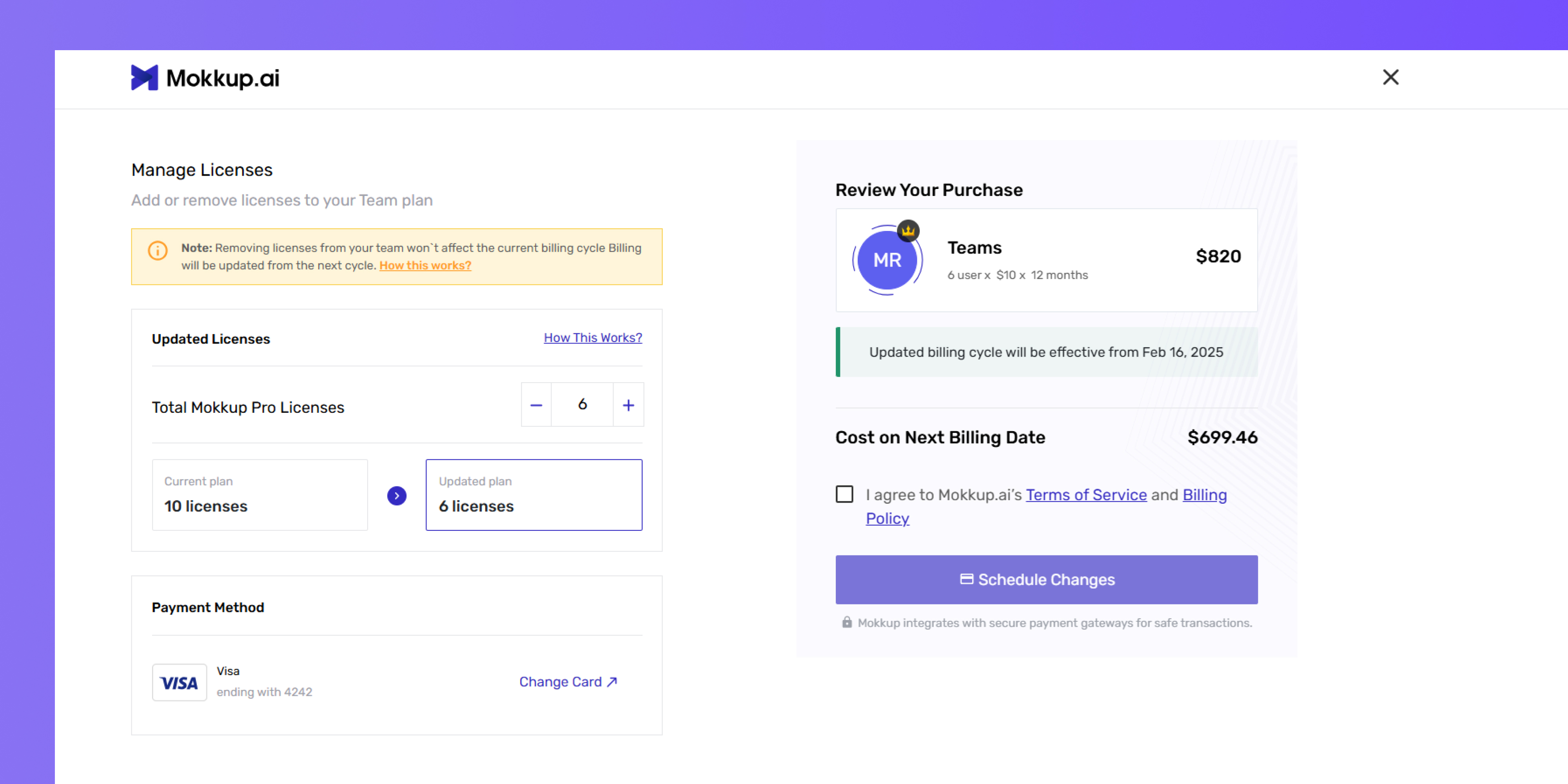
Tip: The total charge may vary based on the final license count.