

Two-Factor Authentication
Two-factor authentication provides an extra layer of security to protect your account from unauthorized access. By combining a password with a secondary verification step, it ensures that only verified users can access sensitive information. This guide walks you through setup, backup options, and troubleshooting tips, offering a secure experience while addressing practical scenarios for seamless data protection.
Here’s a step-by-step guide for setting up Two-Factor Authentication (2FA) on Mokkup.ai:
Step 1: Access Security Settings
Log in to your Mokkup.ai account and go to your Account Settings.
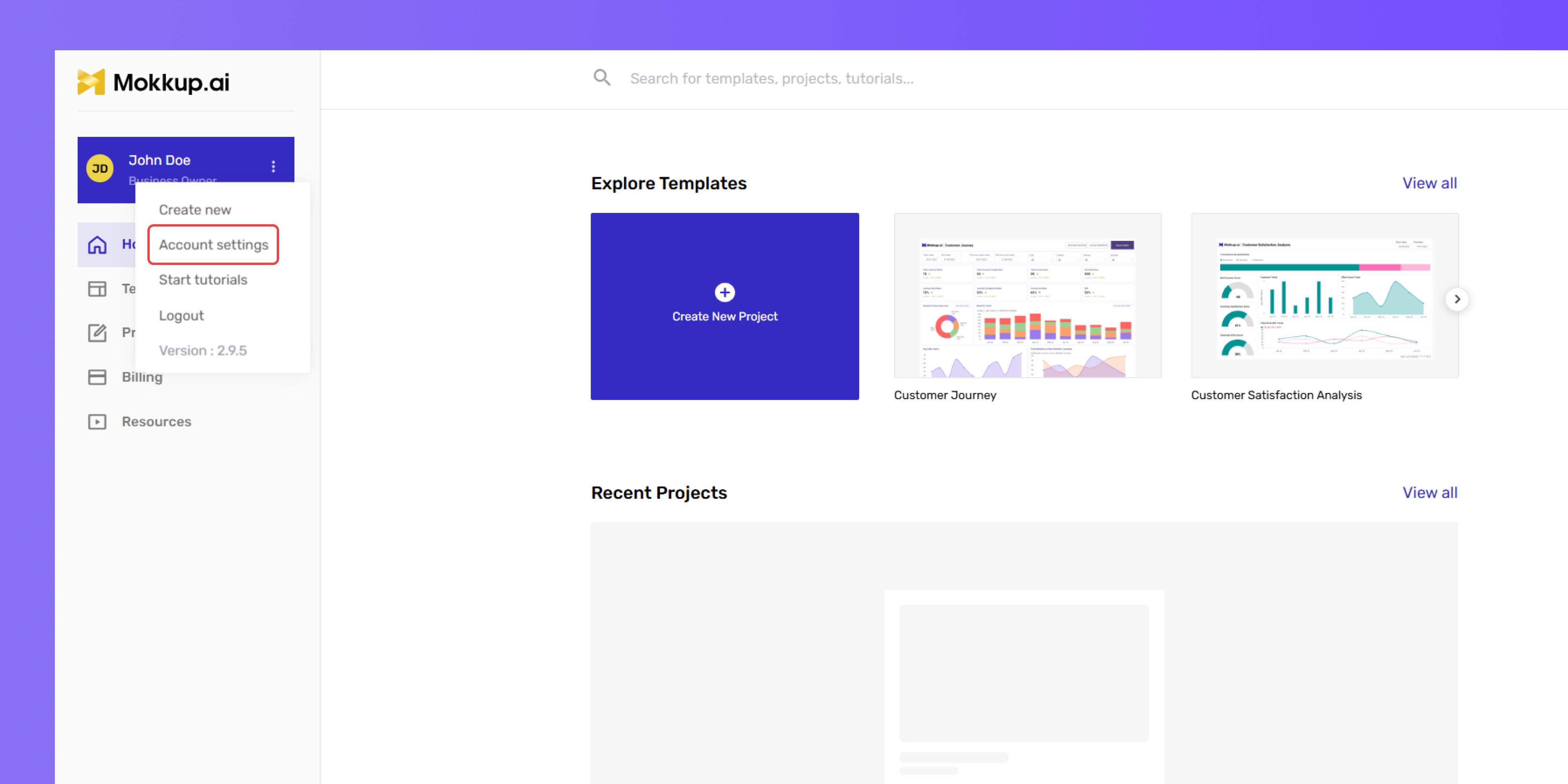
Navigate to the Security tab, where you’ll find the Two-Factor Authentication (2FA) option.
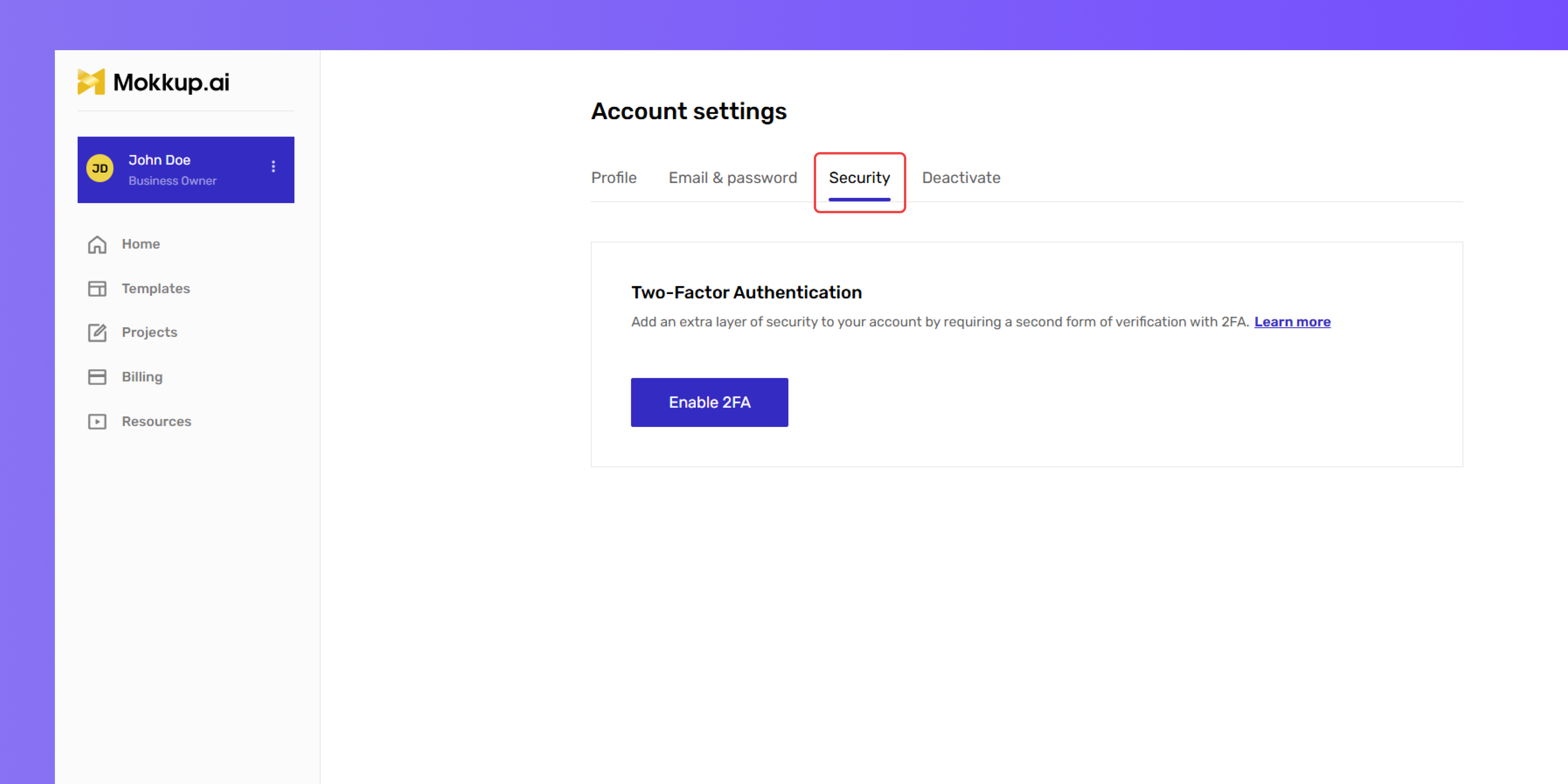
Step 2: Enable 2FA
Under Two-Factor Authentication, click Enable 2FA.
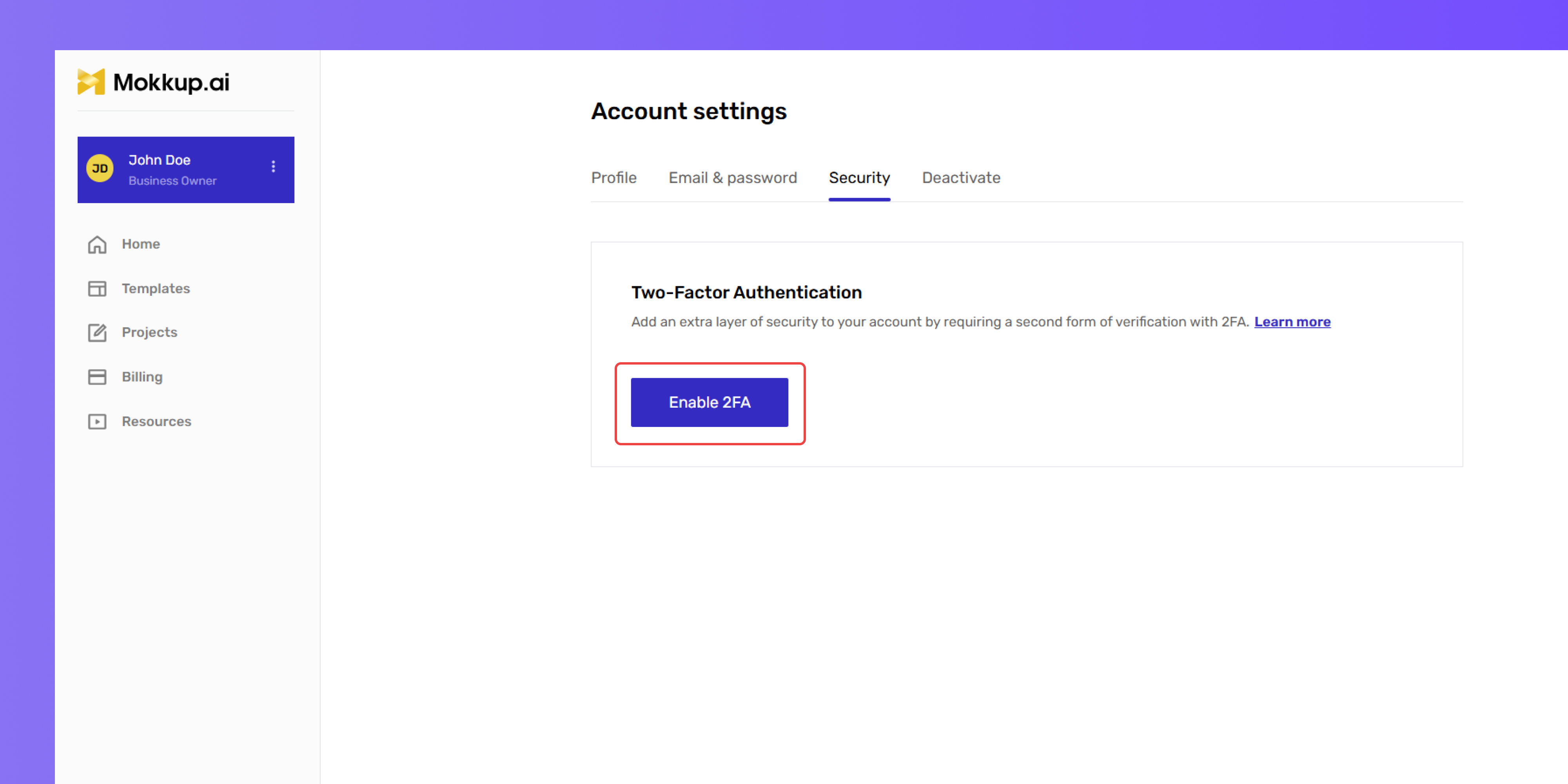
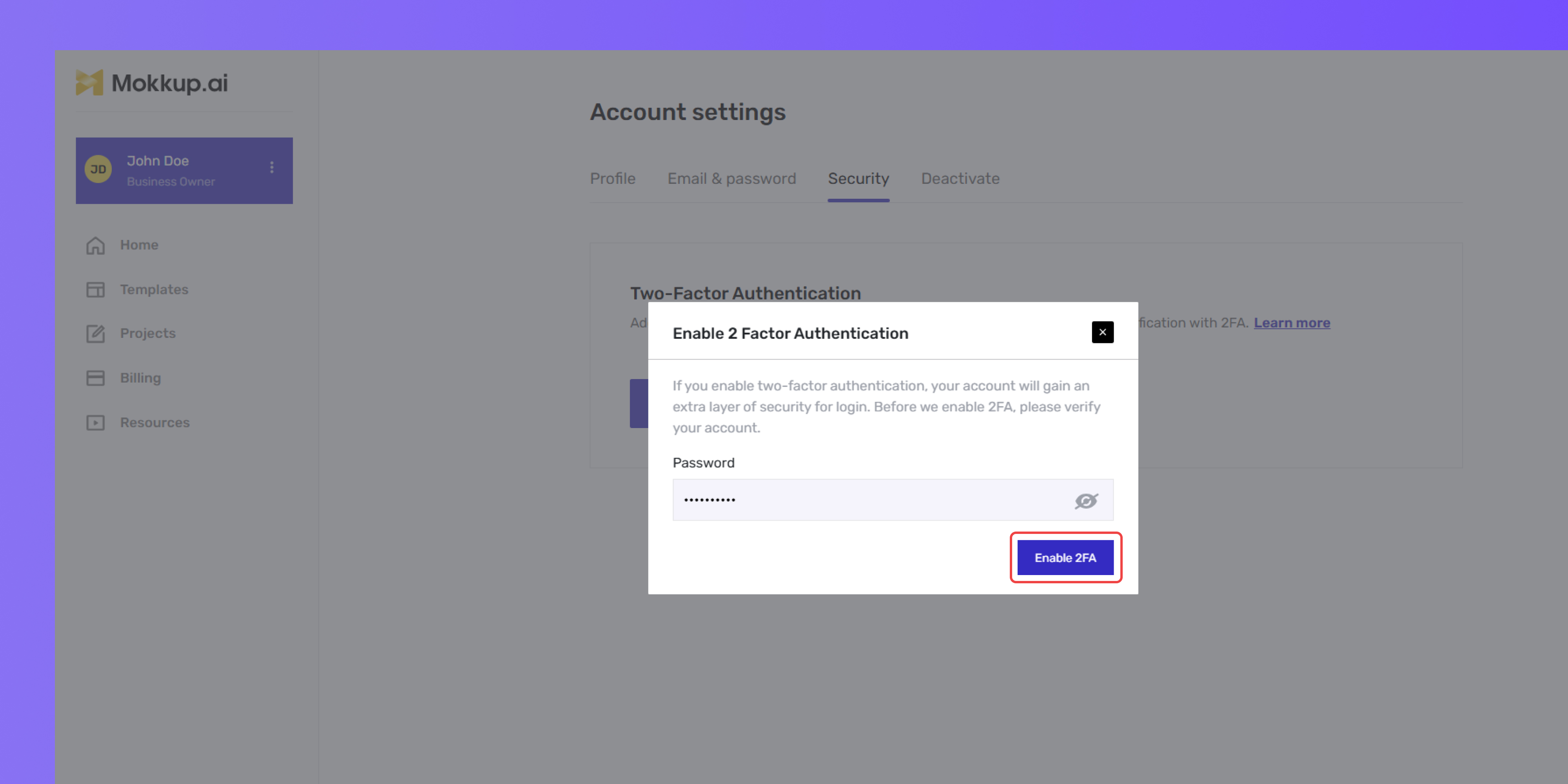
A pop-up window will appear; enter your password, then click on enable to confirm the setup process.
Step 3: Connect Authenticator App
To set up 2FA, download an authenticator app of your choice, such as Google Authenticator, Microsoft Authenticator, Authy, LastPass, or 1Password.
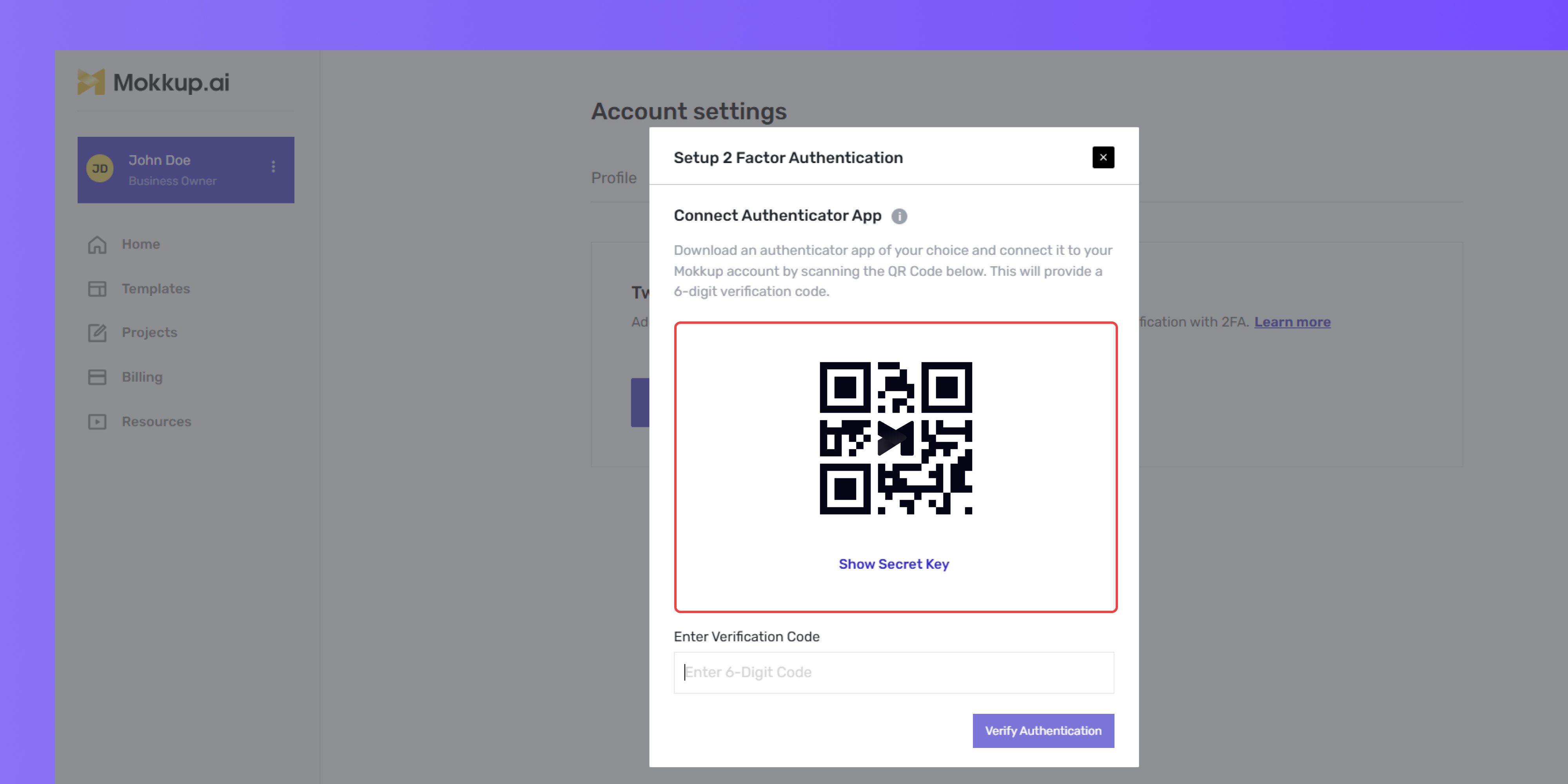
Connect it to your Mokkup account by scanning the QR code, which will provide you with a 6-digit verification code.
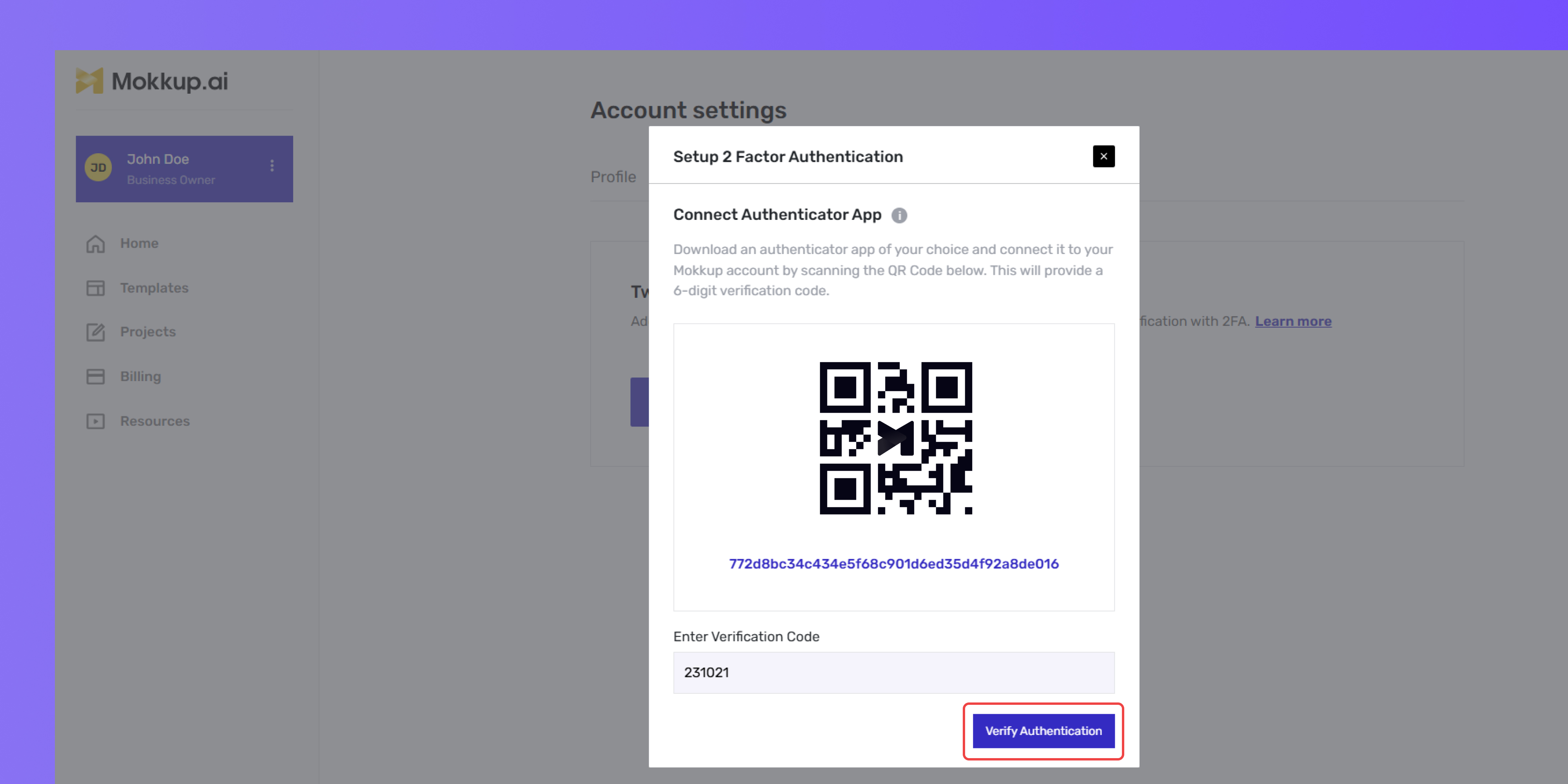
Step 4: Set Up Backup Options
After enabling 2FA, set up backup codes for added security. Download or write down these codes and keep them in a secure place. These codes act as a backup if you lose access to your authenticator app, allowing you to log in without the authenticator app.
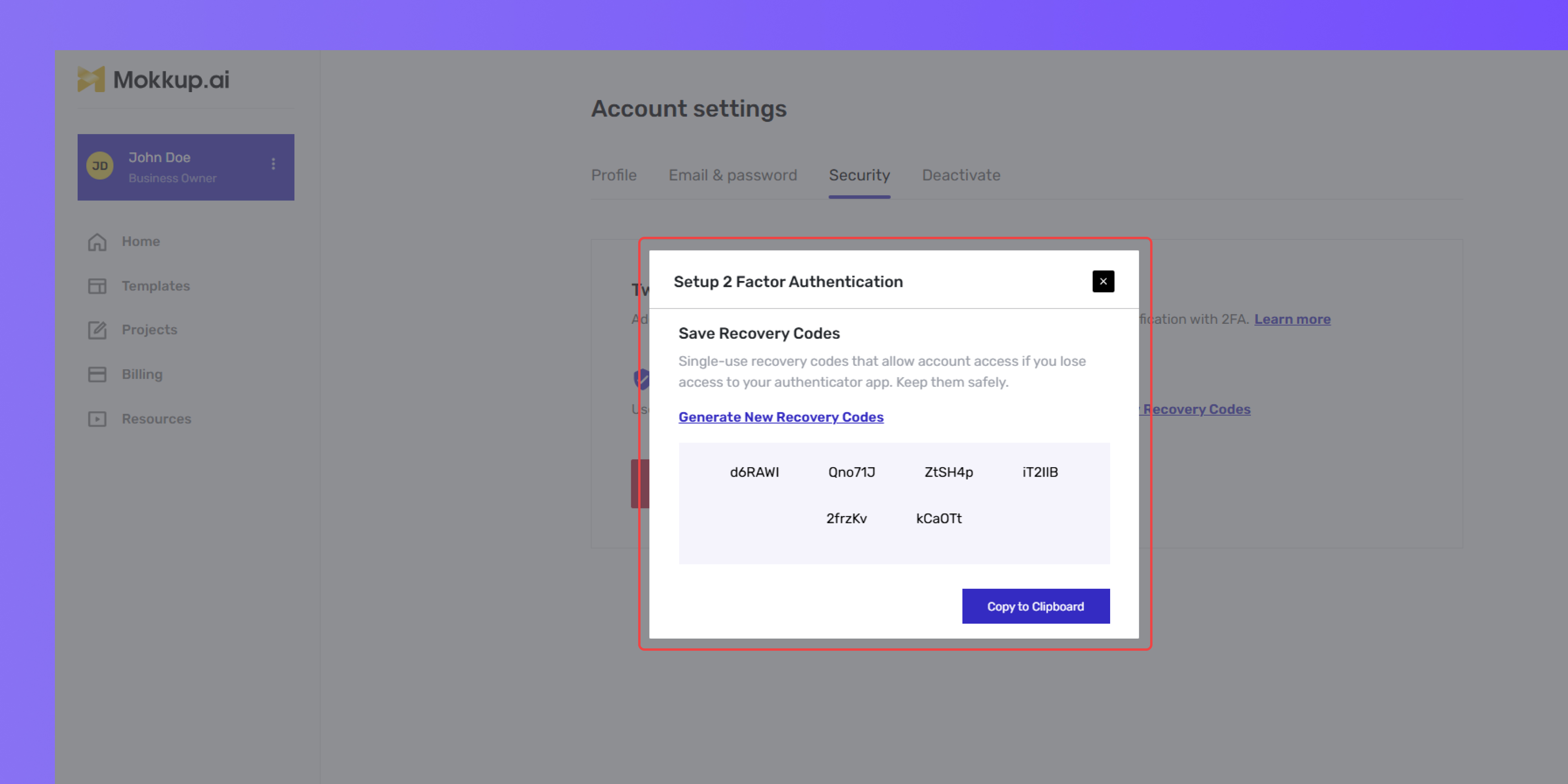
Step 5: Test 2FA
To ensure everything is set up correctly, log out and attempt to log back in.
After entering your password, you’ll be prompted to complete the 2FA step.
Backup Codes
Setting up backup codes is an extra layer of security that ensures you have access to your account even if your primary Two-Factor Authentication (2FA) method becomes unavailable. Here’s how backup codes work and how to manage them effectively:
Generate Backup Codes
After enabling 2FA, you’ll have the option to generate a set of backup codes. Each backup code is unique and can be used once if you can’t access your account through the authenticator app.
Regenerate Codes When Needed
You can regenerate backup codes whenever necessary, but keep in mind that each time you generate new codes, your previous ones become void and cannot be used again. This ensures that only your latest set of codes remains valid.
Password Verification for Code Regeneration
For added security, you’ll be prompted to enter your account password before generating new backup codes. This verification step prevents unauthorized code regeneration.
Store Codes Securely
Download or write down your backup codes and keep them in a secure place, as they are your alternative way to access your account if 2FA is unavailable.
Using backup codes offers flexibility in accessing your account while keeping it secure. It ensures that even if you lose access to your primary 2FA method, you’re not locked out.
Troubleshooting
It’s recommended that you always have both the authenticator app and backup codes available, so you don’t experience issues accessing your account. If the authenticator app isn’t accessible, use one of your backup codes to log in.
If you’re unable to log in using both the authenticator app and backup codes, reach out to Mokkup.ai support for assistance. In such cases, our team can perform a manual authentication action to disable 2FA on your account. Once this is done, you’ll be able to log in using your regular credentials.
Important Note: Passing the manual authentication step is not guaranteed and will involve verification steps to confirm your identity. Always ensure you have access to both your authenticator app and backup codes to avoid account lockouts.