

Troubleshooting
Missing Designs
There might be several reasons you can't find your designs. Let us take a look at some of the possibilities.
Tip: Your dashboard wireframes are kept in the "Your Projects" area of the dashboard, which you can access from the homepage.
1. Having More than One Account
If you use multiple accounts, you may have your dashboard wireframe designs saved in another account. Moreover, if you are a pro user, you can also check if all the pro features are accessible or not.
You can check your other accounts and the “Your Projects” sections on the home page to find your dashboard wireframe designs.
2. Deleted Your Dashboard Wireframe Design
The other closest possibility is that you deleted it by mistake. You can find all your deleted projects in the “Trash” section on the home page.
You can retrieve your deleted projects from the trash within 7 days.
Changes Not Saved
Changes to your dashboard wireframe design may not be saved due to a faulty internet connection or browser difficulties.
You can check your internet connection to see if it's stable. If your connection is not strong, you will likely lose the new changes again.
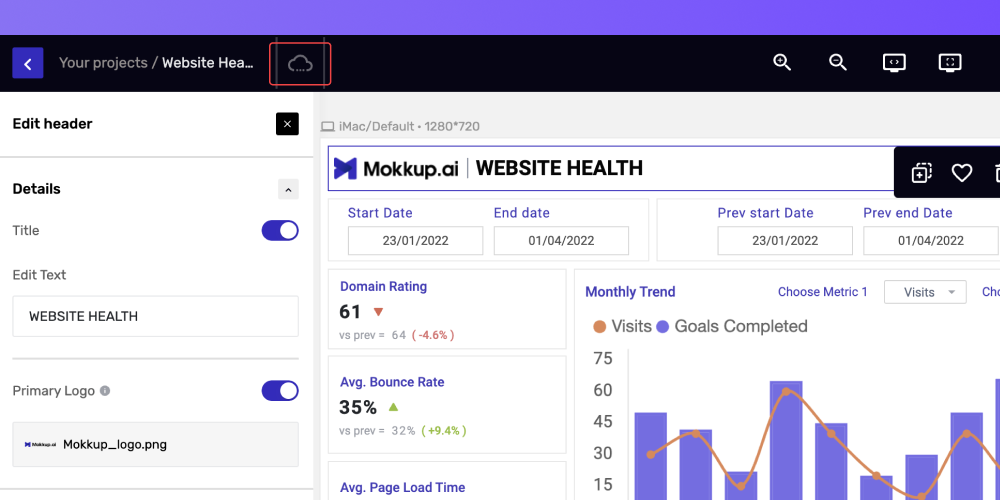
Also, at the top right corner of your dashboard wireframe, you can monitor the save icon status from here. “Saving” indicates that your changes are being saved; if you close your browser during the saving process, you might lose the changes.
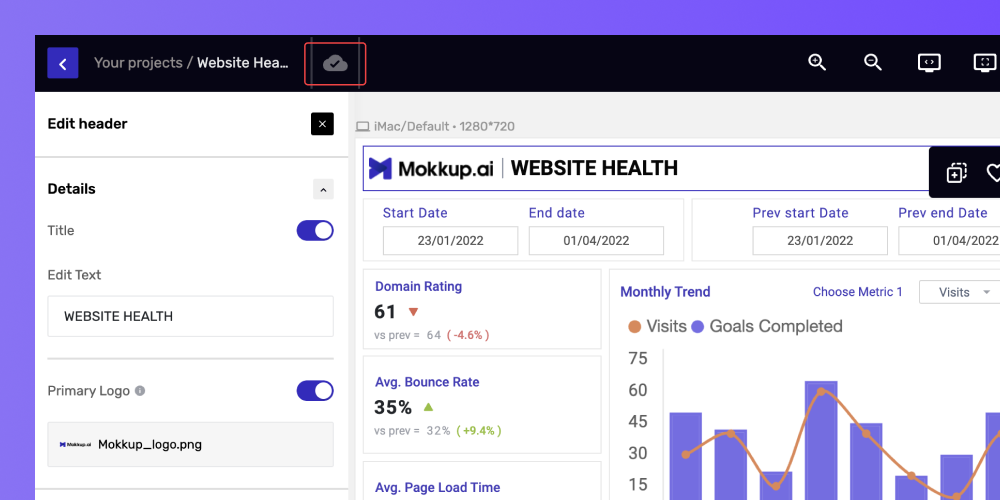
Once all your changes are saved, your save icon will change, as shown above.
Tip: Before continuing, ensure your internet connection is working properly and watch for the saving indicator to change to "All changes saved."
Offline Message Display
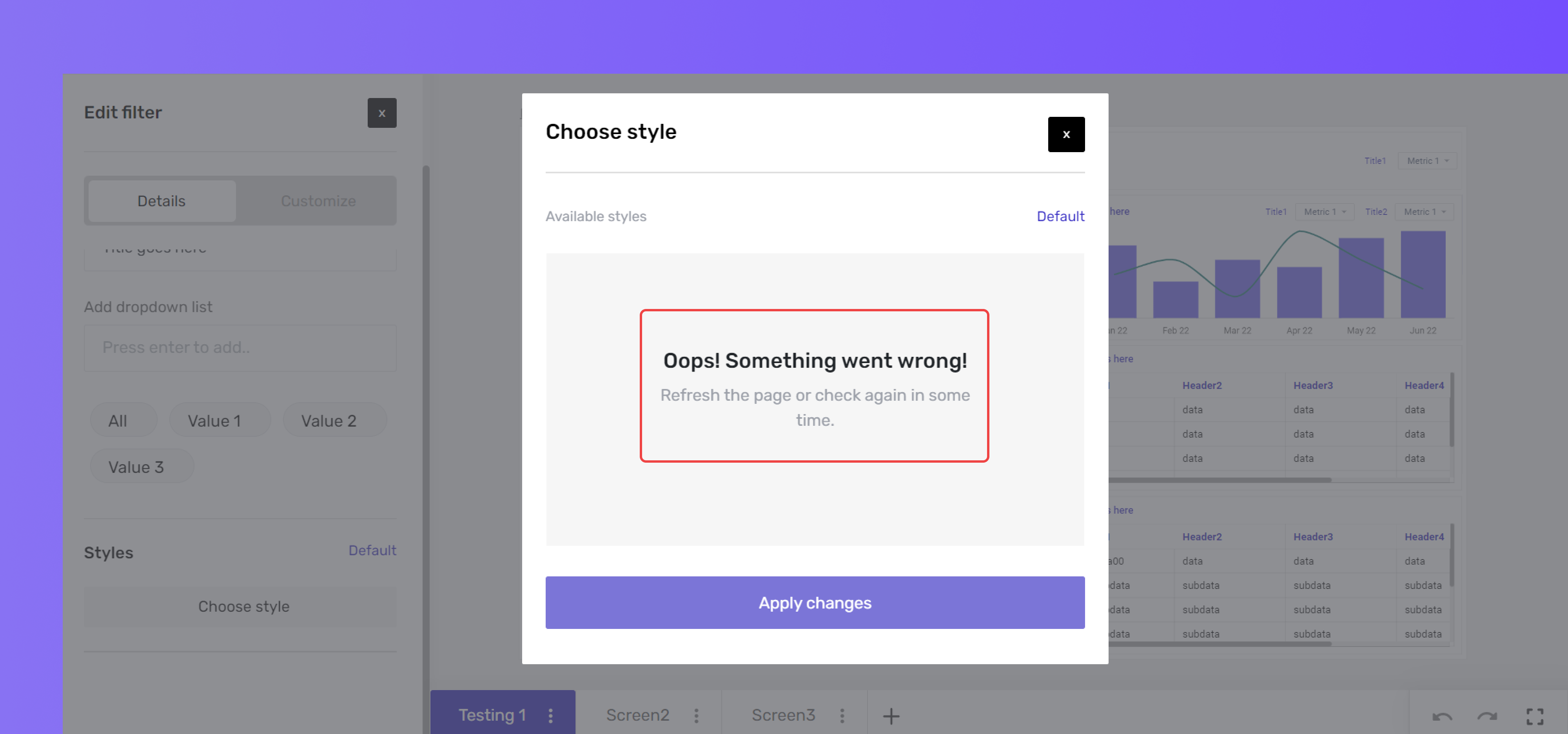 If you encounter a similar pop-up while working on your design, as illustrated above, It can be due to the following reasons:
- Internet connection instability
- Modem issues; the connection is not strong enough. You can refresh and reconnect to check the connection.
Tip: When you return to a stable internet connection, check the save icon, which should show "All changes saved."
Can’t Download the Designs
If you get an error, as shown below, it can be due to a faulty internet connection.
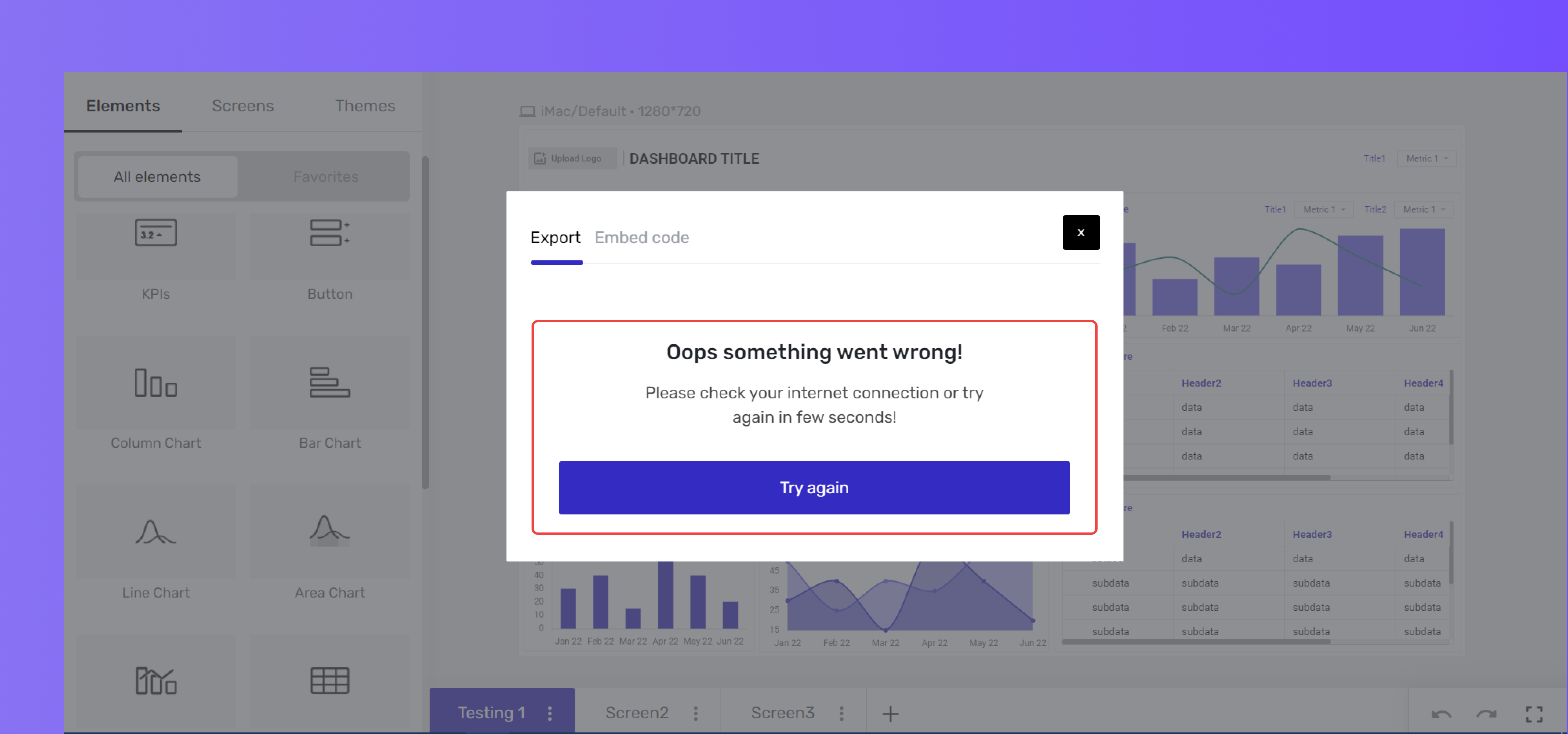
Another possibility is that if you encounter errors when downloading your design, your device or browser will most likely have an issue. Try switching to a different browser or device or upgrading your browser to the most recent version.
Tip: Clear the cookies and cache, and try refreshing the browser.
Design Looks Blurry
If your design does not look clear and is showing up as pixelated or blurry, it can be due to the file format you downloaded.
There are various file formats for different purposes. Mokkup lets you download your project or screen in PNG, JPEG, and PDF format.
PNG (Portable Network Graphics) - The file format is best for designs with transparent backgrounds or to preserve image quality without losing detail. It is mainly used for logos, icons, and graphics.
JPEG (Joint Photographic Experts Group) - It works well with designs with many colors or gradients, like photos. Although JPEG pictures are compressed, there may be some quality loss because of the reduced file size compared to PNG.
PDF (Portable Document Format) - It is best for documents that need to be shared or printed. PDFs preserve the document's formatting, regardless of the device or software used to open it.
How to Restore the Design?
The projects you remove are stored in the trash for permanent deletion after 7 days. To restore your project, follow these steps:
- On the Mokkup dashboard, go to the trash section.
- Click on the three dots below your project and select the restore option.
- Your project will be moved from the trash folder to the “Your Projects” folder.
Tip: You must restore your project before 7 days.
Unable To Login
If you are unable to log into your Mokkup.ai account, you can follow the steps below:
- Step 1: Go to https://app.mokkup.ai
- Step 2: Hold down Ctrl + shift + R for hard refresh
- Step 3: Click on “Continue using Google” and check if you can access your account.
Or
- Step 1: Open Chrome browser
- Step 2: Press and hold Ctrl + Shift + N (opens incognito mode)
- Step 3: Go to https://app.mokkup.ai
- Step 4: Click on “Continue using Google” and check if you can access your account.
However, you can contact our support team for assistance if you still face any issues.