

Transferring Enterprise Ownership
If the current admin is leaving the organization or you want someone else to handle administrative responsibilities, you can transfer admin ownership to another team member. This guide explains how the transfer works and what changes once the new admin takes over.
Before You Transfer Ownership
Make sure:
- The new admin is already a member of the team
- They have an active Mokkup account
- You have assigned them an Enterprise license
- Only the current Team Admin can transfer ownership.
How to Transfer Admin Ownership
Step 1: Go to Members
-
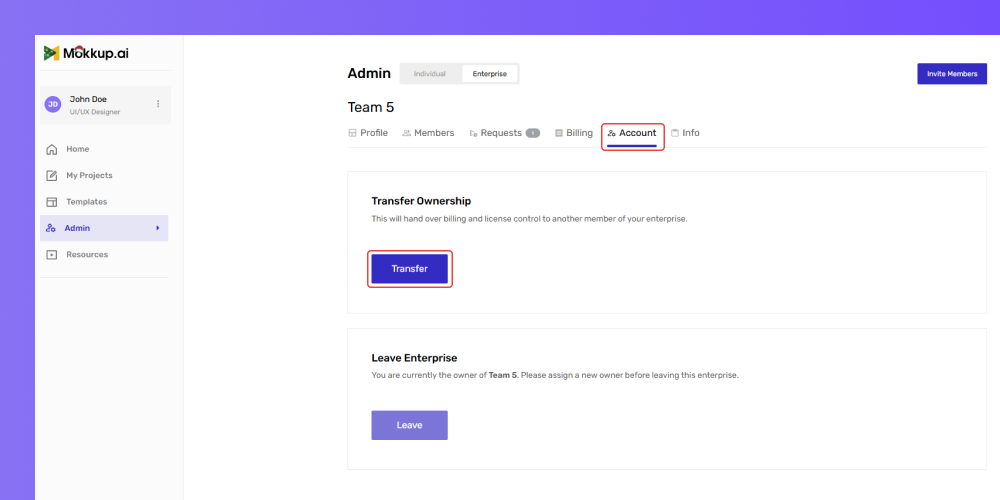
Go to the Account section under your plan settings.
-
Click the Transfer button.
-
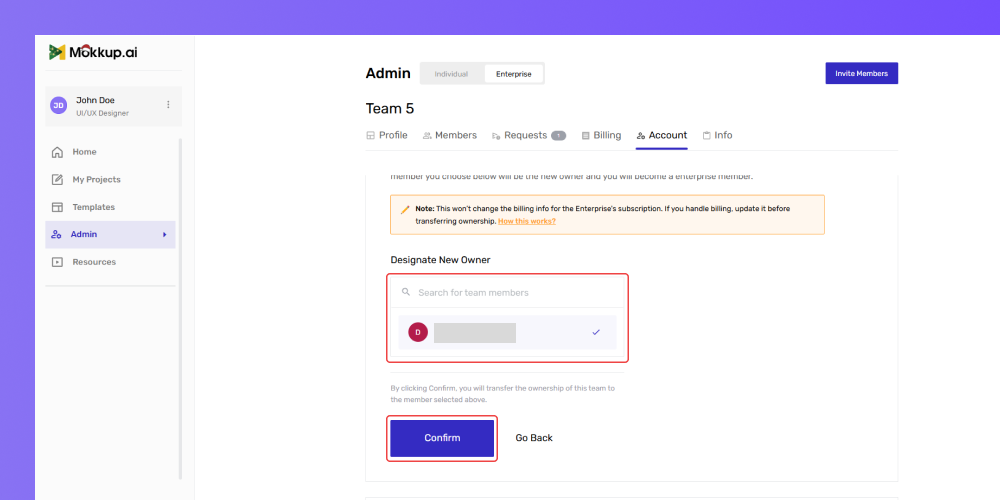
Ensure the member has already been added to the team, as ownership cannot be transferred to someone who is not part of the team
-
Locate the member you want to assign as the new owner.
-
Use the search bar to find the member if needed.
-
Once located, select the member and click Confirm.
-
Confirm the ownership transfer in the pop-up.
-
After confirmation, the new owner will receive an email or in-app notification informing them of their upgraded role as team owner.
New Owner’s Access and Responsibilities
Once the transfer is complete, the new owner gains full administrative rights, allowing them to manage enterprise billing, add or remove Pro licenses, assign licenses to team members, and oversee requests.
As the new owner, they should review billing details and manage licenses to ensure all team members who need access to Pro features have the necessary licenses.
Leaving the Team
For the Team Owner
- Transfer ownership to another member.
- Go to your account settings.
- Select the Leave Team option.
- Confirm the decision in the pop-up.
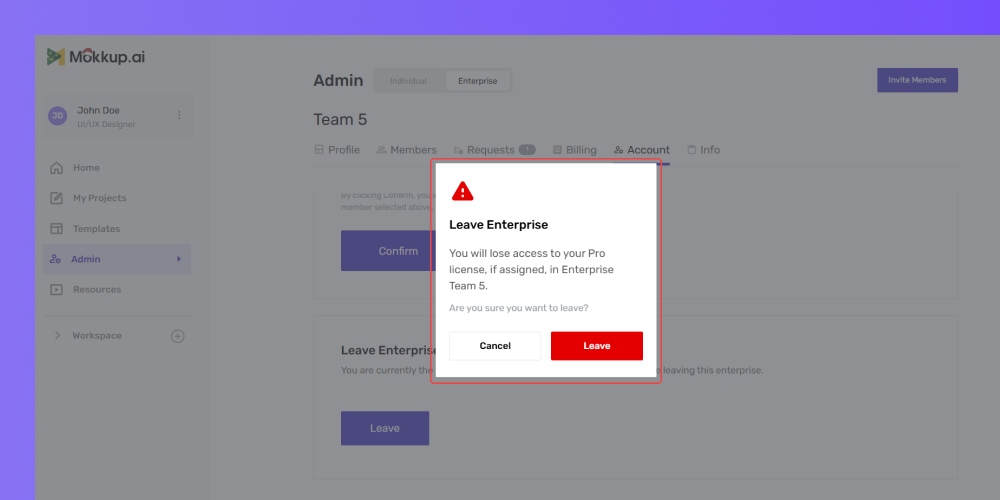
Please note that this step will remove their administrative privileges, restricting access to team settings, billing, and license management.
For Team Members
- Team members can leave by selecting the Leave option in their account settings.
- Once they leave, their license is automatically unassigned and available for reassignment.
- A confirmation pop-up appears to prevent accidental removal.
- Selecting Leave removes their access immediately.
Frequently Asked Questions
1. Can a Free User be set as Team Admin?
Yes, but they won’t have access to unlimited coins unless assigned a Business license.
2. Can I transfer ownership to someone outside my domain?
Yes. Team ownership is not restricted by email domain.
3. Does transferring ownership affect billing?
Billing continues as usual. Only the admin role changes, not the subscription.