

Sharing
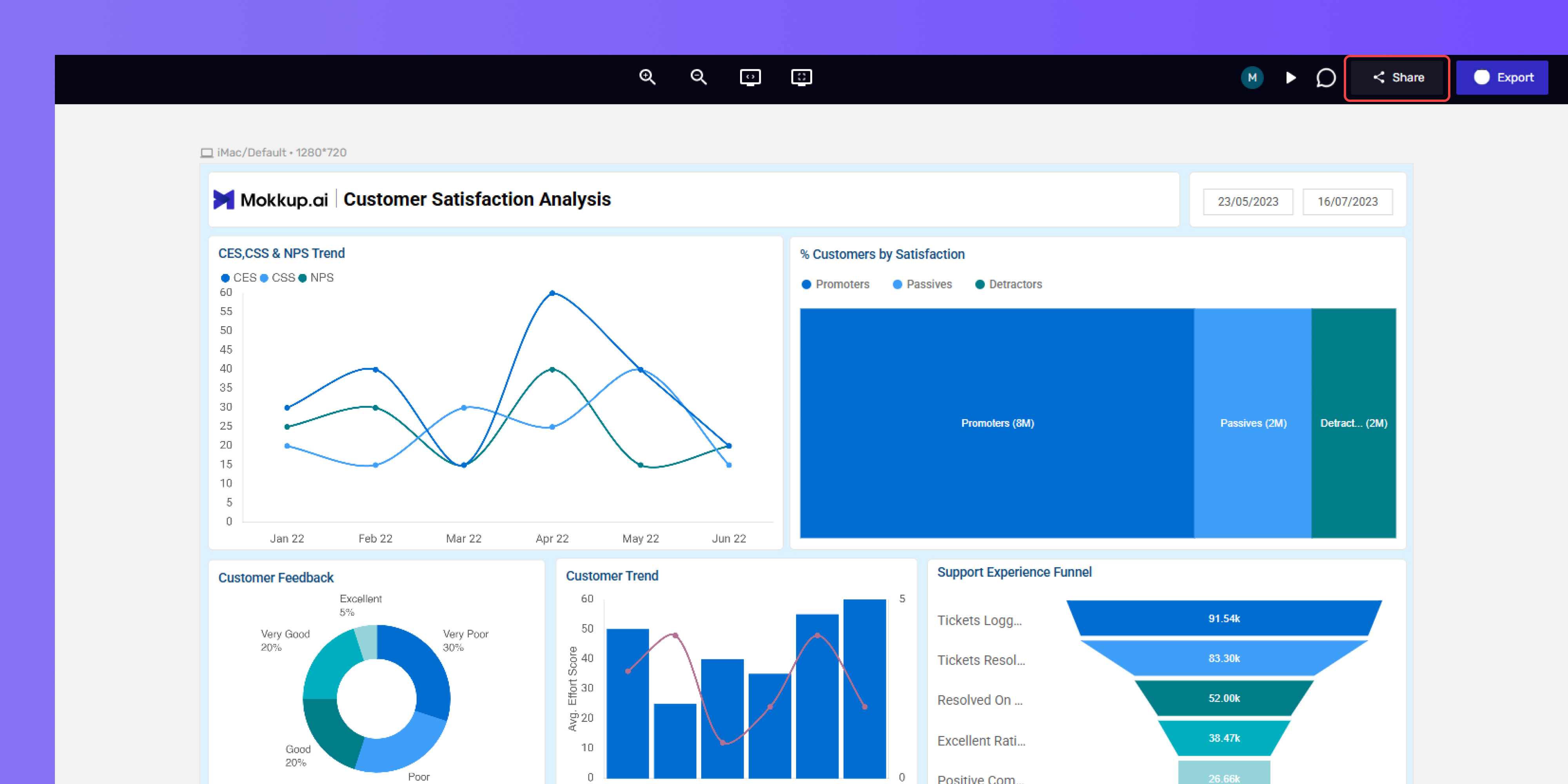
After finalizing your dashboard design, click the "Share" button in the top right corner of the dashboard builder.
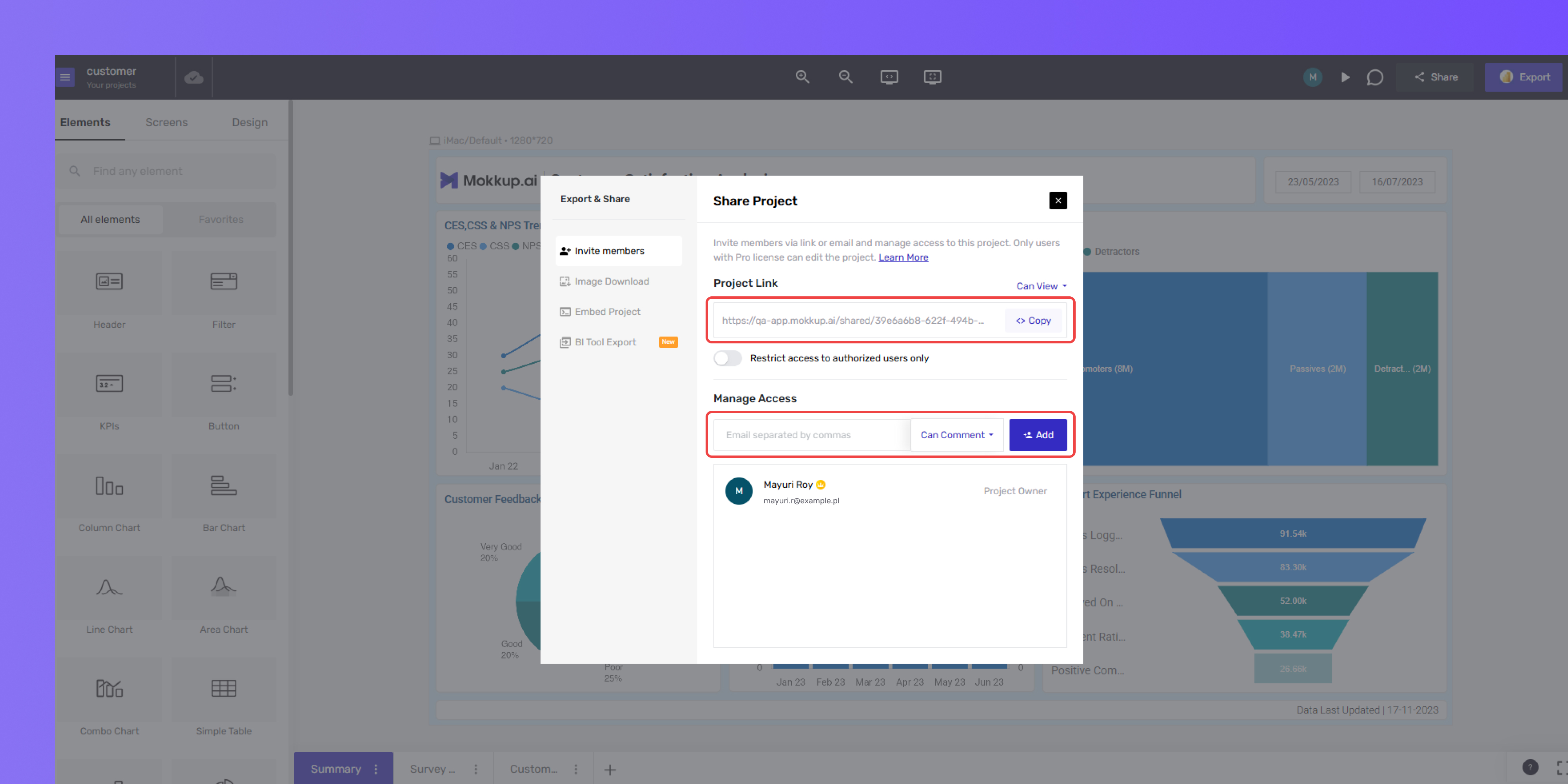
A share project prompt will appear. You can choose to share your project by:
- Project Link: Mokkup allows you to generate a shareable link to your project. You can update access to this link by following the instructions below.
- Email Invites: You can also share your project by inviting others via email. You can update access levels for each invitee as well.
Updating Access for Project Link
Here's how to update access for the project link in Mokkup:
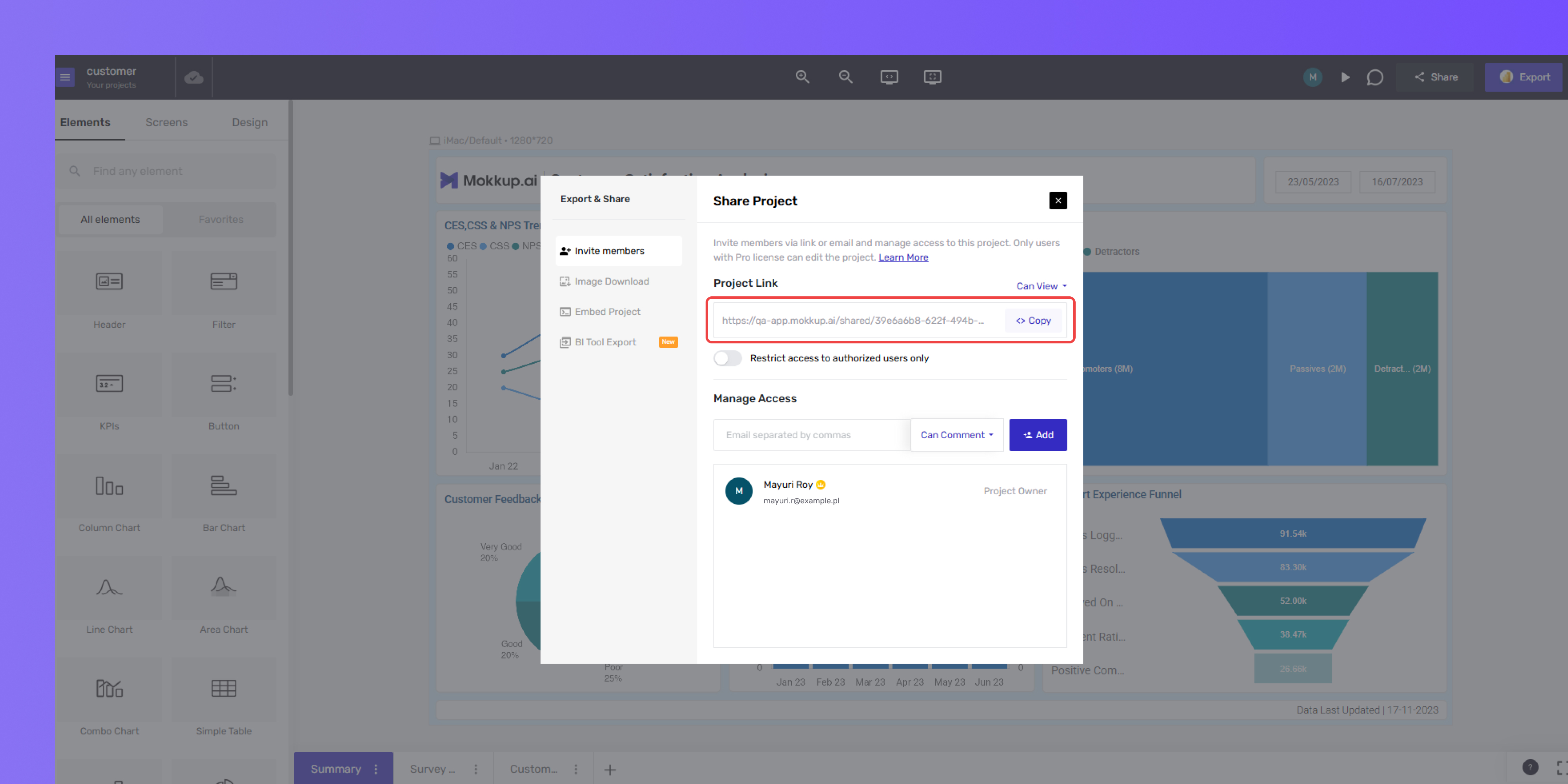
Locate the Project Link section in the project settings. It is highlighted at the top right corner of the image.
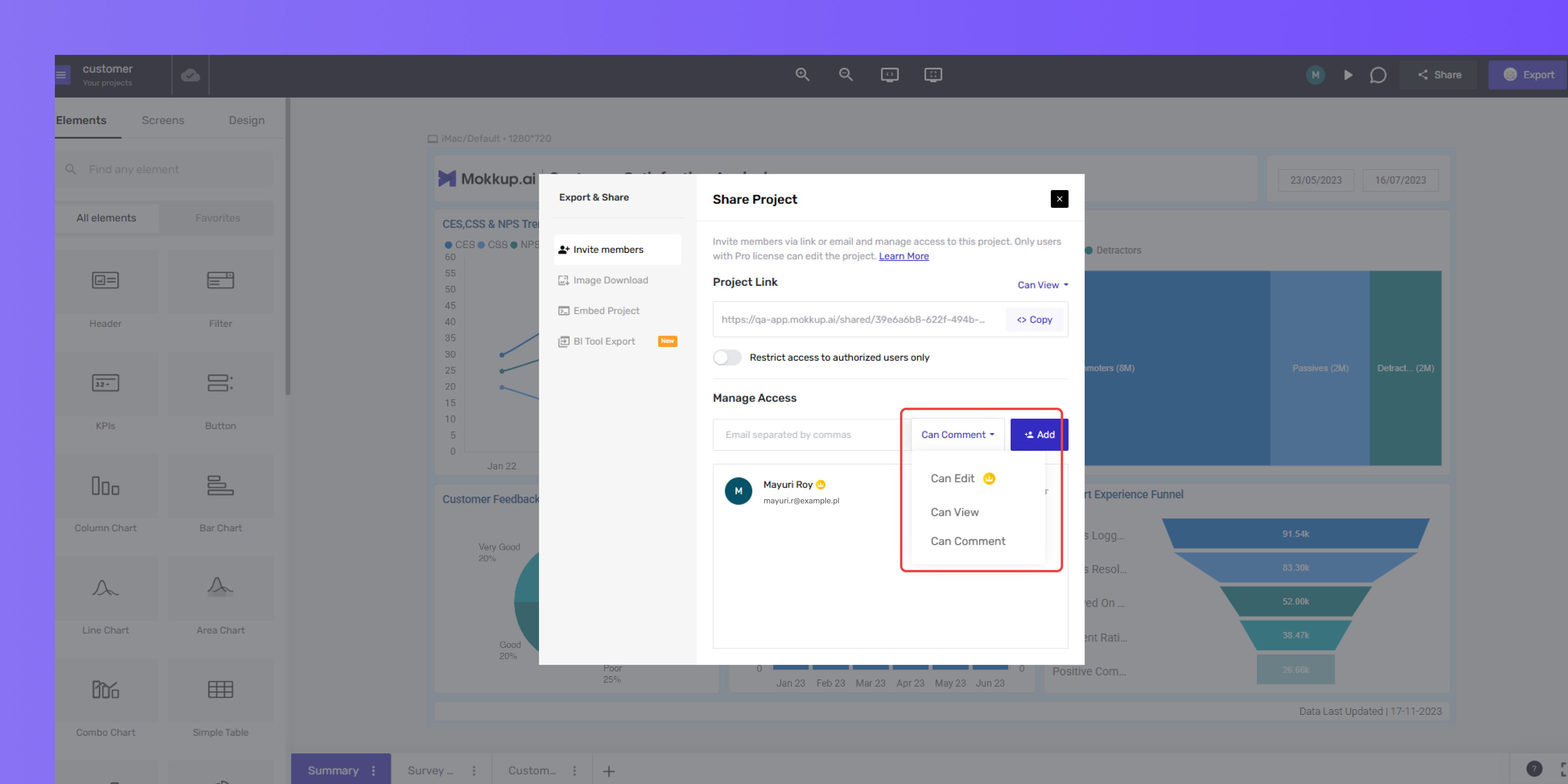
From the adjacent dropdown menu, you can set their permission level:
-
Can Edit: This permission level allows users to edit, comment, share, and invite others.
This feature works only when both you and the other person are Pro users.
Here’s what happens in different cases:
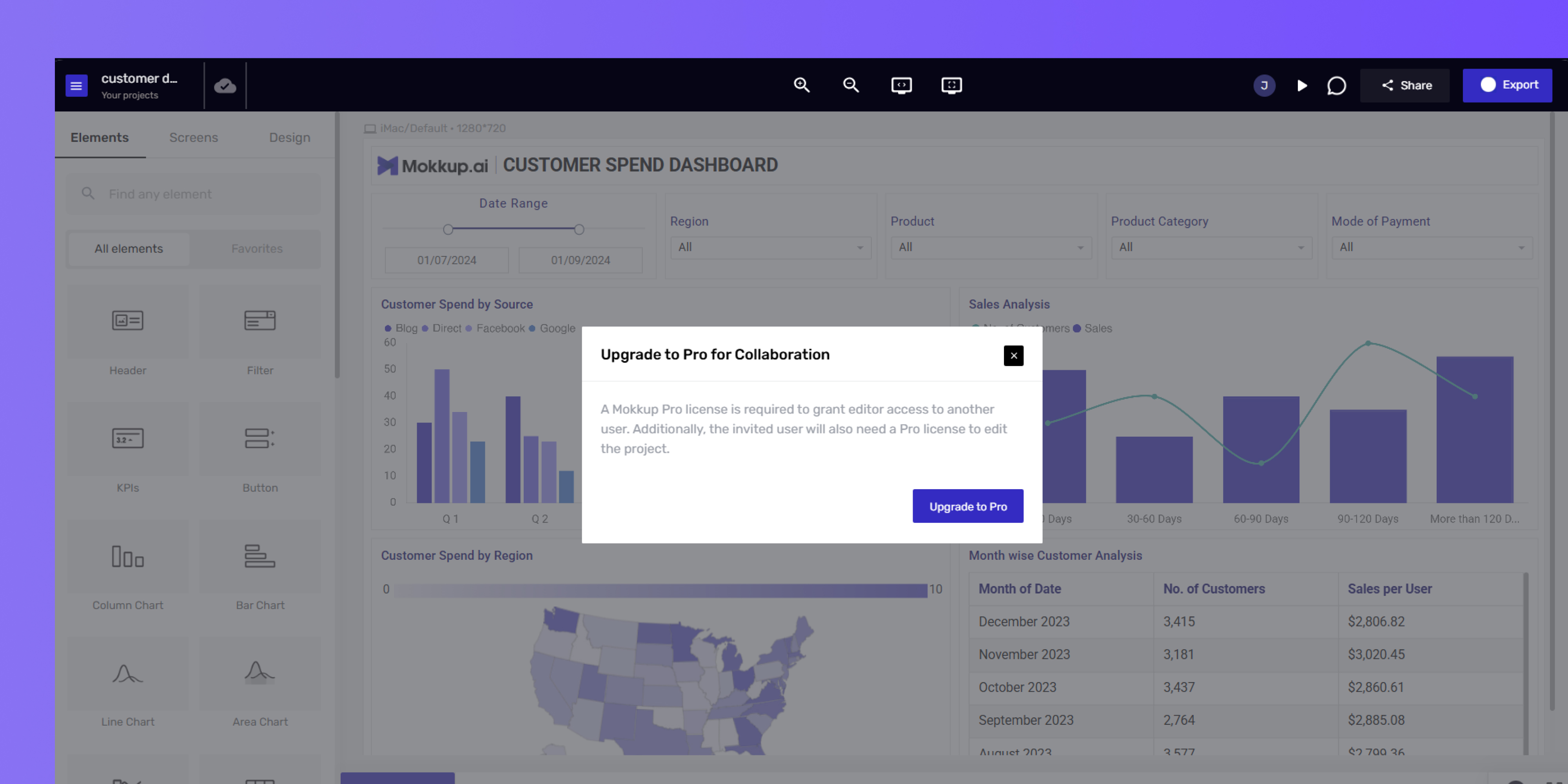
1. If you're not a Pro user and you try to click the Edit button, a pop-up will ask you to upgrade your plan to Pro.
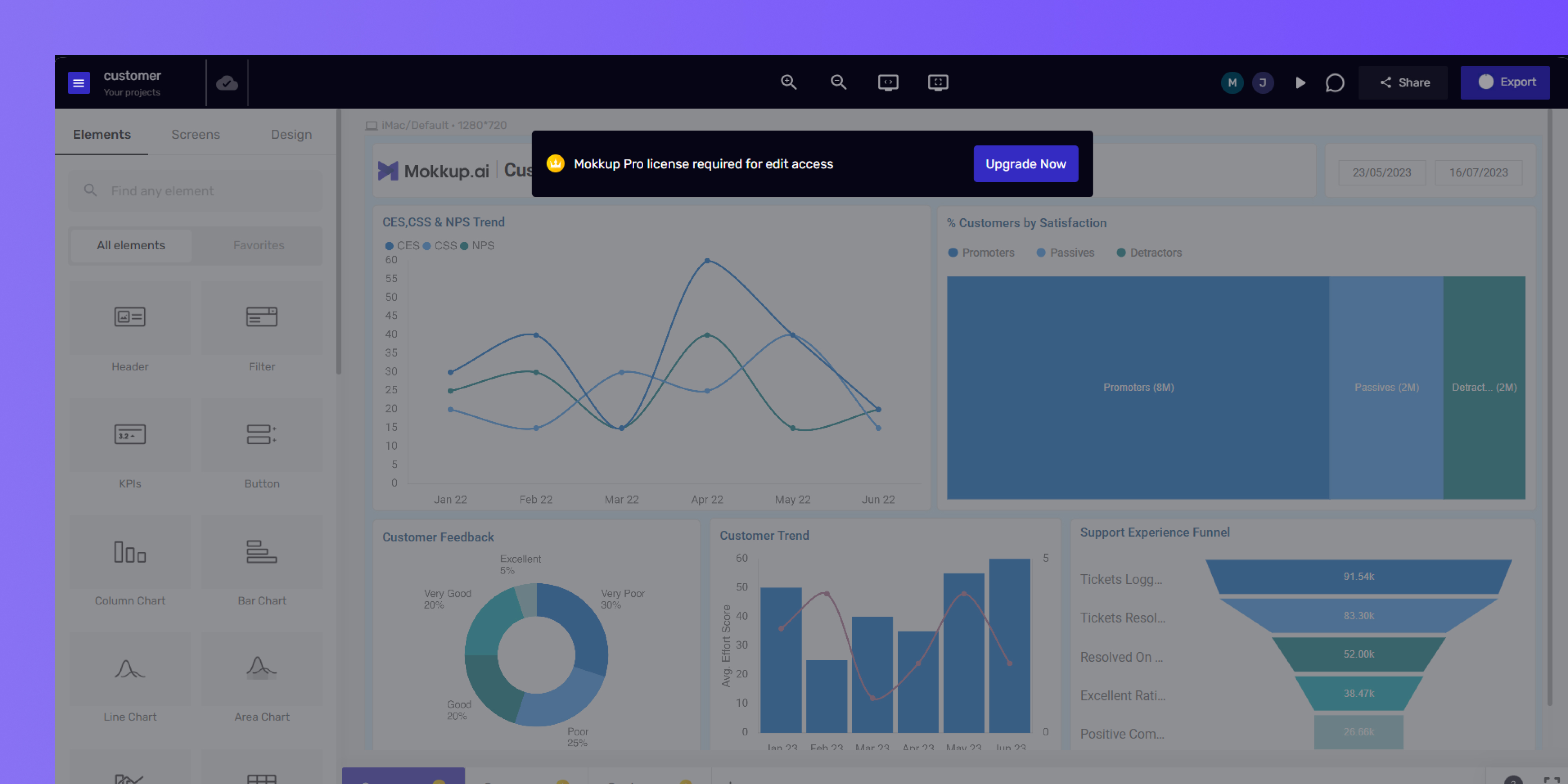
2. If you're a free user and a Pro user sends you a project link, you’ll see a pop-up asking you to upgrade when you click the link.
- Can View: This permission level allows users to view the project
- Can Comment: This permission level allows users to view, comment, and resolve comments in the project.
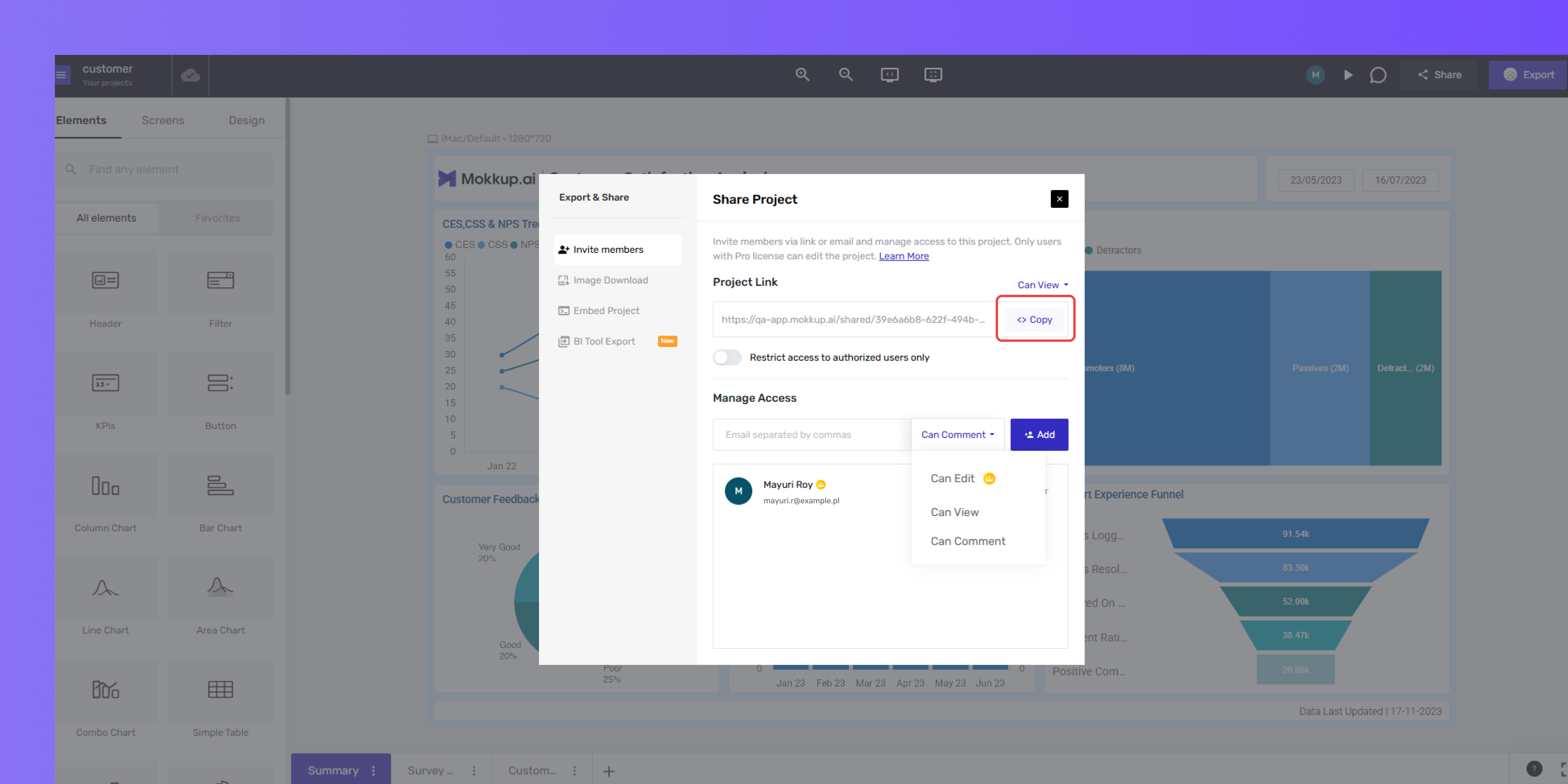
Once you've chosen the appropriate access level in the dropdown menu, you can easily share the project with others:
- Click the copy icon next to the project link. This will copy the link to your clipboard.
- Paste the copied link into an email, chat message, or any platform where you want to share the project.
Updating Access for Email Invites
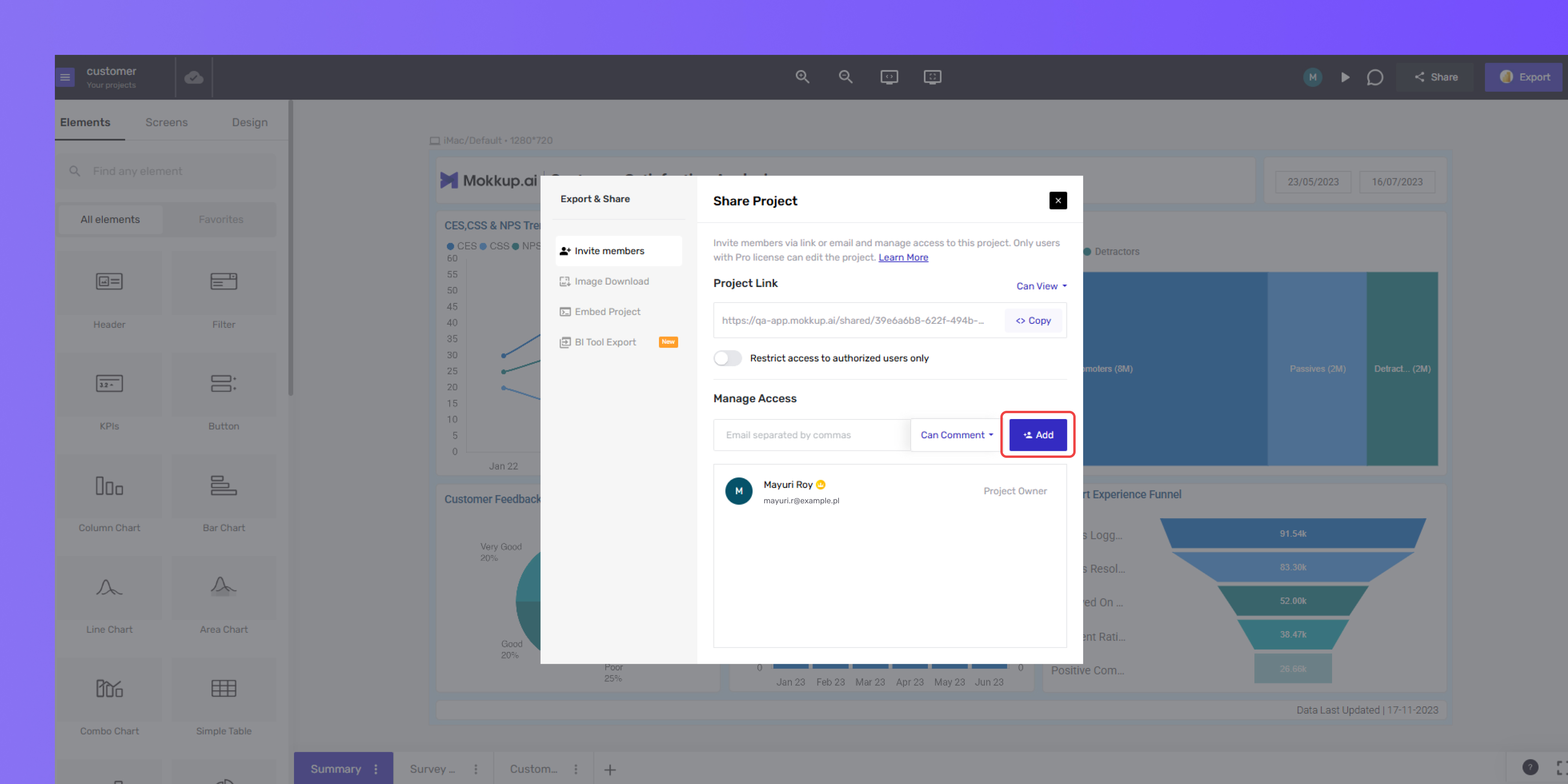
You can add a new collaborator by entering their email address.
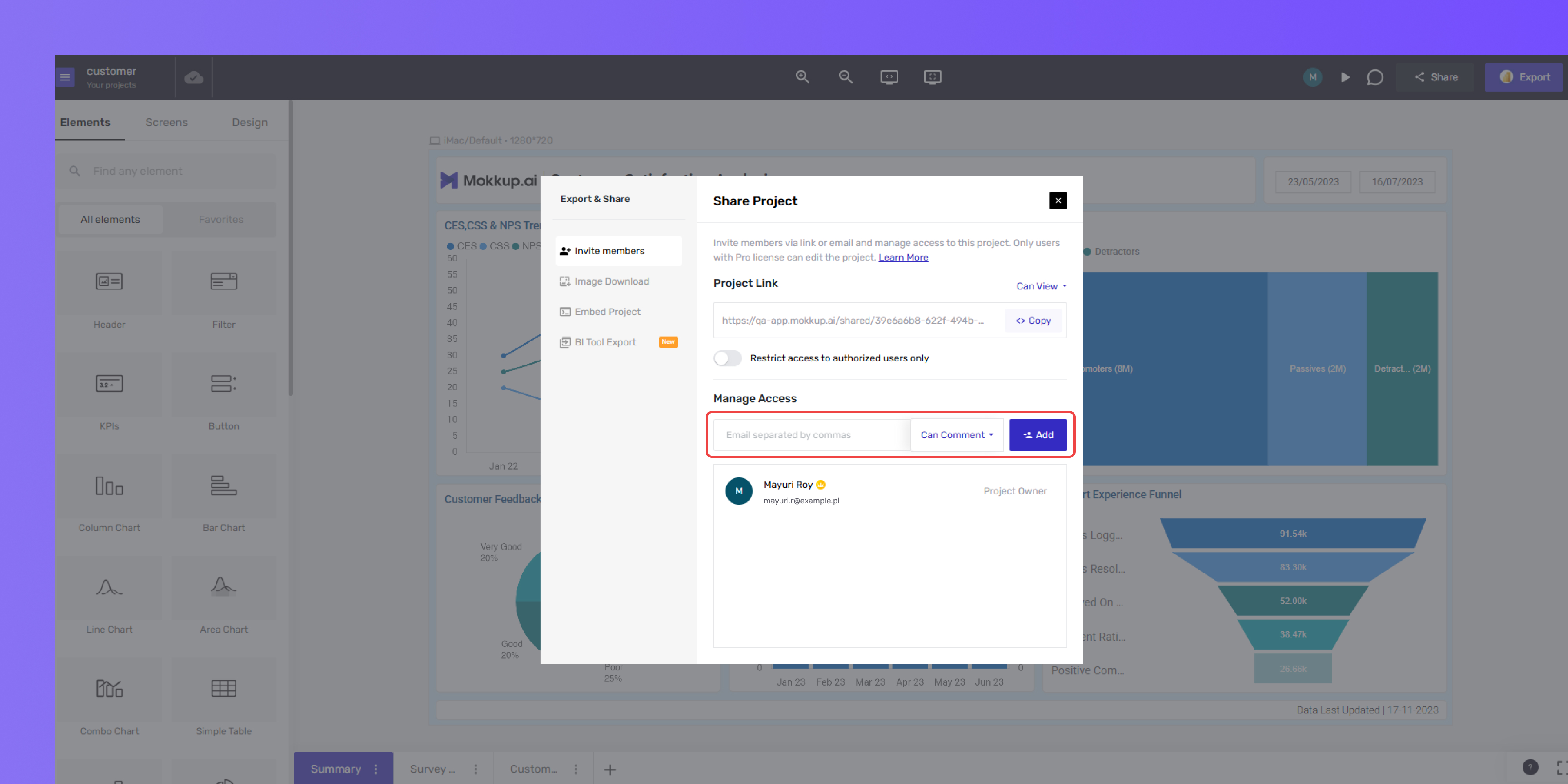
From the dropdown menu next to the email address, you can set their permission level:
-
Can Edit: This permission level allows users to edit, comment, share, and invite others.
This feature works only when both you and the other person are Pro users.
Here’s what happens in different cases:
1. If you're not a Pro user and you try to click the Edit button, a pop-up will ask you to upgrade your plan to Pro.
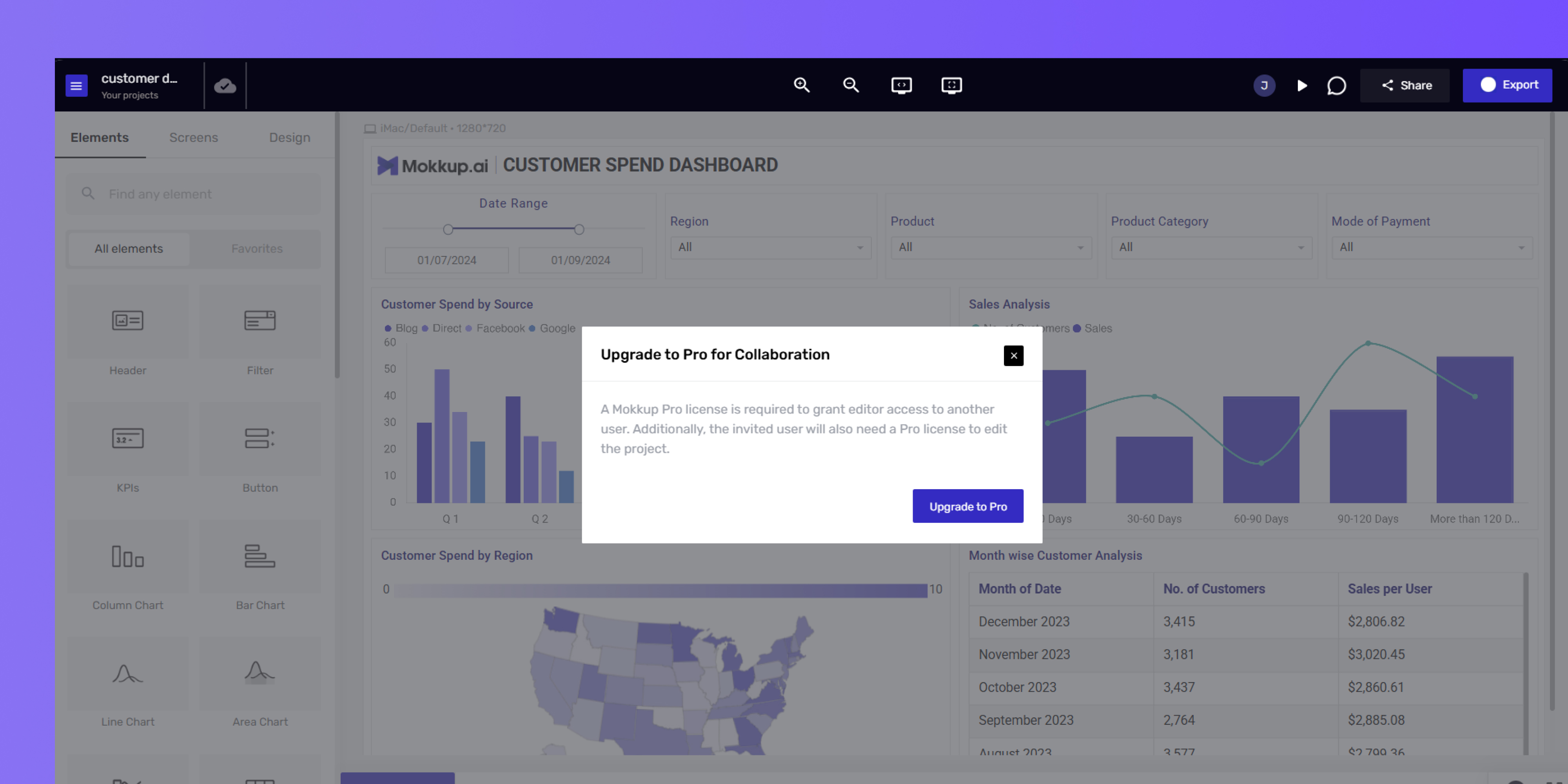
2. If you're a free user and a Pro user sends you an invite, you’ll see a pop-up asking you to upgrade when you click the link.
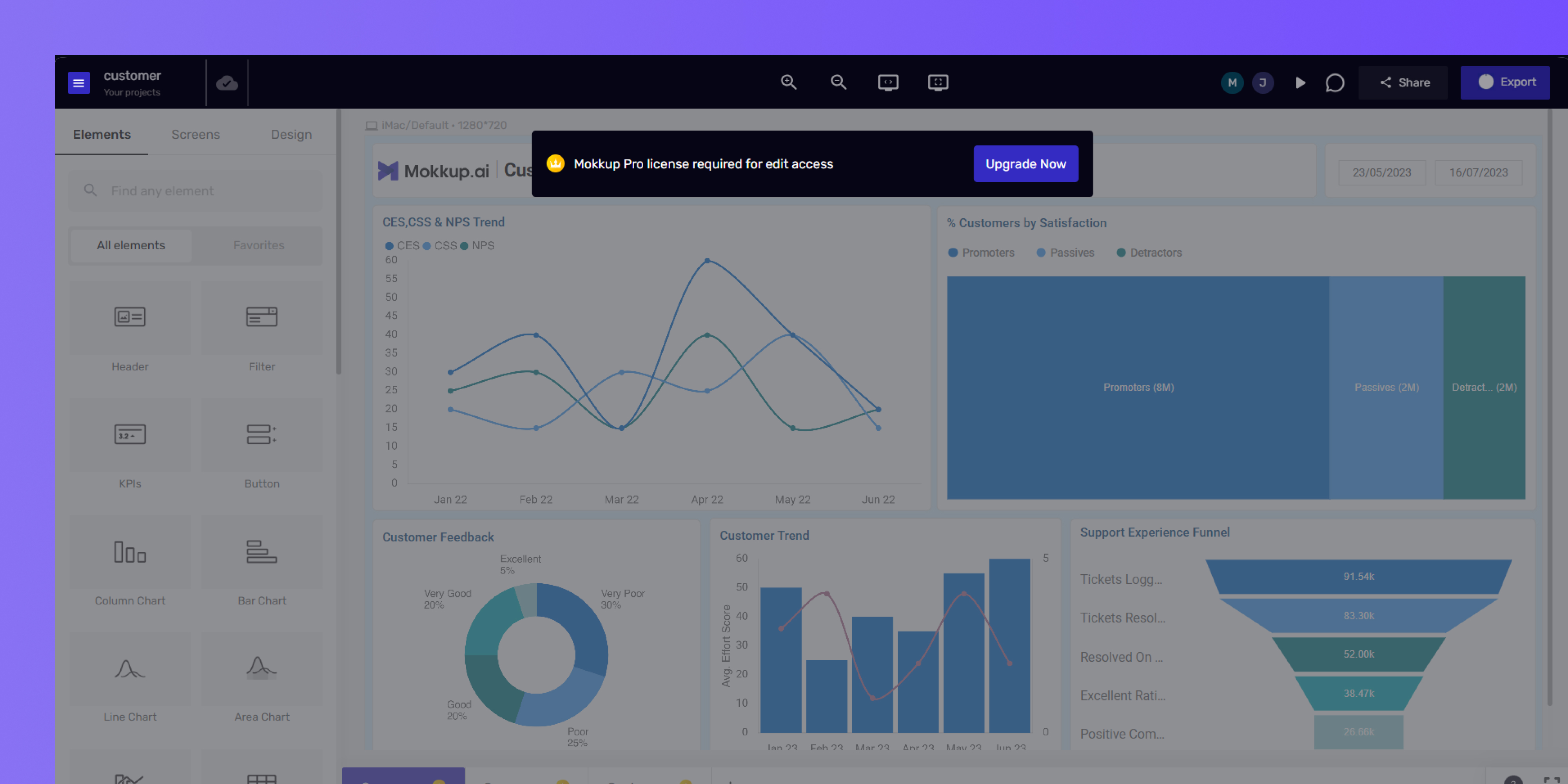
- Can View: This permission level allows users to view the project dashboard wireframe.
- Can Comment: This permission level allows users to view, comment, react, and resolve items in the project.
After updating the invite, click on the ‘Add’ button to send the invitation.
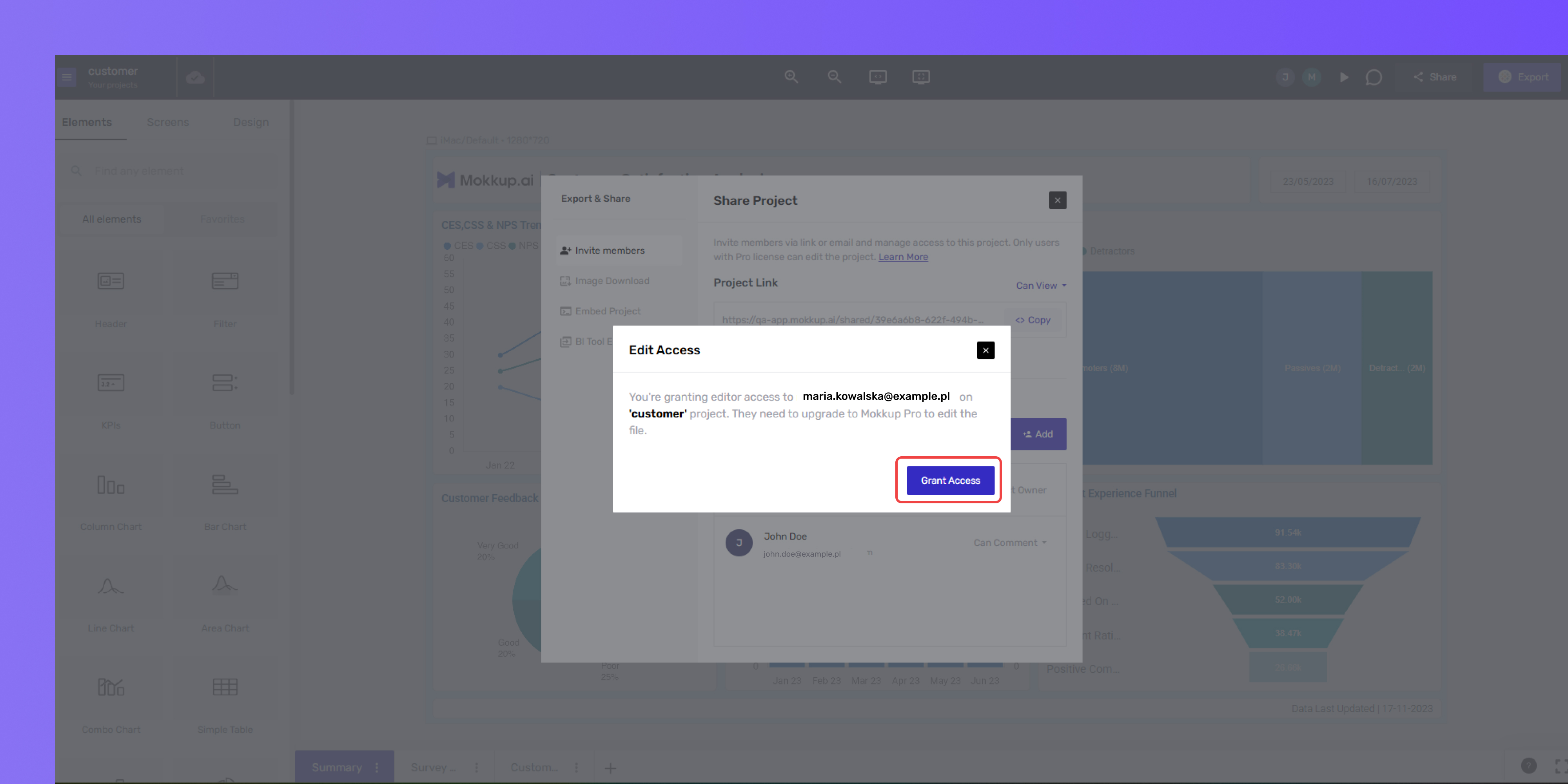
You’ll see the pop-up below—click the ‘Grant Access’ button to continue.
The user will receive an in-app notification & email invite as shown below:
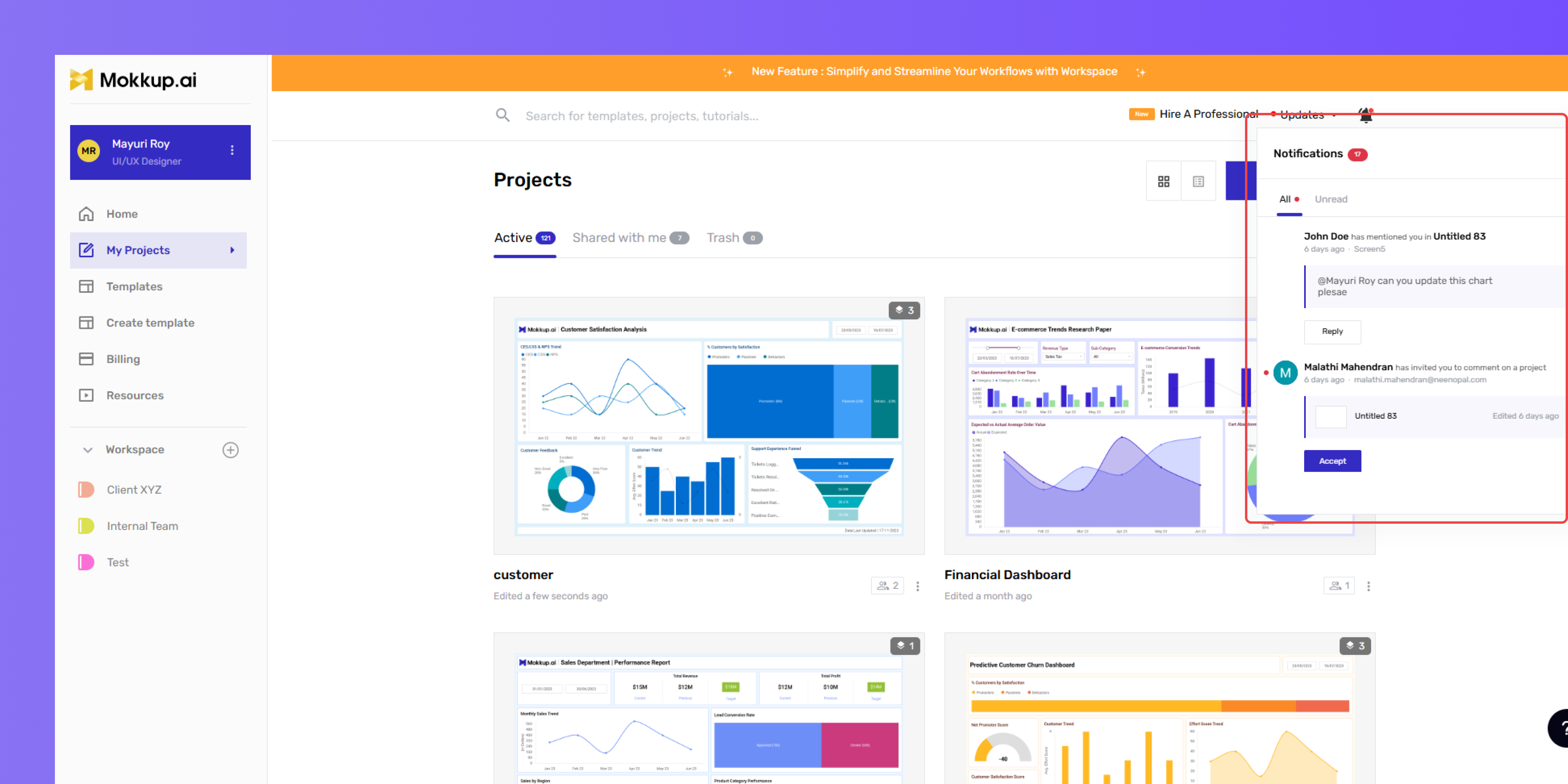
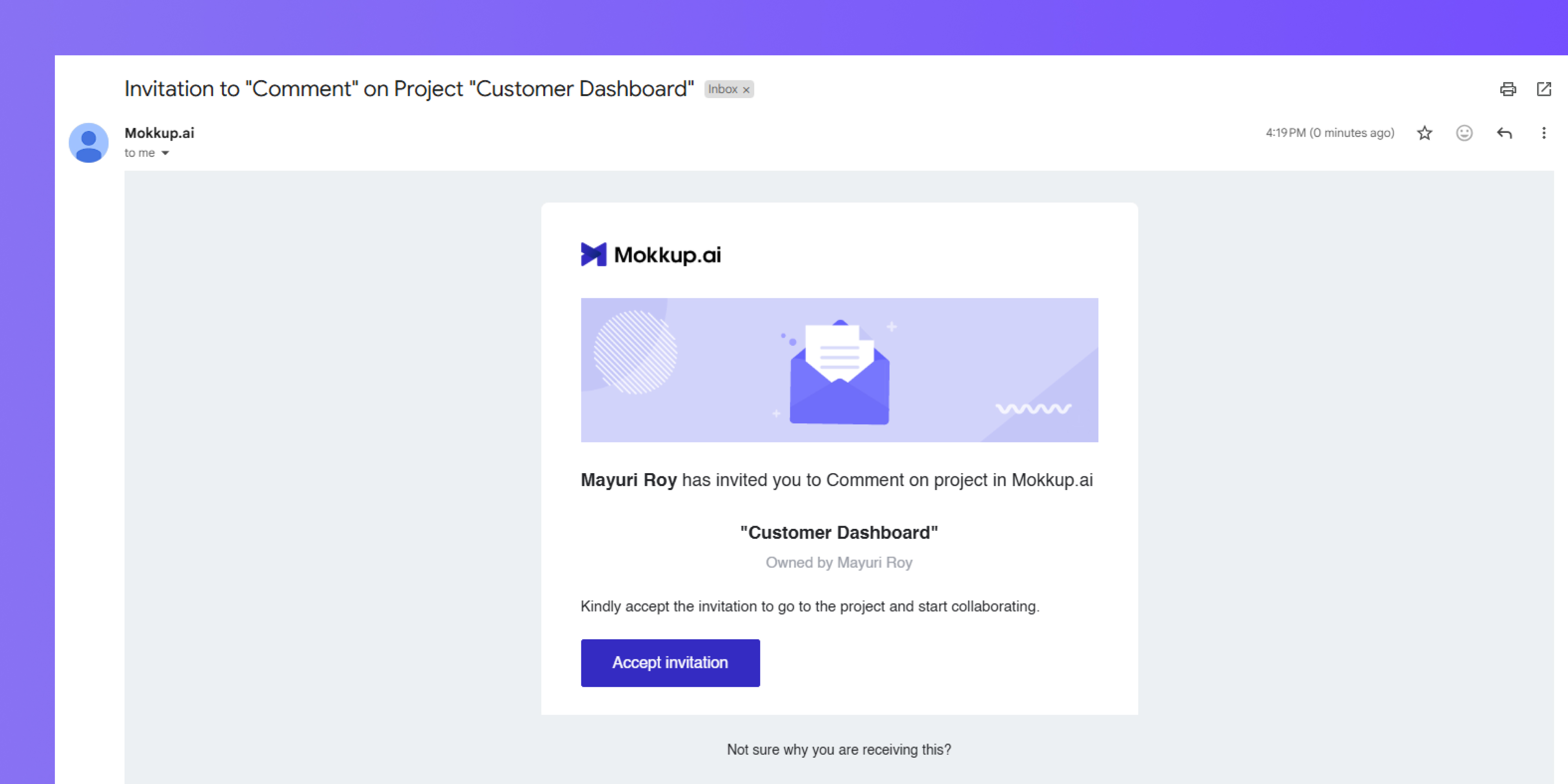
After accepting the invitation, the team members can access the dashboard wireframe using the access they were given.
Get more help from our support team if you encounter any issues while sharing the designs.
Frequently Asked Questions
1. What happens if a free user is given edit access?
If a free user is invited with edit access to a project, they cannot access the project until they convert to Pro, or the project owner changes their permission to View/Comment.. Editing is restricted to Pro users.
2. What happens when a free user tries to give edit access to someone else?
Free users cannot assign edit access to others. Only Pro users have the ability to manage editing permissions.
3. Do both users need to be on a Pro plan for editing access to the work?
Yes, both the user sharing the project and the collaborator must be on the Pro plan to enable editing access.
4. I was invited to a Pro project, but can’t edit. What should I do?
First, make sure you’re logged in with a Pro account. If you’re still unable to edit, double-check the permissions granted by the project owner. If the issue persists, please contact support for further assistance.