

Payment
You can follow the steps to complete the payment process to upgrade your free plan.
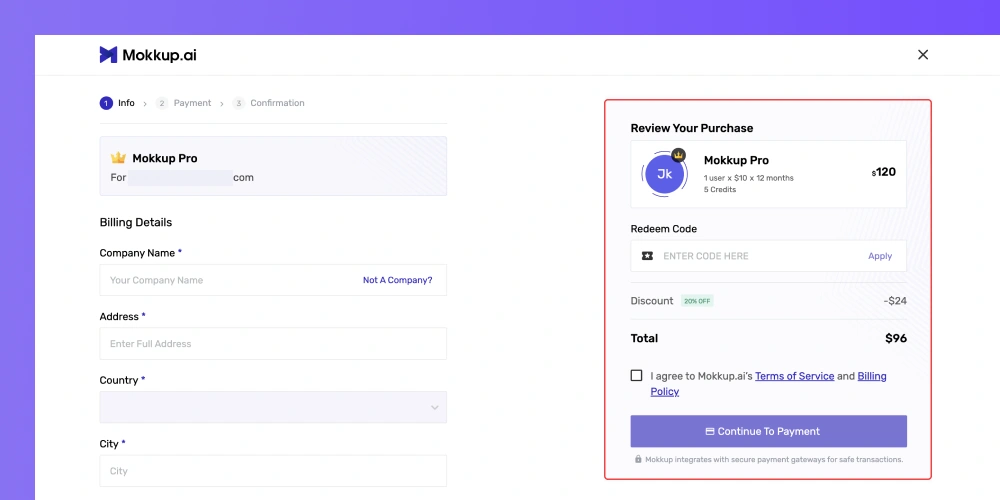
- If upgrading the Mokkup Pro for business use, you can enter your company’s name. Or click on “Not a company?” to enter your name.
- In the “Address” section, fill in your company’s or your full address.
- Select your country from the drop-down menu.
- Enter your city, state, and zip code.
You can enter the “Redeem code” to get the discount. Before agreeing to the Mokkup terms, review the “Terms of use” and “Billing policy.”
Also, ensure you have entered the correct details before clicking on the “Continue to payment” button.
After clicking the “Continue to payment” button, you will be directed to the payment page.
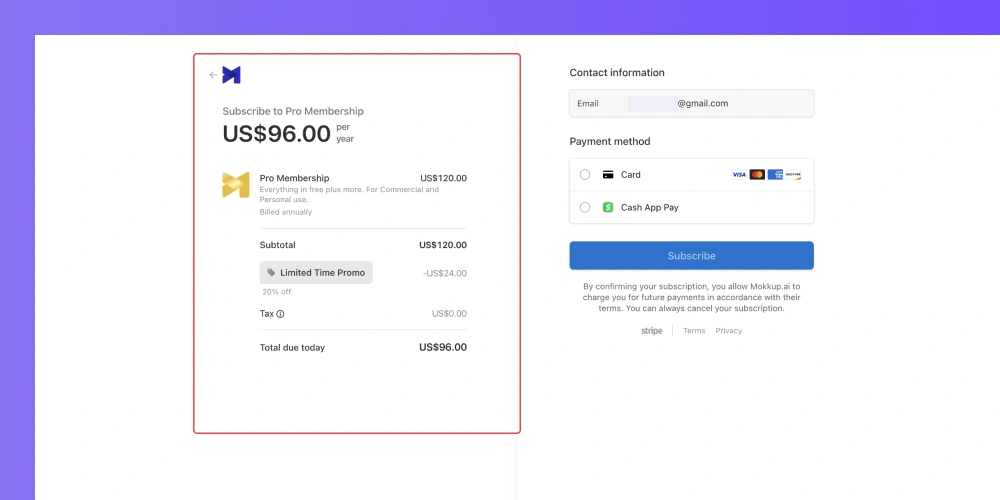
On the left side, you can view the total amount of your selected plan, including all the details & the additional charges.
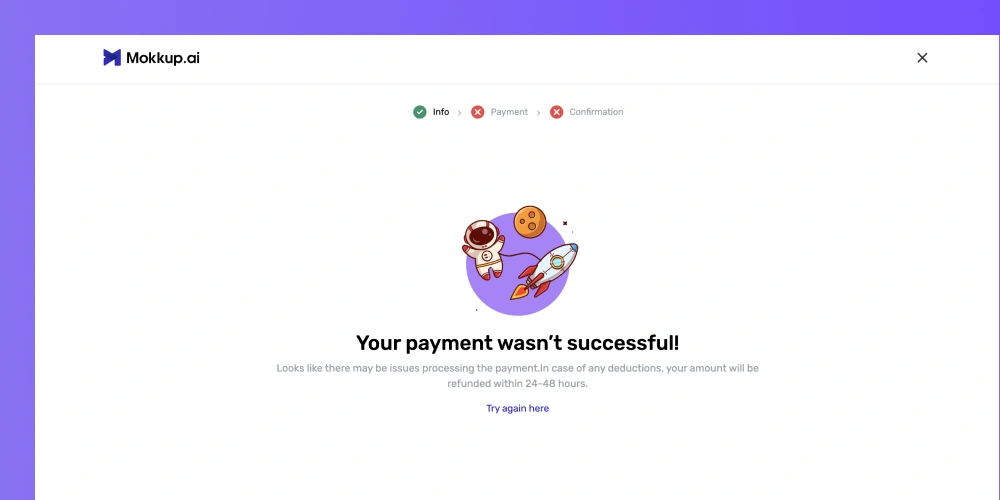
Also, you must have noticed a small arrow button in the top left corner; clicking on it without completing the payment process will cancel your transaction, as shown below.
On the right side, you must fill in your card details. Enter your card number and expiration date in a month and year format, and add the CVC code. In the next step, add the name on the card and select your country/region.
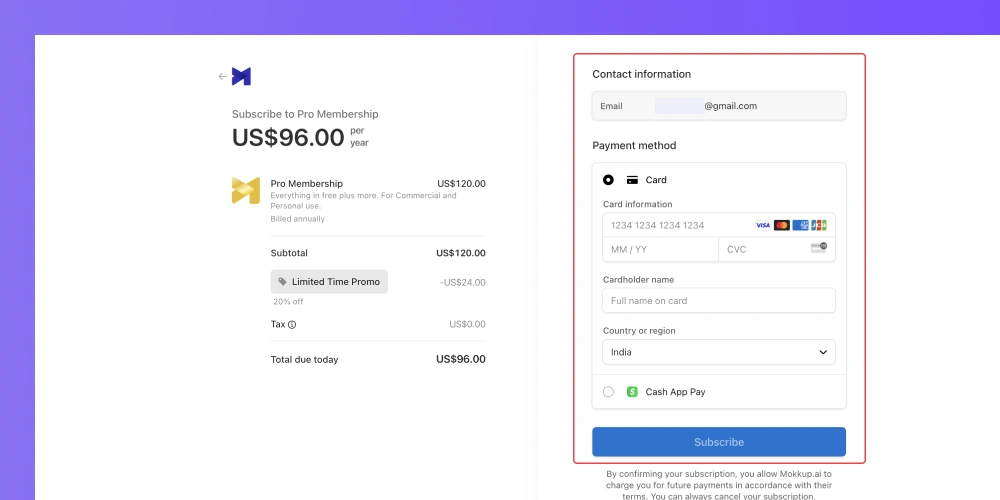
And finally, you can click "Subscribe" to proceed with the payment.
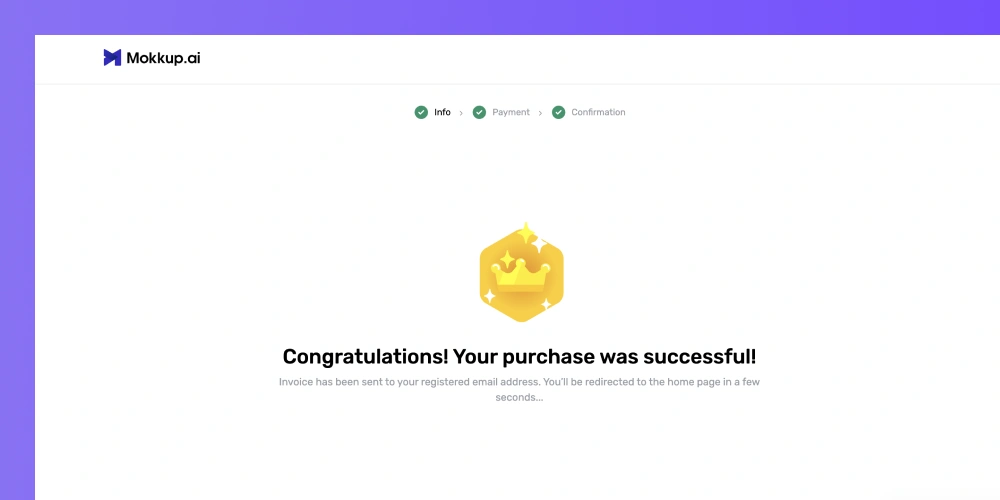
After clicking on the “subscribe” button, you will get the confirmation for the successful payment, as shown above. And finally, you can enjoy using the pro features.