

Inviting Team Members
- Click on Workspace from the left sidebar.
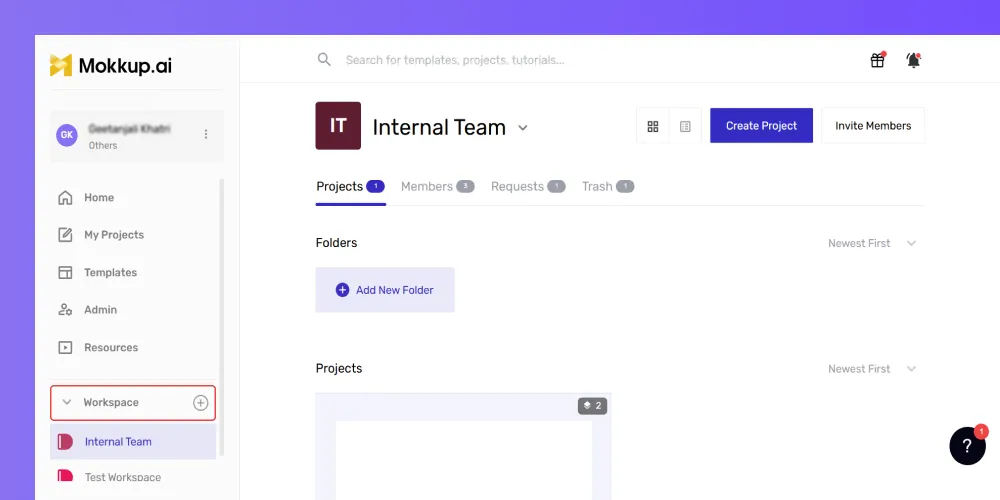
- Select your workspace.
- Click on Invite Members.
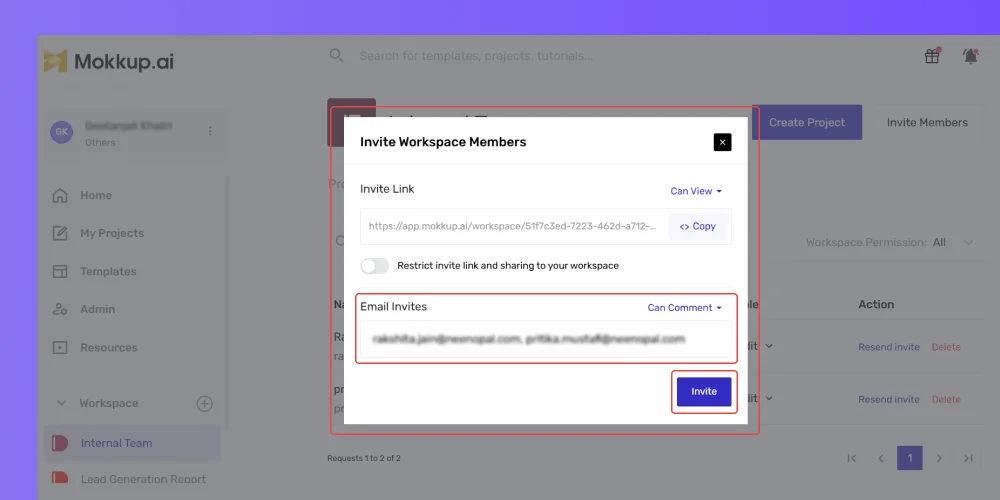
- A pop-up form will appear; enter the email addresses of the team members.
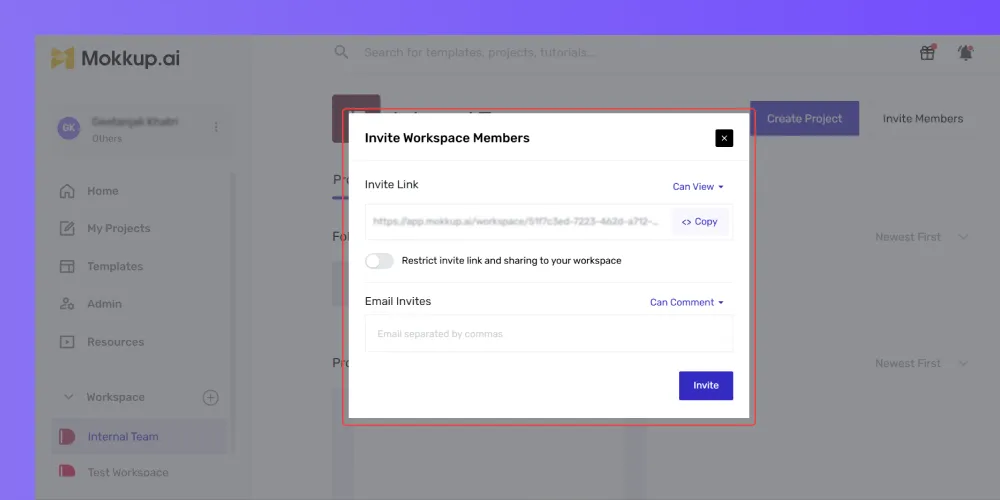
- Separate multiple email addresses with commas.
- Click Invite to send invitations.
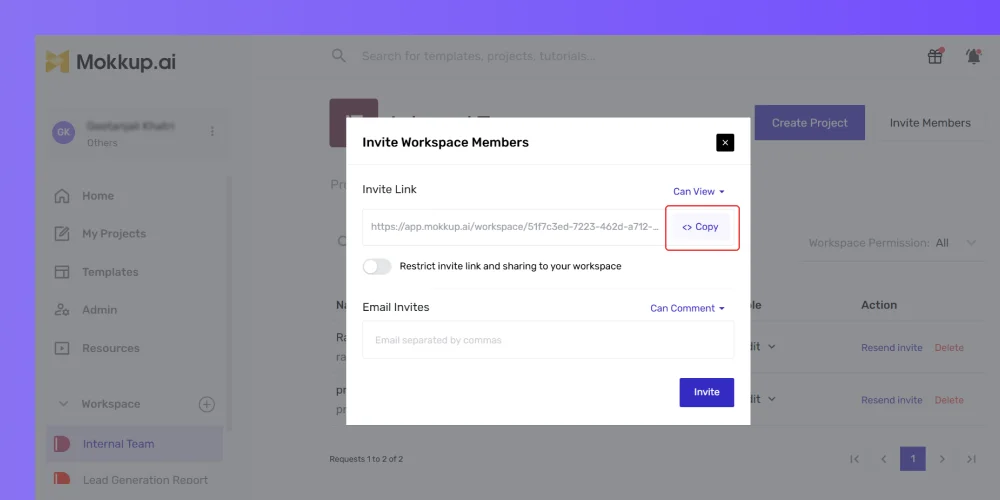
- Copy the invitation link and share it with team members.
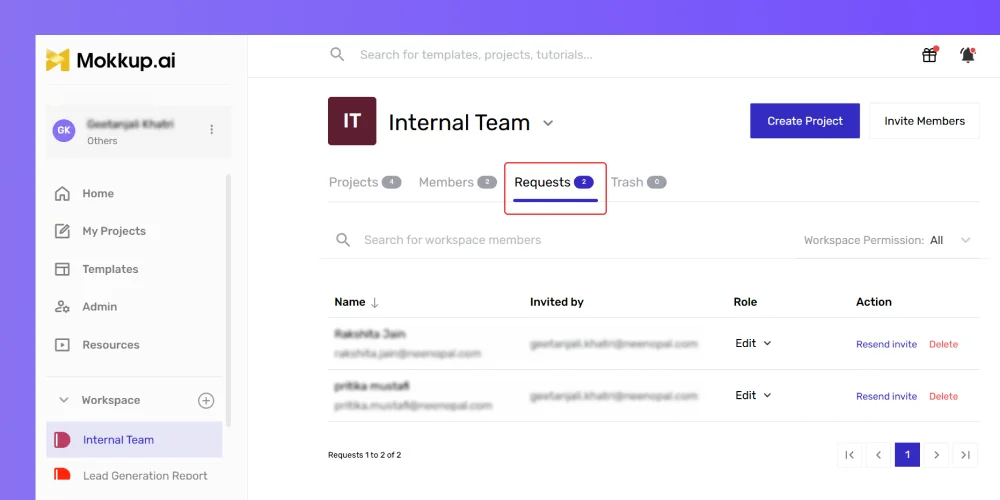
- Verify the invites in the Requests section under Team Settings.
- Resend or delete the invitations when needed.
Upgrading from Free to Pro Plan
When inviting team members to Mokkup, they’ll initially be assigned a free license by default. As the team grows or specific members require pro features, you can easily upgrade, assign, or remove Pro licenses as needed.
Here’s how to do it:
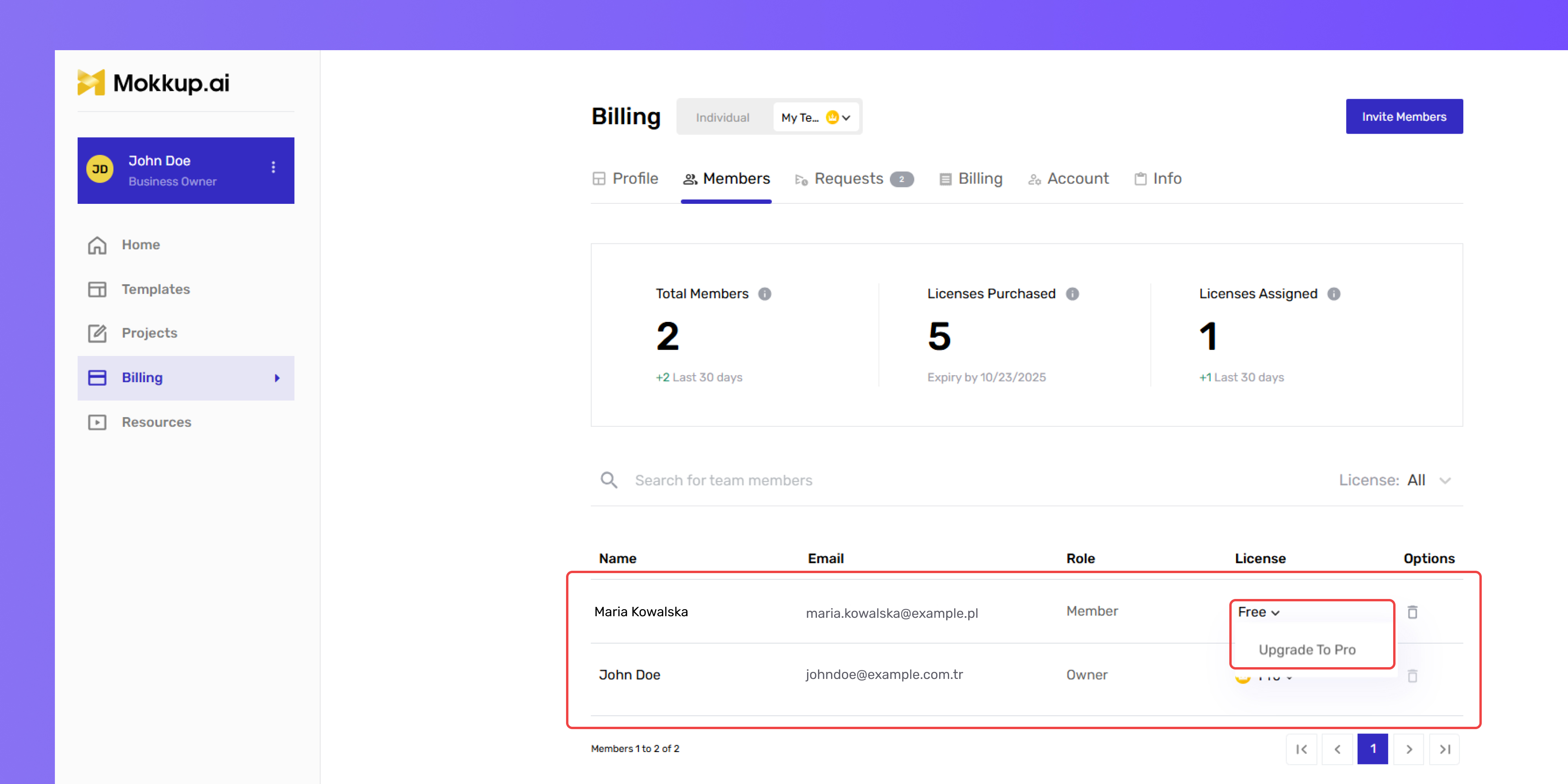
- Go to the Members tab under Workspace Settings.
- Locate the team member needing a Pro license.
- Click on Upgrade to Pro next to their name.
- Review the confirmation pop-up details.
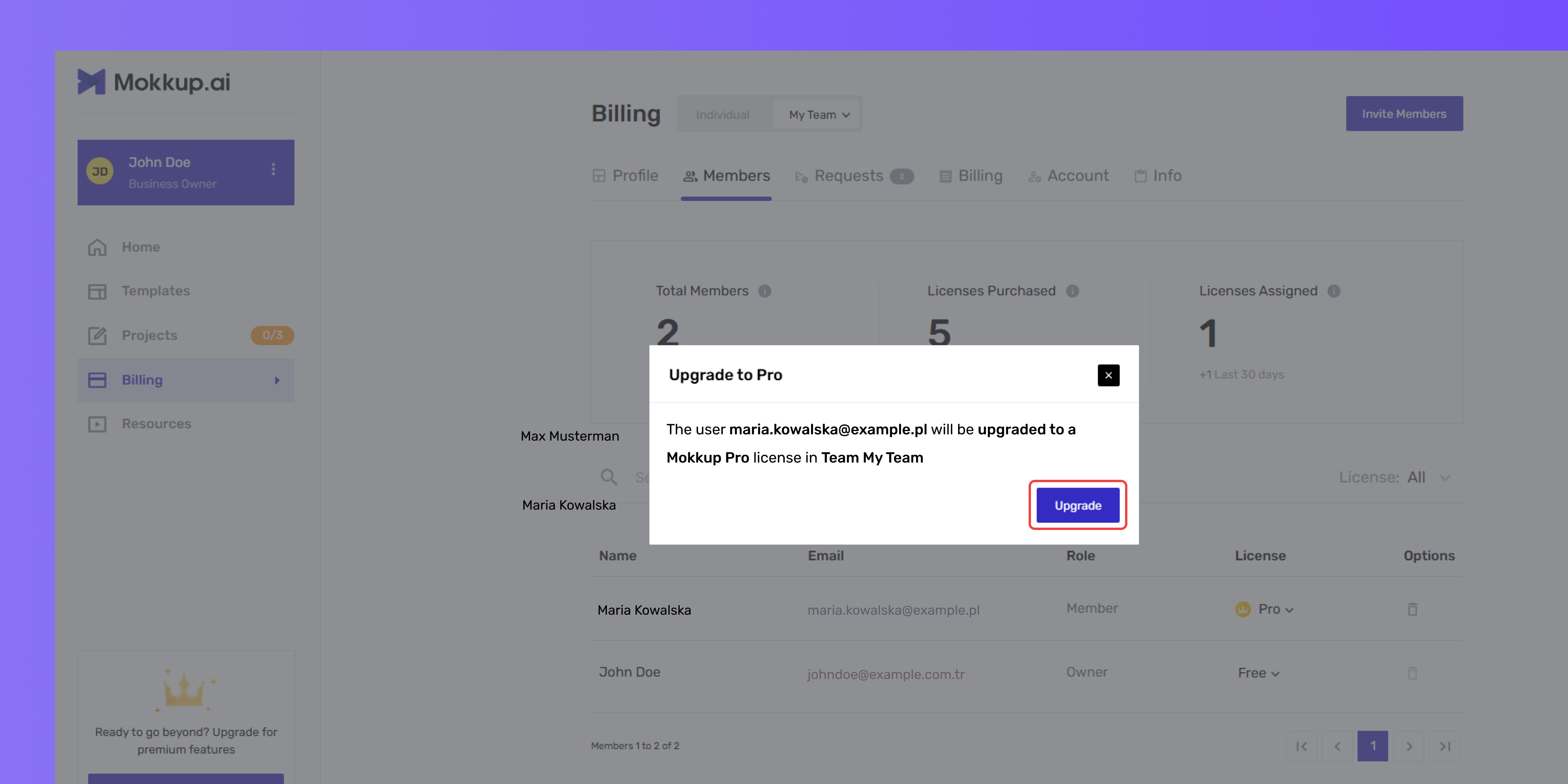
- Click Upgrade to finalize the change.
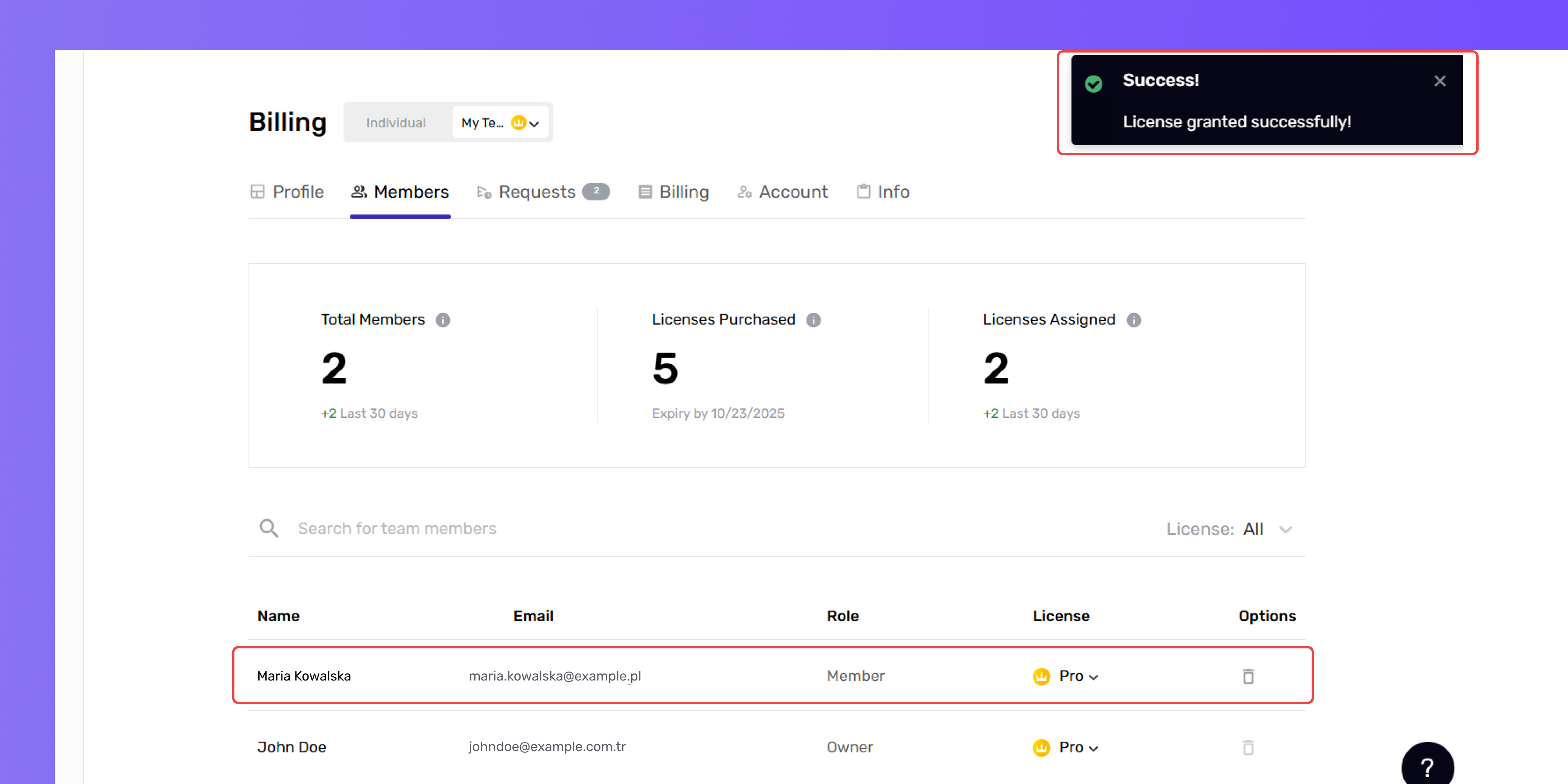
Tip: A Pro member can join a team; however, they cannot be assigned a Team Pro license if they already have an active Individual Pro plan or are part of another team with an assigned Team Pro license. To assign a Team Pro license, the user must first cancel their existing Pro plan. Once canceled, the Team Pro license can be allocated to them.
Downgrading from Pro to Free Plan
If a team member no longer needs Pro features, you can easily downgrade their license to the free plan or even remove them from the team altogether. Here’s how:
- Go to the Members tab under Workspace Settings..
- Find the member you want to downgrade or remove.
- Click on the member’s details.
- Select the License option to modify their access.
- To remove the member entirely, click the delete icon.
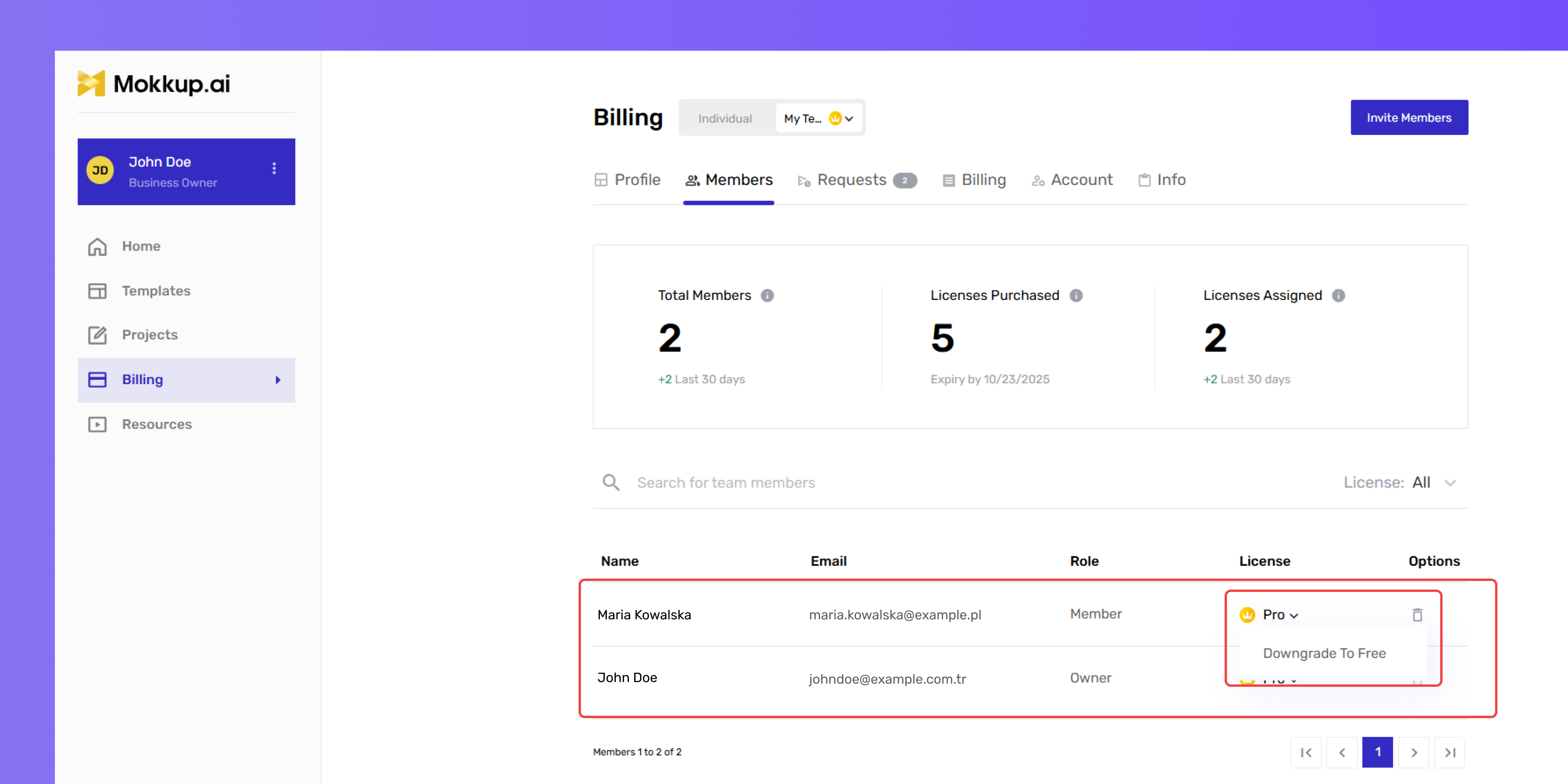
How Mokkup.ai Handles Projects After Downgrading from Pro to Free:
When a user is downgraded from Pro to Free, here’s what happens:
- Projects
- Access is limited to the most recent project.
- Additional projects become inaccessible.
-
Dashboard Screens
- Only the first 3 screens of each project remain accessible.
- Additional screens are locked.
-
Pro Features
- Pro themes and design customizations are no longer accessible.
- New Pro features or customizations cannot be used.
-
Reassigning a Pro License
- If the user is reassigned a Pro license, all previous work, including projects, screens, and Pro customizations, will become accessible again.