

How to Export Your Wireframe?
Follow these steps to export your project in a BI-compatible format:
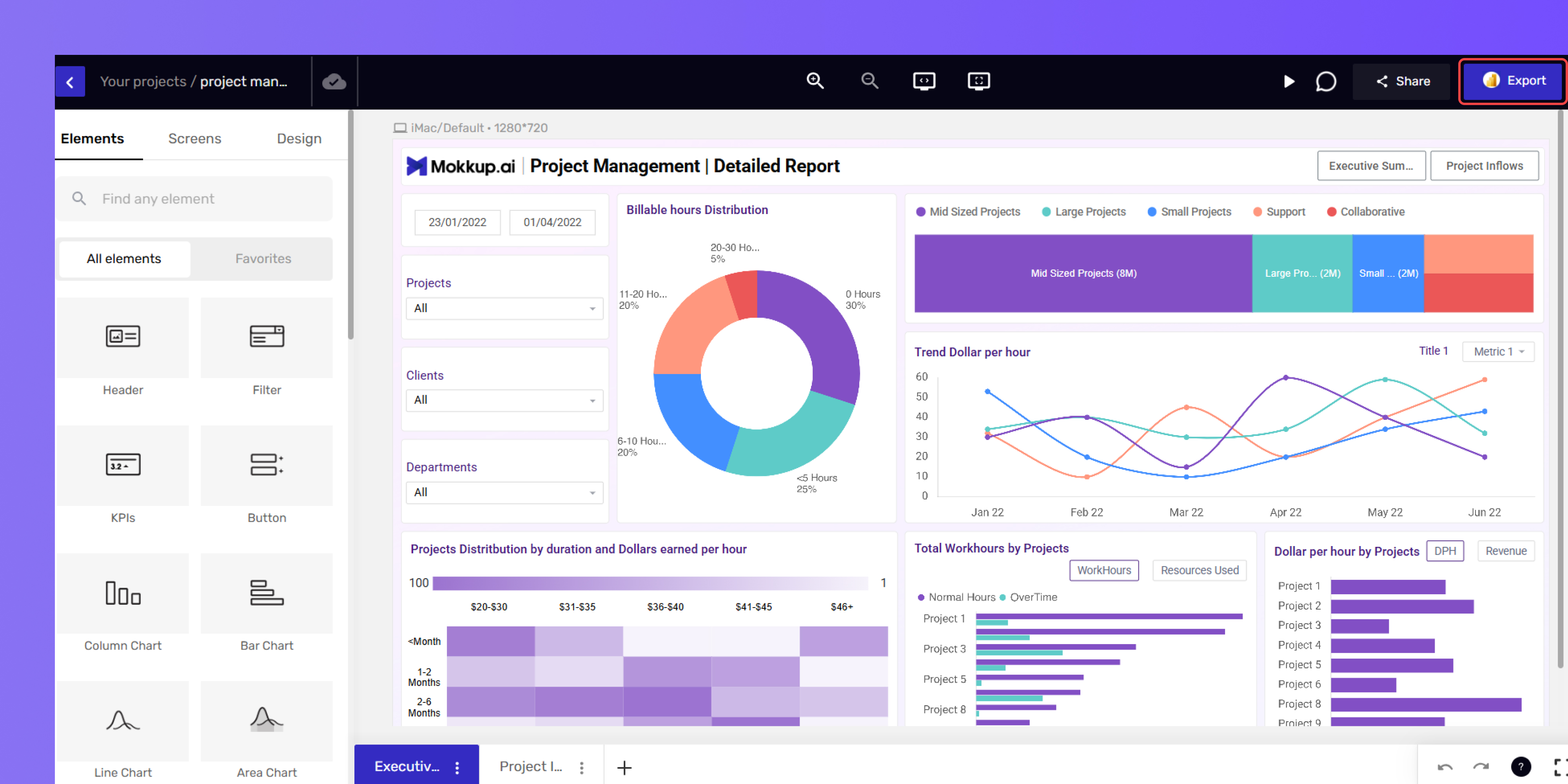
- Open Your Project.
- Click on the Export button located in the top menu.
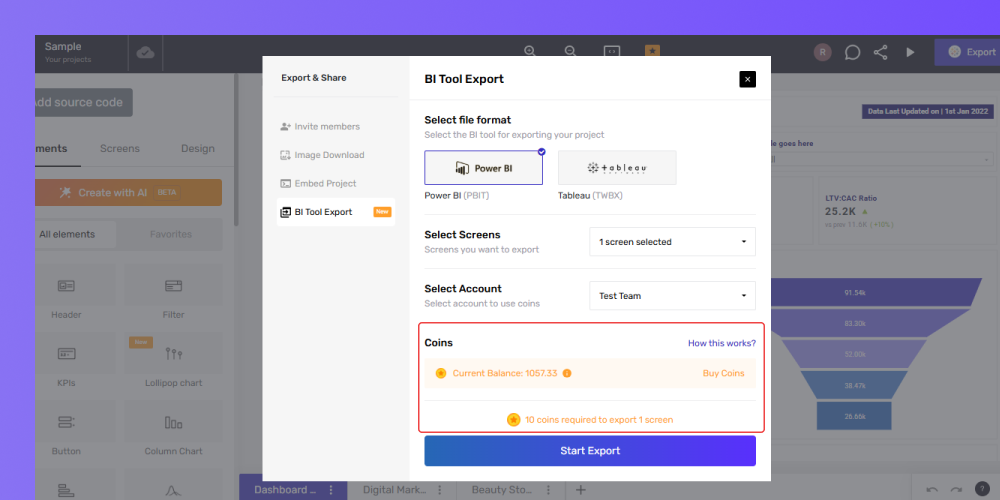
Tip: When you export a project, 10 Coins are used for each screen included. For example, exporting a 5-screen project will deduct 50 Coins from your balance.
- Select BI Export from the available options.
- Pick either Tableau (.twb) or Power BI (.pbix) as your export format.
- Choose the number of screens you want to export.
- Select the account type to use for the export—Individual or Team. If your balance is too low to cover the export, click Buy Coins directly from the export window to top up without leaving the flow.
- Click Start Export and your file will be saved to your device.
- Coins are valid for 365 days from the date of purchase, so you can use them anytime within that period.
Frequently Asked Questions
Q1. How many coins does one export require?
10 Coins are deducted per screen when you export your project.
Q2. Can I get a refund if I don’t use the export feature?
No, coins are non-refundable once purchased.
Q3. What happens if I run out of coins?
You’ll need to buy more coins before exporting your wireframe.
Q4. Are exported files editable in BI tools?
Yes, but the level of customization depends on the BI tool’s capabilities.
Q5. How long does an export typically take?
The duration depends on the complexity of your project, such as the number of screens and other factors.
Q6. What if I want to purchase more than 750 coins?
Please contact us for assistance with larger coin purchases, or you can upgrade to the Enterprise plan with unlimited coin access.
Q7. How long will my coins remain valid?
The coins will expire after one year from the date of purchase.
Q8. Can I transfer coins from my individual account to a team account or another user?
No, coins cannot be transferred between accounts, whether from an individual to a team or between team accounts. Please ensure accuracy when purchasing credits.