

How to Buy More Coins?
Mokkup uses Coins as its single currency for all features, including AI Wireframing, Convo AI, AI Review, and BI exports to Power BI and Tableau. Every paid plan includes a monthly Coin allocation, but if you need more, you can purchase additional Coins anytime through your account.
This article explains how individual users, team owners, and team members can buy and manage Coins.
How to Buy More Coins?
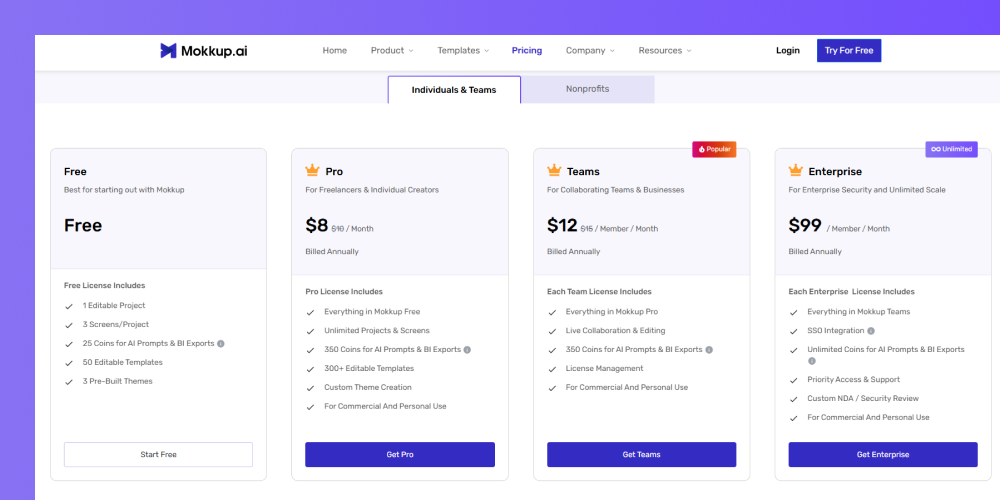
- Open your browser and go to Mokkup’s homepage.
- Click on the Pricing tab from the menu.
- Click on any plan that suits your needs: Pro, Teams, or Enterprise
Tip: When you export a project to Power BI or Tableau, 10 Coins are deducted per screen. For example, exporting a 5-screen project will deduct 50 Coins from your balance
- If you're not on a Teams plan or haven't been added to one, you can skip this step.
- Coins will be added to your personal account automatically, and you can proceed to checkout.
- However, if you're a team owner or team member, you'll need to choose whether to purchase Coins for your team or your personal account before proceeding.
- Please be mindful when purchasing Coins, as they cannot be transferred between individual accounts or between teams.
- Coins are valid for 365 days from the date of purchase, so you can use them anytime within that period.
Note: If you're a team member, you cannot buy Coins for the team yourself. You may need to request Coins from your team owner instead.
- Fill all details shown in the payment page.
- Then, proceed with the payment process to complete your purchase.
Payment
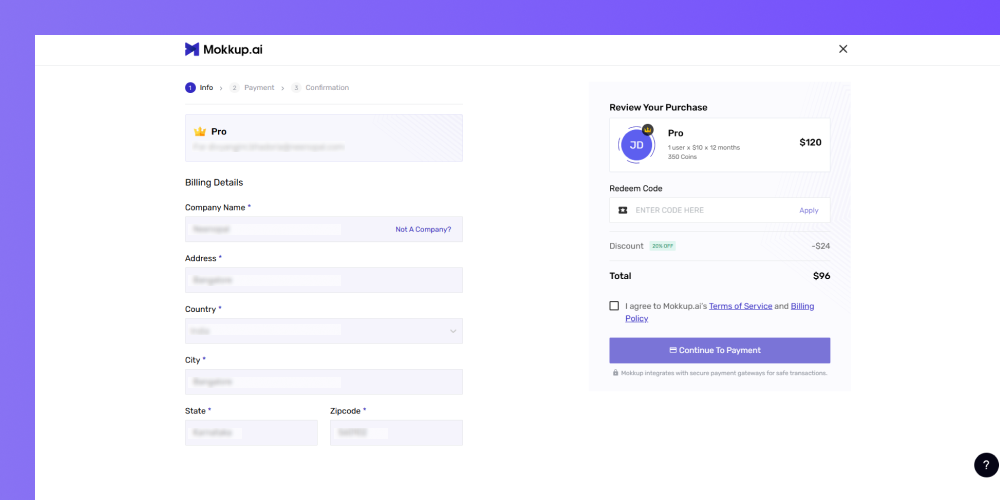
- After selecting your plan, you'll be taken to the checkout page.
- If you're purchasing a Teams plan, select the number of licenses you need using the + / − controls.
- Check Assign Pro license to self after billing if applicable.
-
Under Billing Details, enter your company’s information, including:
-
Company Name
-
Address
- Country
-
City
-
State
-
Zip Code
-
- On the right-hand side, review your Purchase Summary, which shows:
- Your selected plan and Coin allocation
- Redeem Code field (enter a code if you have one)
- Any applicable discount
- Total amount due
- Check the box to agree to Mokkup.ai's Terms of Service and Billing Policy.
- Click Add Licenses & Pay.
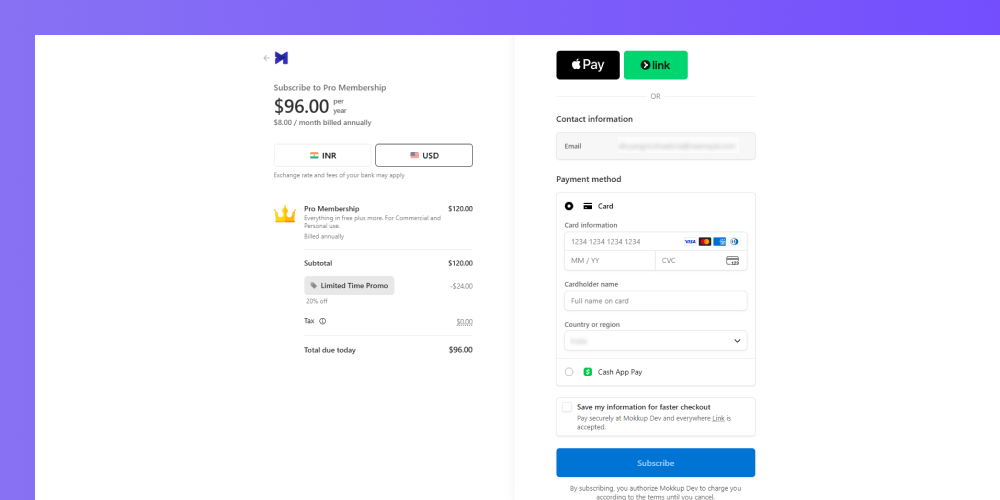
- On the payment page, verify the total amount on the left-hand side.
- On the right-hand side, enter your card details:
-
Card Number
-
Expiration Date (MM/YY)
-
CVC
-
Cardholder Name
-
Country or Region
-
- Alternatively, click Pay with Link for a faster checkout experience.
- Click Subscribe to complete your purchase.
Tip: You can view your Coin usage history from the Billing section to see how many Coins you've used across your projects.
Frequently Asked Questions
Q1. How many Coins does one BI export require?
10 Coins are deducted per screen when you export your project to Power BI or Tableau.
Q2. Can I get a refund if I don't use my Coins?
No, Coins are non-refundable once purchased.
Q3. What happens if I run out of Coins?
You'll need to buy more Coins before exporting your wireframe or using AI features.
Q4. Are exported files editable in BI tools?
Yes, but the level of customization depends on the BI tool's capabilities.
Q5. How long does an export typically take?
The duration depends on the complexity of your project, such as the number of screens and other factors.
Q6. What if I need a large number of Coins?
Please contact us for assistance with larger Coin purchases.
Q7. How long will my Coins remain valid?
Coins expire after 365 days from the date of purchase.
Q8. Can I transfer Coins from my individual account to a team account or another user?
No, Coins cannot be transferred between accounts, whether from an individual to a team or between team accounts. Please ensure accuracy when purchasing Coins.