

For Users Having Team’s Plan
Team Owner
Purchase Team Coins
As a team owner, each Teams license includes 350 Coins/year. Together, your licenses make up your team's shared Coins wallet (total licenses × 350 coins/year). If your team needs more Coins beyond this, you can buy additional Coins anytime in two ways:
1. Through the Pricing Page
- Open your browser and go to Mokkup's homepage.
- Click on the Pricing tab from the menu.
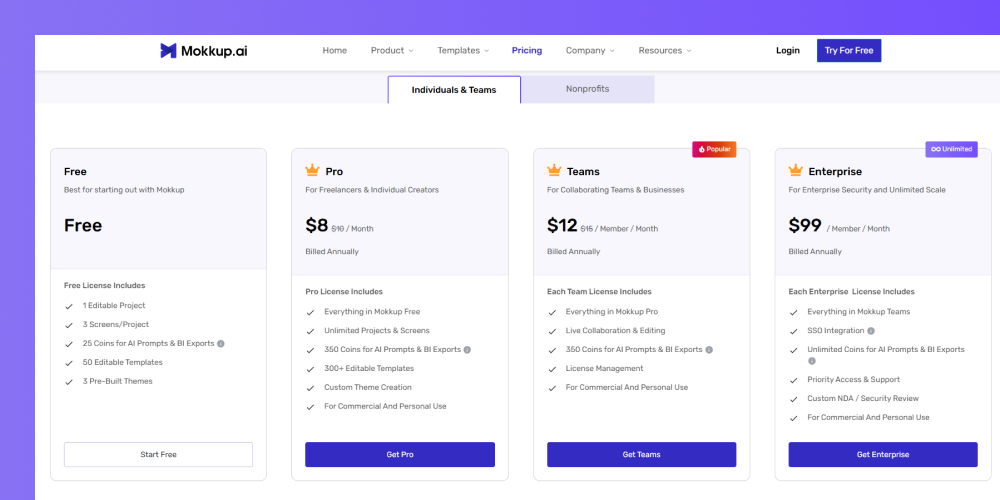
- Scroll to find the coins option.
- Select the Coin bundle according to your requirements.
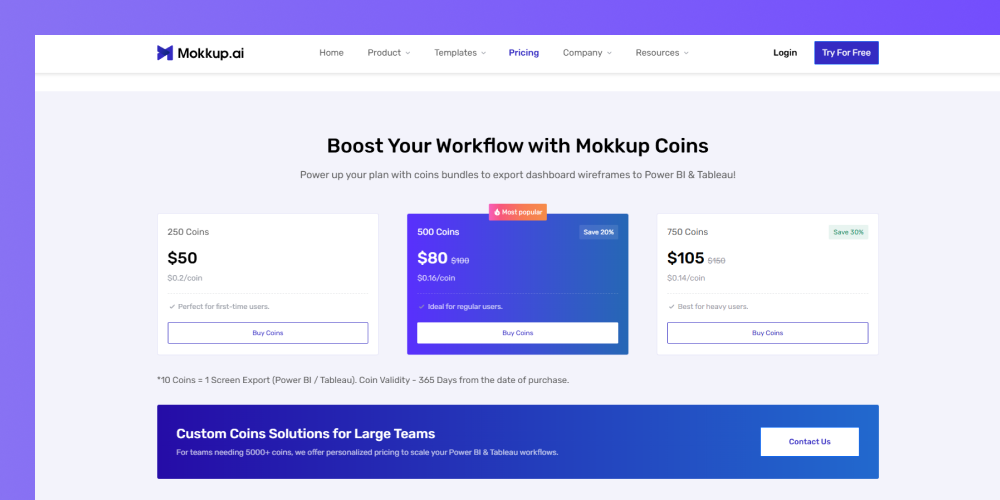
- Click on Buy Coins.
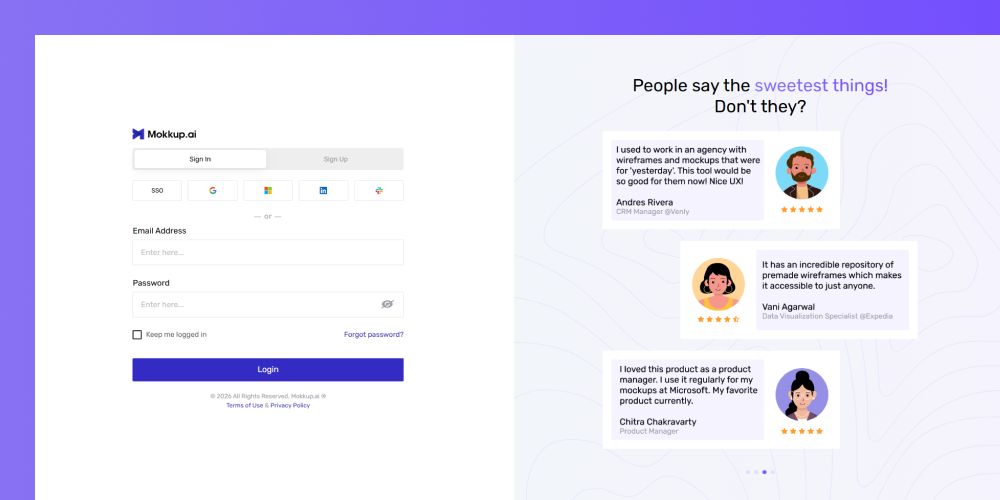
- You'll be redirected to the login page.
- Log in to your account.
Tip: When you export a project, 10 Coins are used for each screen included. For example, exporting a 5-screen project will deduct 50 Coins from your balance..
- As a team owner, you must choose whether to purchase Coins for your team or your personal account before proceeding
- Please be very mindful when purchasing Coins, as they cannot be transferred between individual accounts or between teams.
- Coins are valid for 365 days from the date of purchase, so you can use them anytime within that period.
Note: Coins purchased for your team will be available for team members with Coin access (if granted). Coins added to your personal account will be for your use only. When performing any Coin-based action (AI Wireframing, AI Review, Convo AI, or BI Export), you'll be able to choose whether to spend from your personal Coins or your team's Coins.
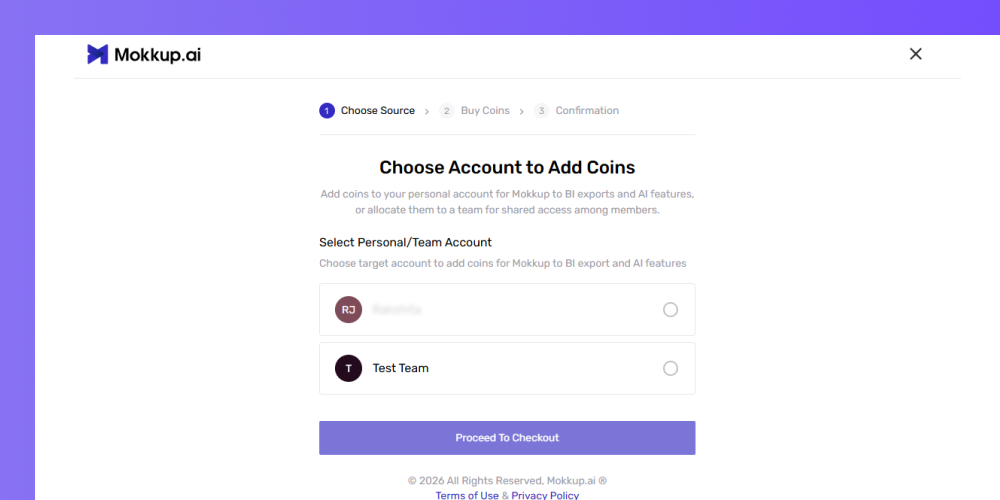
- Click Go to Checkout.
- Then, proceed with the payment process to complete your purchase.
Tip: As a team owner, you'll receive requests from team members to grant them access to use Coins
2. From the Billing section within the account
- Alternatively, log in to your Mokkup account.
- Click on the Admin tab from the left-hand side panel.
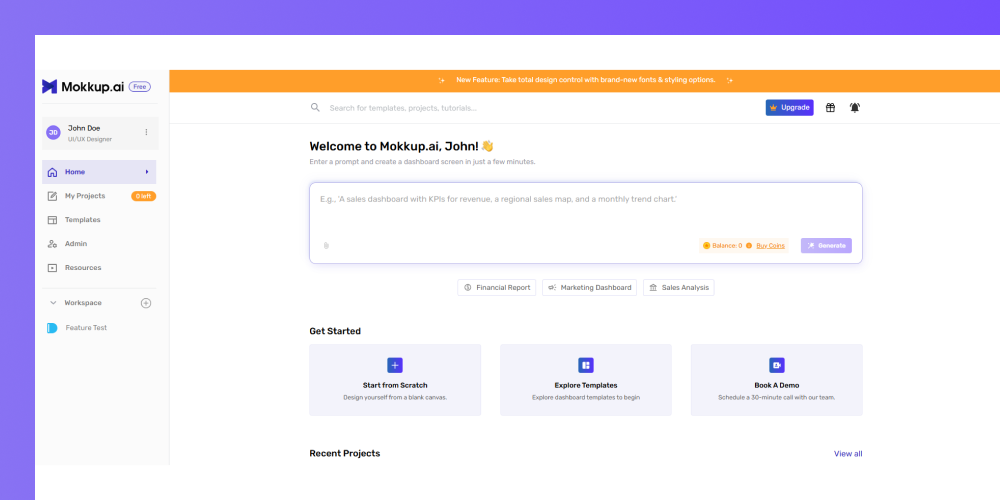
- Go to the Teams tab.
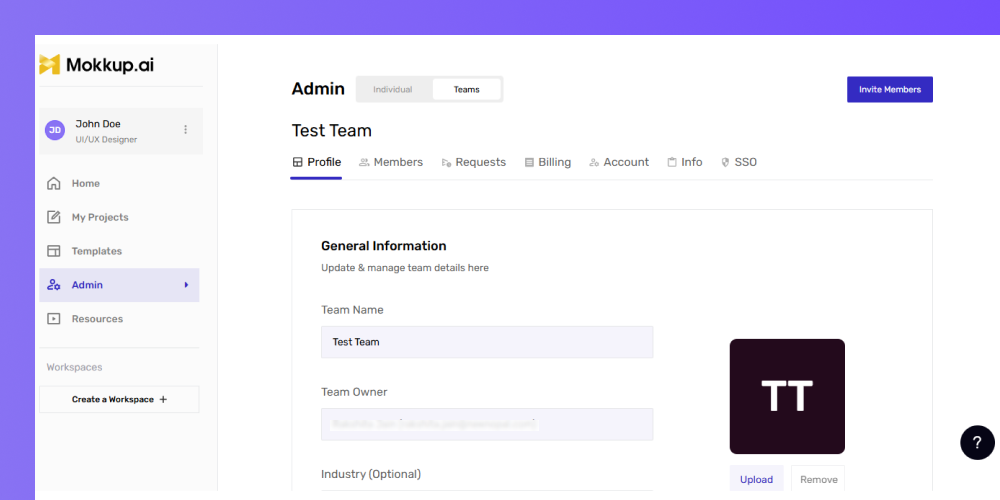
- Click on the Billing section under your selected team.
- Scroll to find the Coins option.
- Click on the Buy Coins button.
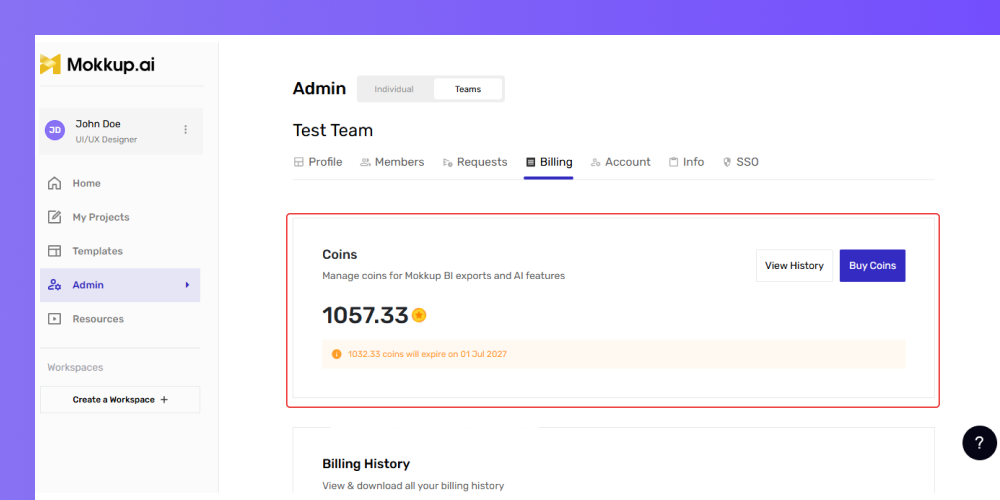
- Complete the further payment process.
Manage Coin Access to Team Members
As a team owner, you can control whether your team members can use team Coins for any Coin-based action, including AI Wireframing, AI Review, Convo AI, and BI Export.
By granting Coin access, you allow team members to use available team Coins for these features. Without this access, team members can still use Coins from their own personal account, but not from the team's wallet.
You have two ways to grant Coin access to your team members:
1. While Inviting Members
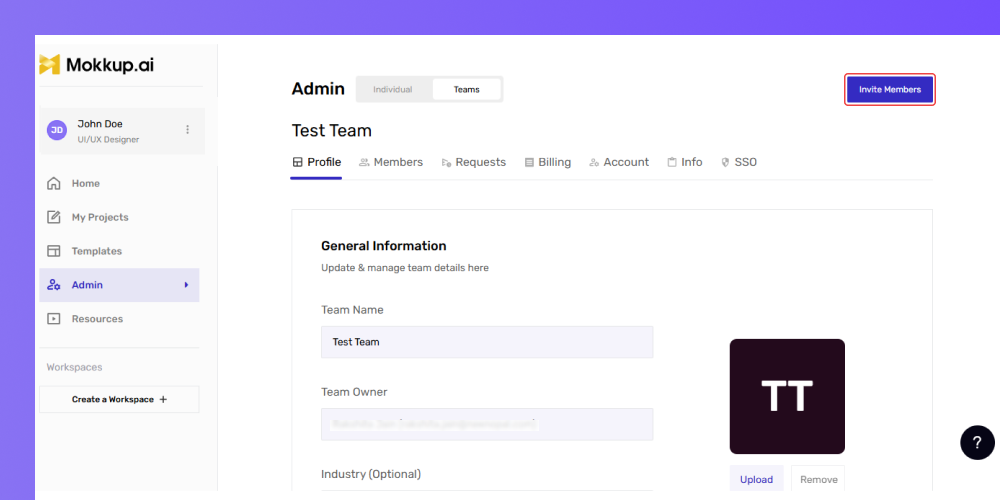
- Go to the Admin tab from the left-hand side panel.
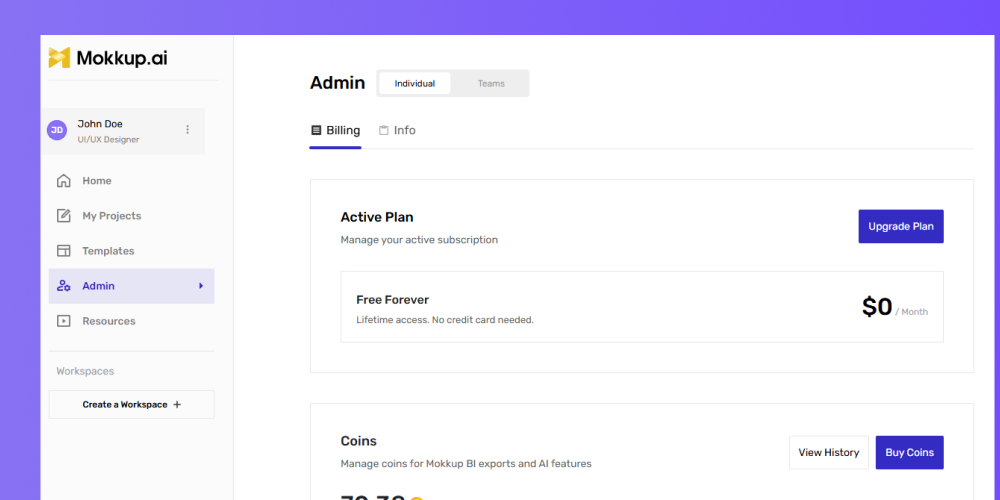
- Select the Teams tab.
- Click the Invite Members button.
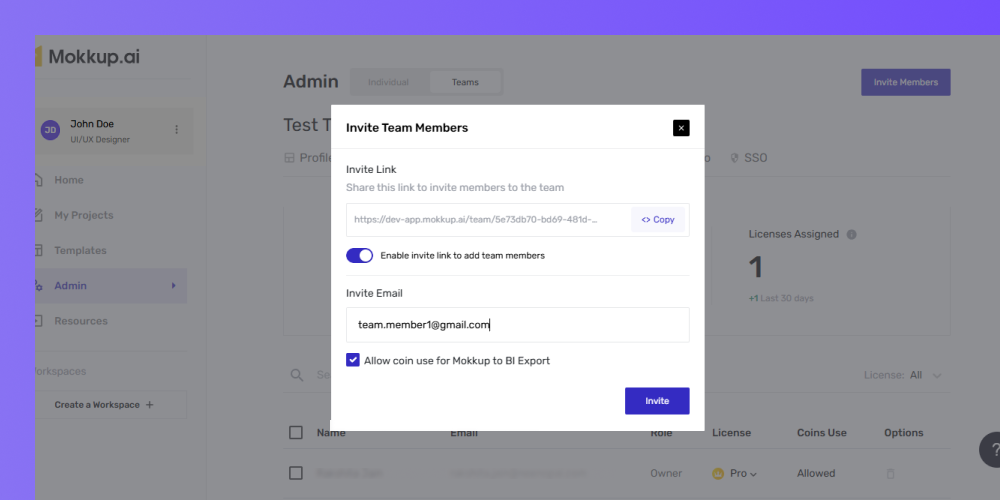
- In the pop-up form, enter the email addresses of the team members (separate multiple emails with commas).
- Tick the Allow coin use for Mokkup to BI Export option.
- Click Invite to send invitations.
2. Existing Team Members
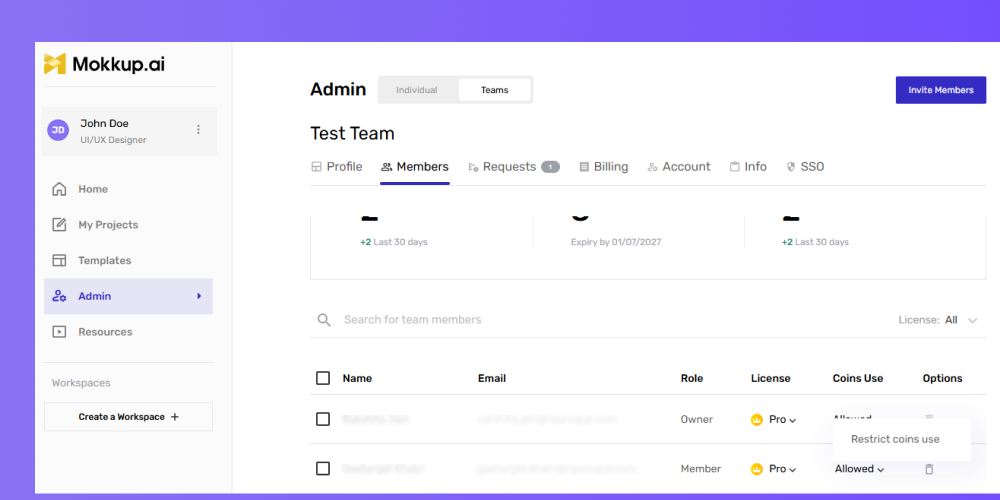
- Go to Team Settings.
- Find the team member's name under Members tab.
- Click Coin Use next to their name.
- Change from Restrict Coin Use to Allow Coin Use.
Tip: As a team owner, you can view the Coin usage history from the billing section & see how many Coins your team members have used.
Team Member
How to Request Coins?
If you're a team member and need to buy Coins, you must request them from the team owner in one of the following three ways:
1. Through the Pricing Page
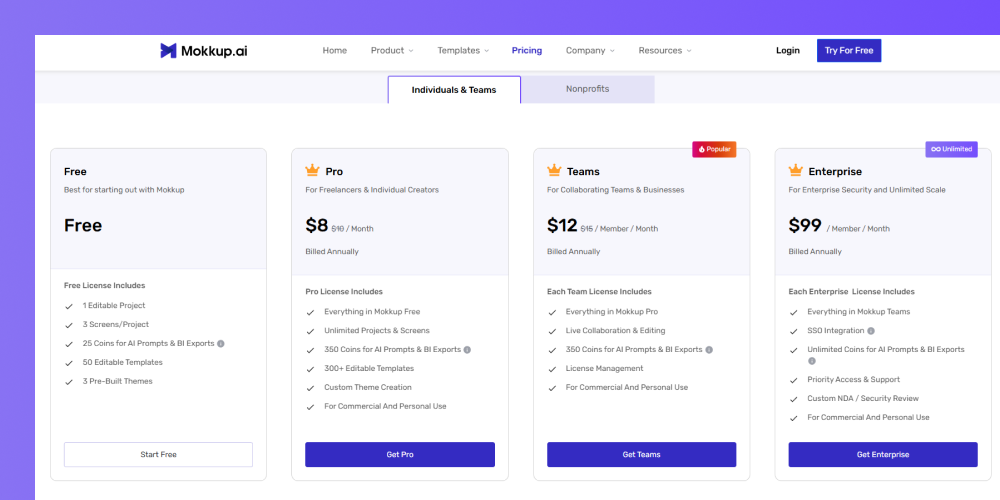
- Open your browser and go to Mokkup’s homepage.
- Click on the Pricing tab from the menu.
-
Scroll to find the Coins option.
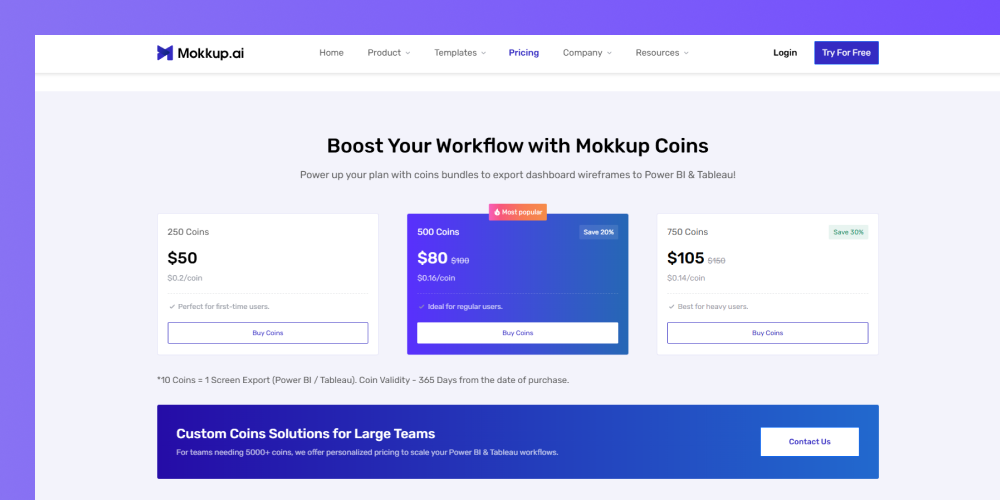
- Select the Coin bundle according to your requirements.
- Click on Buy Coins.
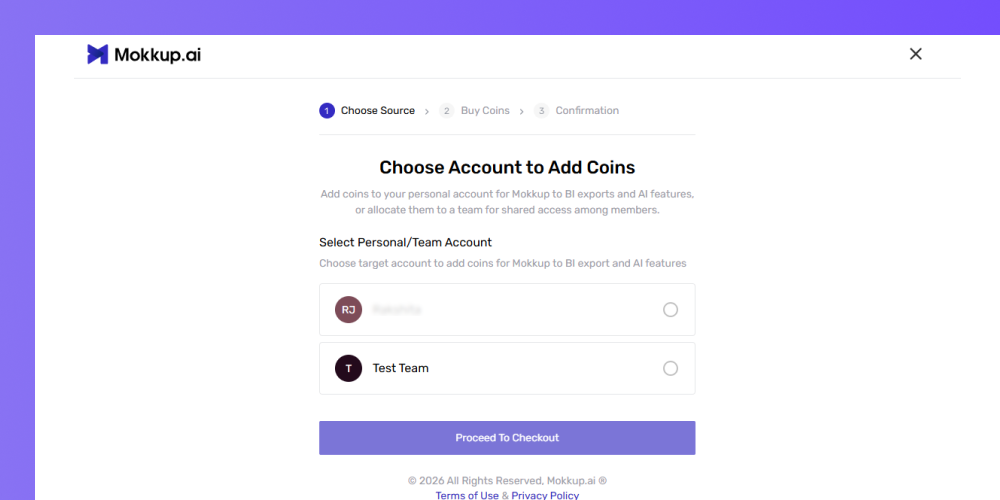
- Select the team where you're a team member and want to receive Coins based on your needs.
- Click on Proceed to Checkout.
-
Wait for the team owner to approve your request.
2. From the Billing section within the team
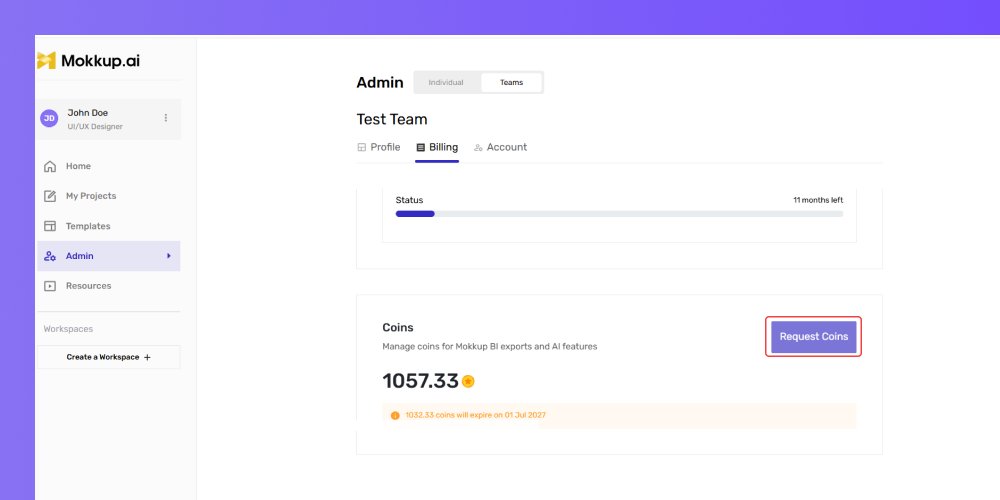
- Open the Admin section from the left panel.
- Go to the Teams tab.
- Click on the Billing section under your selected team.
- Scroll down to the Coins section.
- Click on Request Coins to send a request to the team owner.
- Choose the desired Coin bundle that you need.
- Once you’re done with that, click on Request Coins to complete the process.
- Wait for the team owner to approve your request.
3. From the Export Menu
- Go to the dashboard that you want to export.
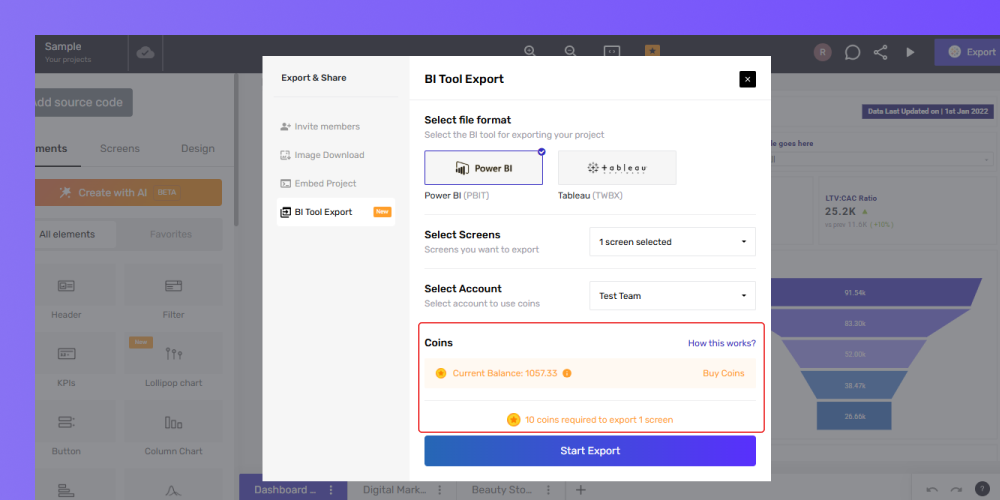
- Click on the export button, and choose the number of screens you want to export.
- Select the team to use for the export.
- Click on Request Coins.
- Wait for the team owner to approve your request.
How to Request Access to Team’s Coin Wallet?
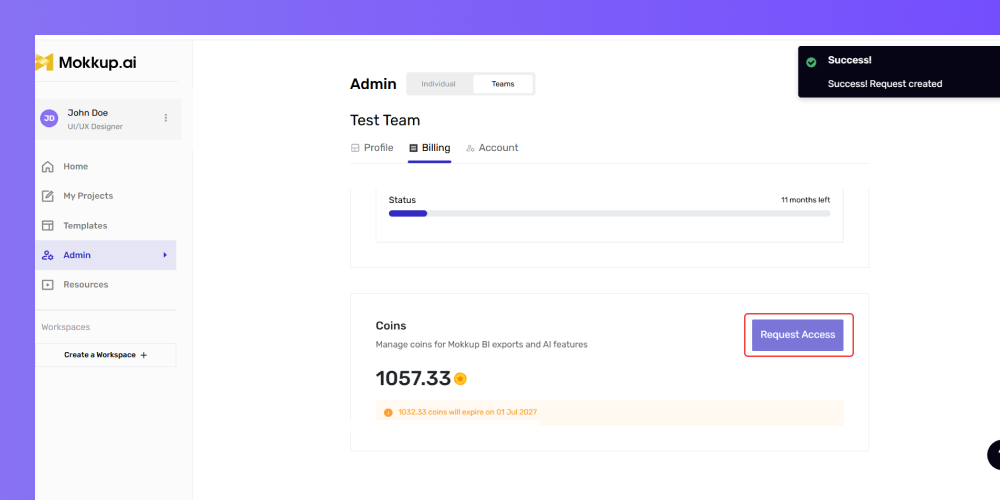
1. From the Admin section within the team
- Open the Admin section from the left panel.
- Go to the Teams tab.
- Select the team you're a member of.
- Click on the Billing section under your selected team.
- Scroll down to the Coins section.
- Click on Request Access to send a request to the team owner.
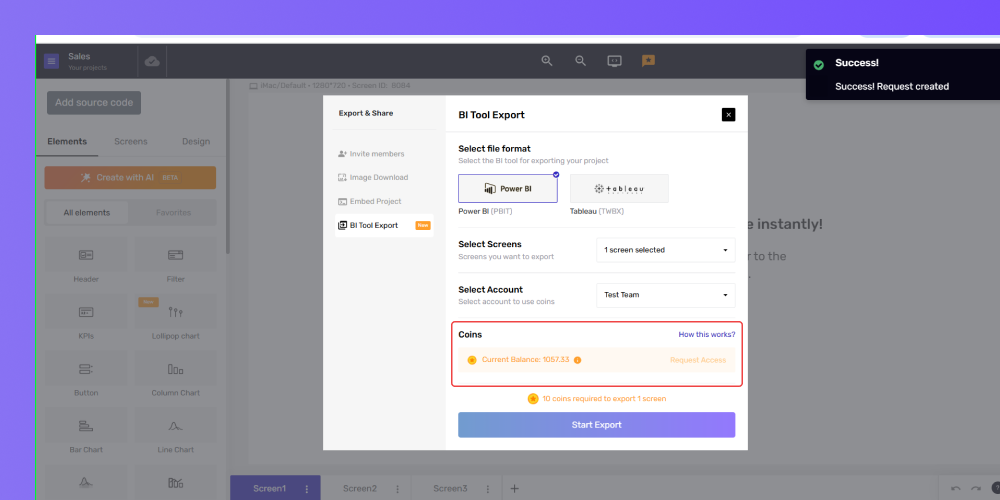
2. From the Export Menu
- Log in to your Mokkup account.
- Open your dashboard project.
- Click on the Export button in the top menu.
- Select Request Coin Access.
- Wait for the team owner to approve your request.
- Once approved by the team owner, you'll be able to use Coin-based features seamlessly.
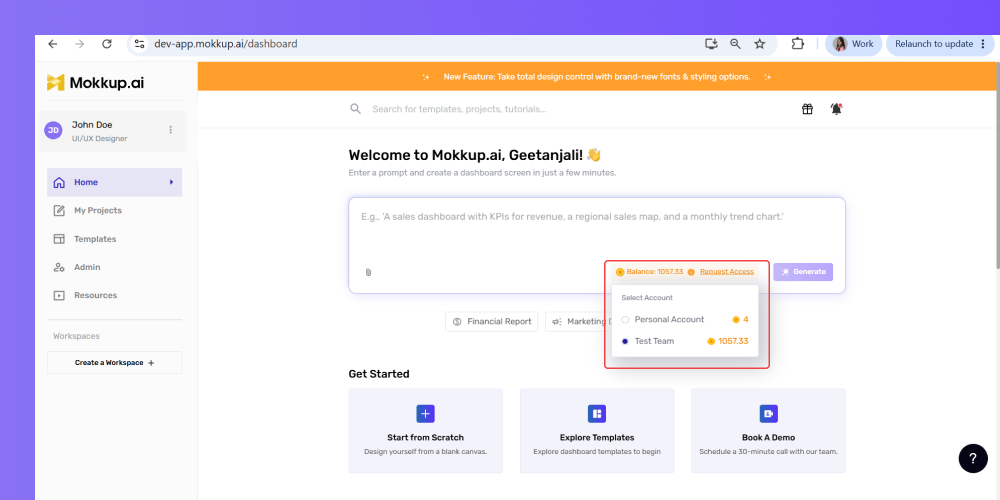
3. From the Generate with AI Box (Home page)
- Log in to your Mokkup account.
- On the Home page, go to the Generate with AI box (the dashboard prompt box).
- At the bottom right of the box, click the ⓘ info icon next to your coin balance.
- In the Select Account panel that opens, choose the team whose coin wallet you want to use.
- Cick Request Access next to that team.
-
Wait for your team owner to approve the request.
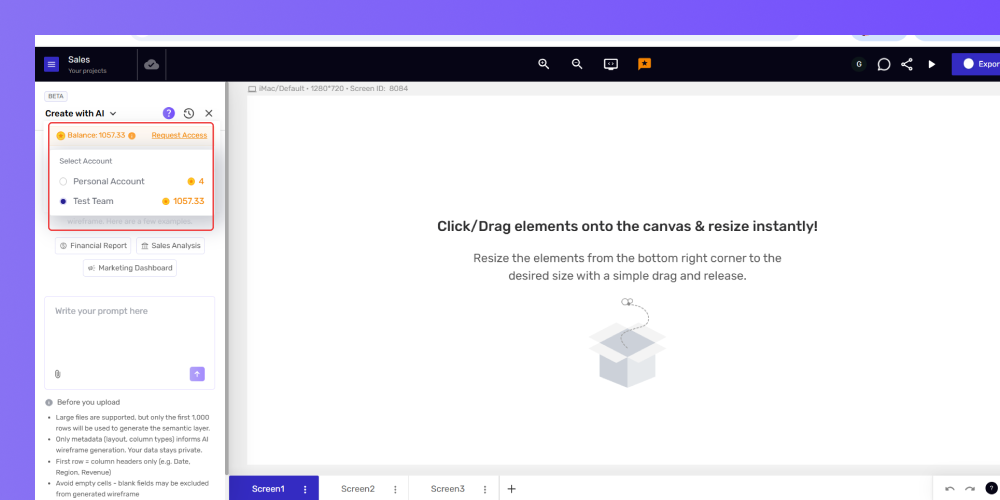
4. From Create with AI (inside a project)
- Go to My Projects from the left panel and open a project (or click Create new to start one).
- Click Create with AI in the left panel.
- Click the dropdown arrow next to the "Create with AI" heading.
- Click on it to open the Select Account panel.
- Select the team whose wallet you want to use.
-
Click Request Access and wait for your team owner to accept.
Frequently Asked Questions
Q1. How many coins does one export require?
10 Coins are deducted per screen when you export your project.
Q2. Can I get a refund if I don’t use the export feature?
No, Coins are non-refundable once purchased.
Q3. What happens if I run out of coins?
You'll need to buy more Coins before exporting your wireframe.
Q4. Are exported files editable in BI tools?
Yes, but the level of customization depends on the BI tool's capabilities.
Q5. How long does an export typically take?
The duration depends on the complexity of your project, such as the number of screens and other factors.
Q6. What if I want to purchase more than 750 coins?
Please contact us for assistance with larger coin purchases, or you can upgrade to the Enterprise plan with unlimited coin access.
Q7. How long will my coin remain valid?
The coin will expire after one year from the date of purchase.
Q8. Can I transfer coins from my individual account to a team account or another user?
No, coins cannot be transferred between accounts, whether from an individual to a team or between team accounts. Please ensure accuracy when purchasing coins.