

Embedding
"Embed a design" typically means incorporating or inserting a design element into a larger document or project.
For example, you have created your first dashboard wireframe design in Mokkup, and you want to embed that design into a website by exporting it as an image file (such as a JPEG or PNG) by inserting it into the HTML code of the website.
To get the embed code, follow the steps below:
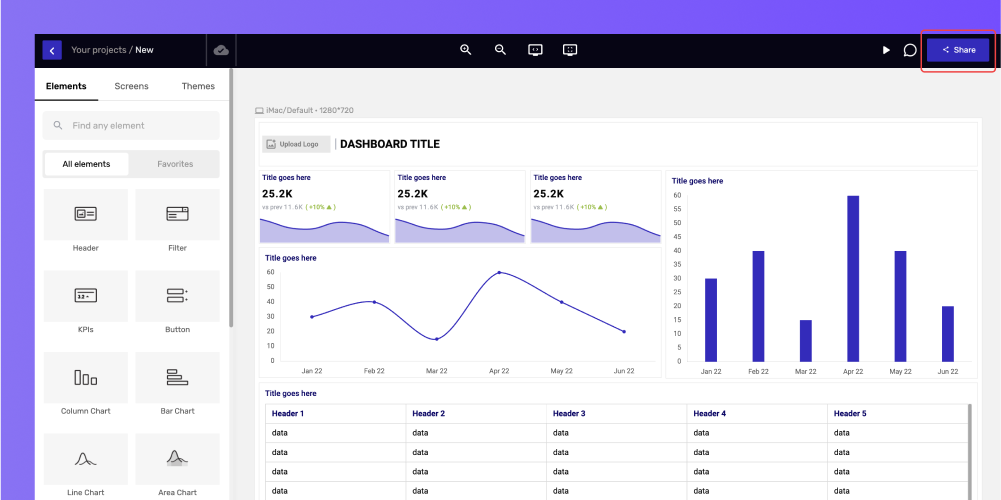
As shown above, click the “Share” button in the top right corner.
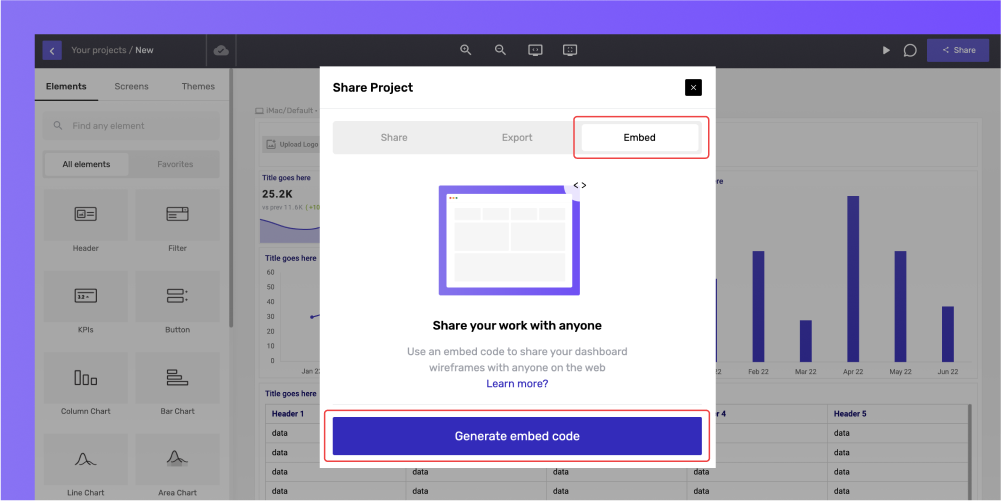
The share project prompt will appear. Click on the “Embed” next to the “Export” option and click on the “Generate Embed Code” button.
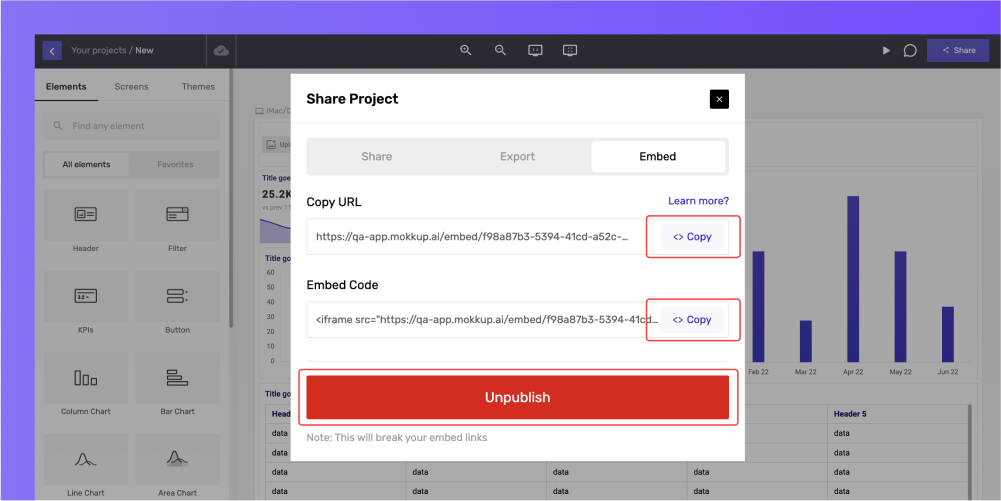
The URLs need to be copied and pasted into the website's HTML code where you want your design to be displayed. And if you want to remove your design, you can click the “Unpublish” button to break the link.
Once you click on the “Unpublish” button, you will get an alert that your design has been successfully unpublished.
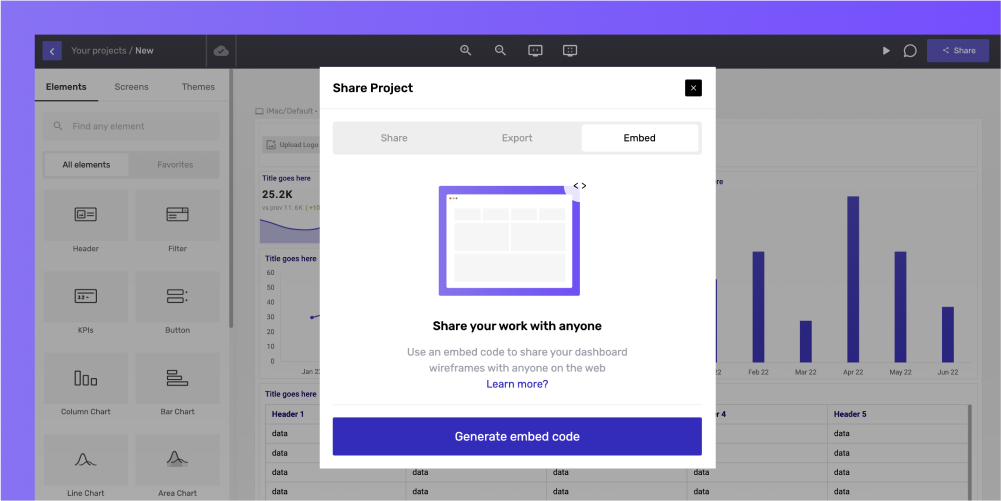
Tip: When embedding content, please be sure to either copy and paste the complete text of the embed code. You can check by verifying that the code starts with <iframe” and ends with “/iframe>.” This embed code should be used only in the HTML code of the web page.
Deleted Projects
If you delete a previously embedded project, the embed link will become invalid and no longer function.
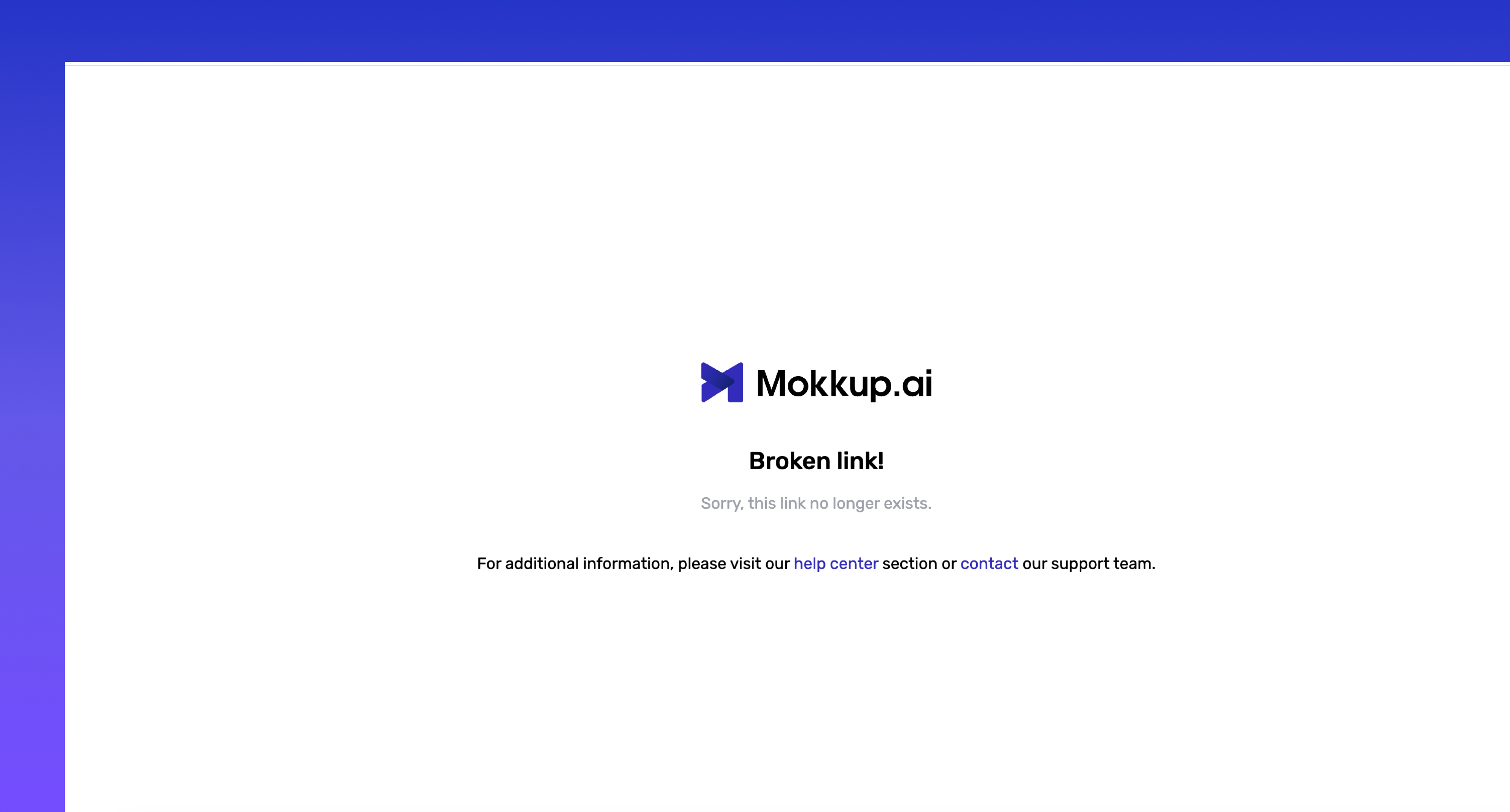
As depicted above, an error will appear if you attempt to access the dashboard wireframe. To prevent encountering this error, ensure that you review the project before discarding it.
Tip: reuse the same link to embed the project if you intend to restore it.
Upgrade to Pro Plan
When embedding your project, you can only access the screens available in the free plan if your project contains Pro subscription screens.
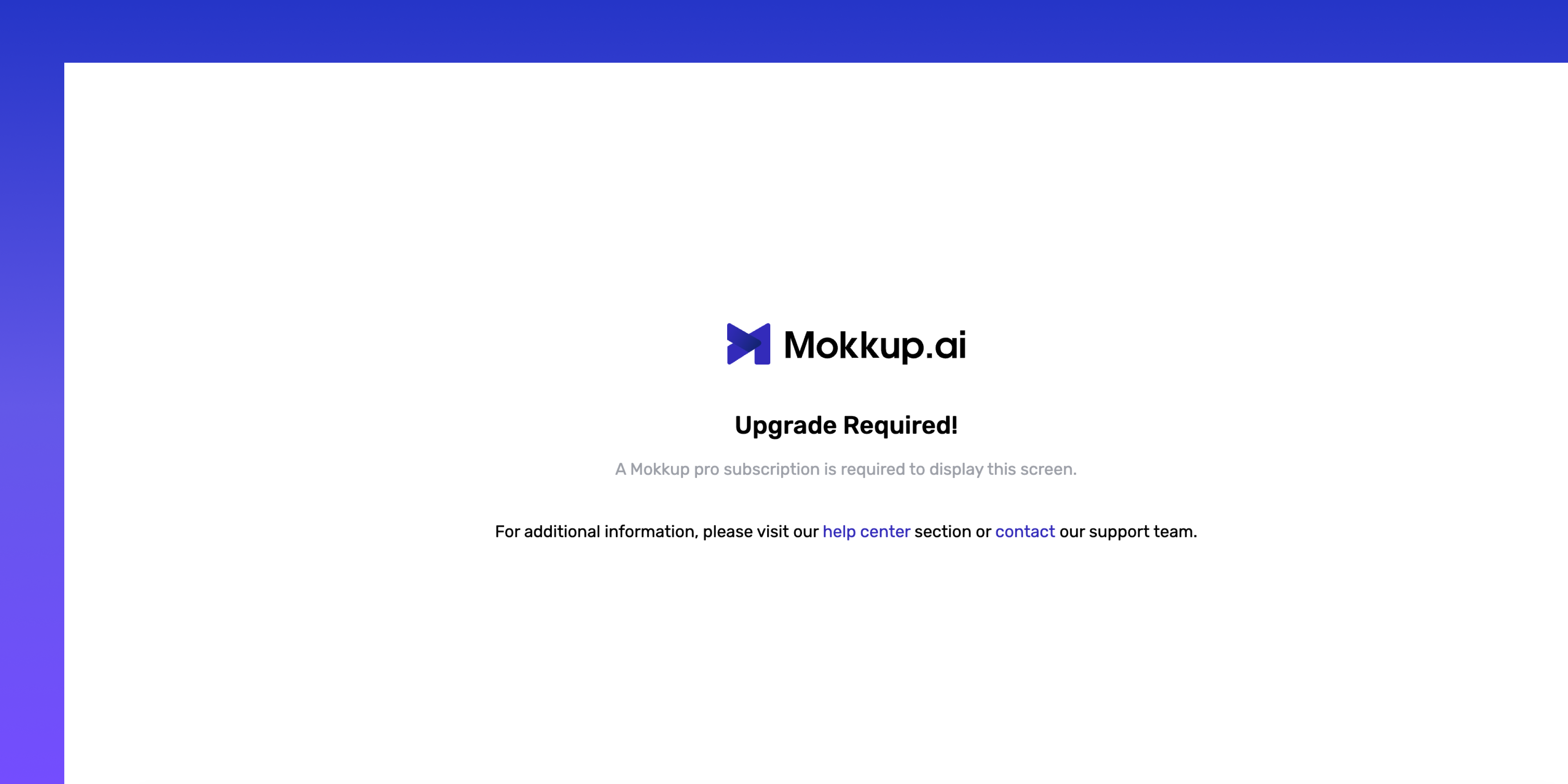
Attempting to access the Pro screens will result in an error. To gain full access to the project, you can upgrade your plan to the Pro version.