

Canceling the Teams Plan
You can cancel your Mokkup Teams Plan anytime you want. Follow the steps given below:
-
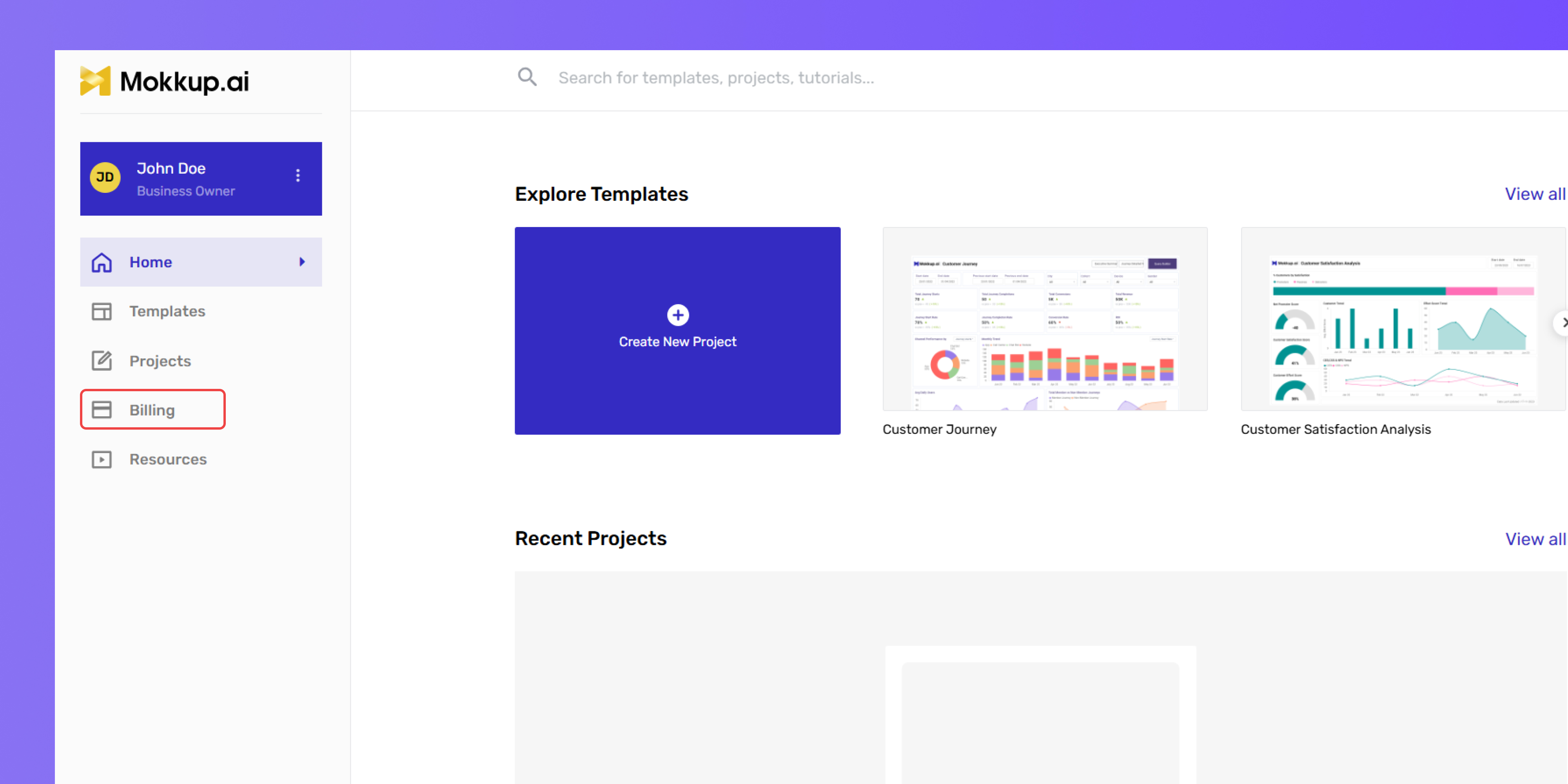
Go to the Billing section from the left-hand panel.
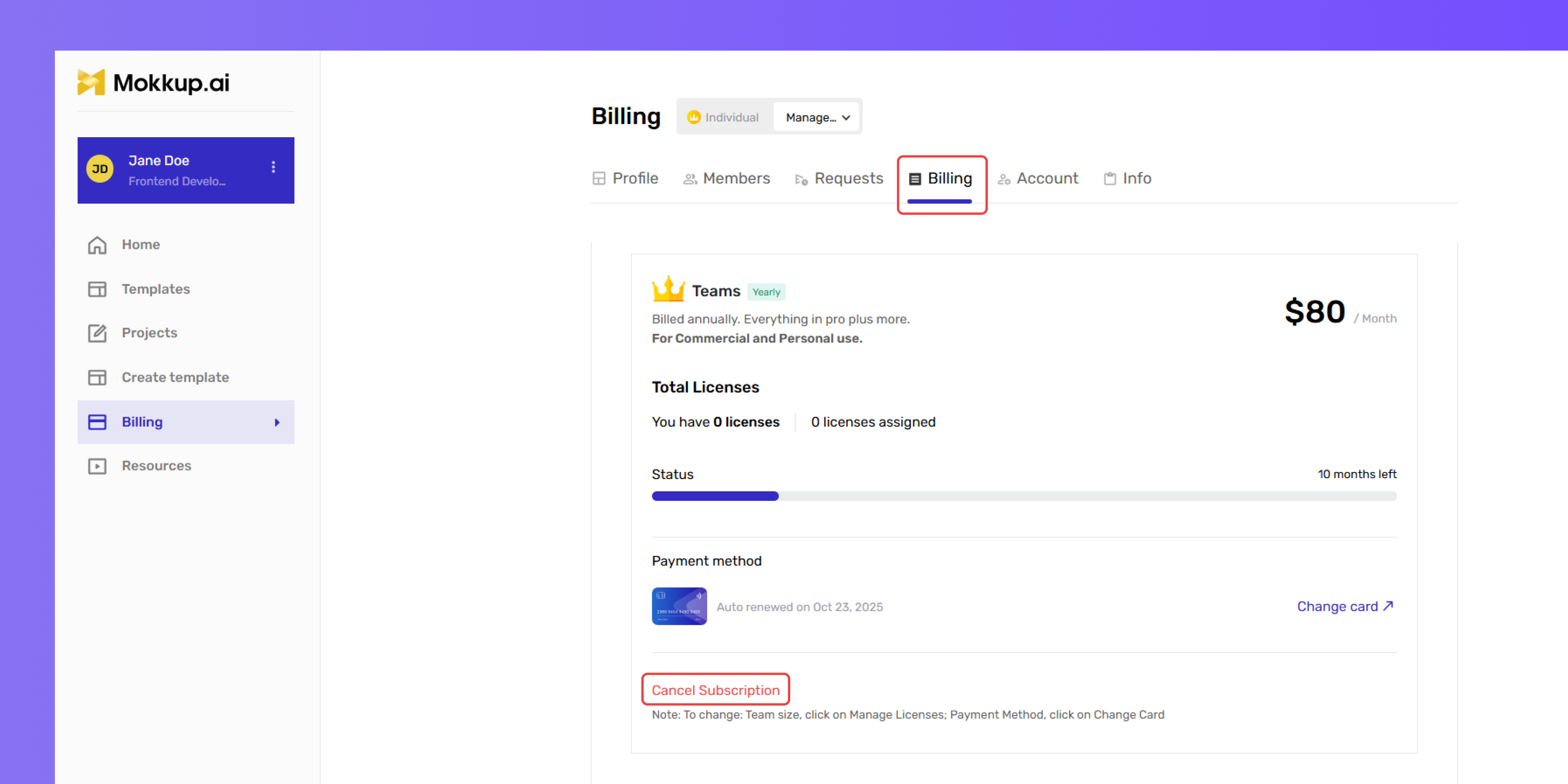
- Navigate to the Existing Team’s Plan section.
- Go to the Billing section under your plan settings.
- Click the Cancel Subscription button.
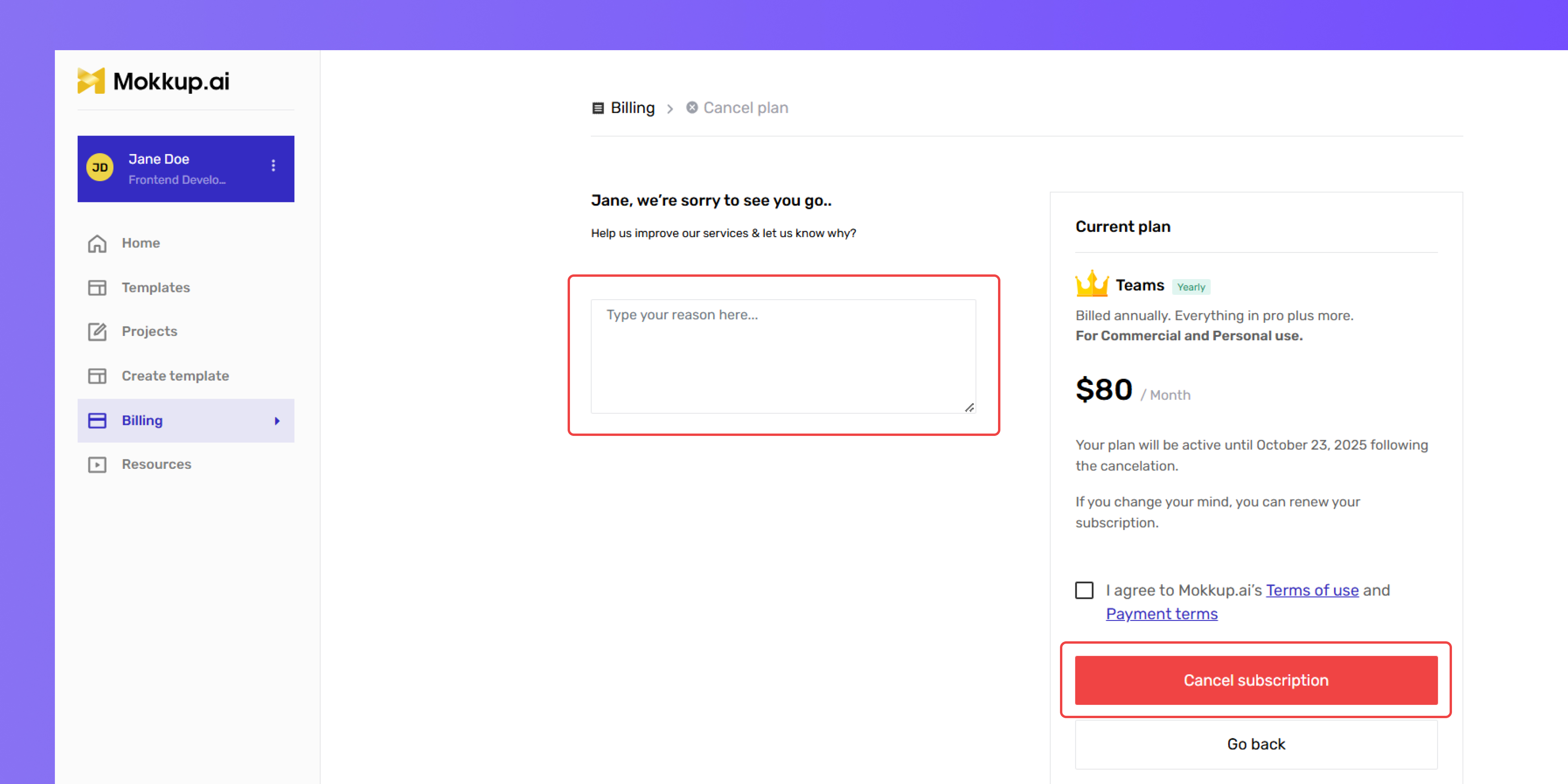
- After clicking, you will be automatically redirected to another page.
- On the left side of the page, type in the reason for canceling your subscription.
- Once you’ve entered the reason, click the Cancel Subscription button to proceed.
-
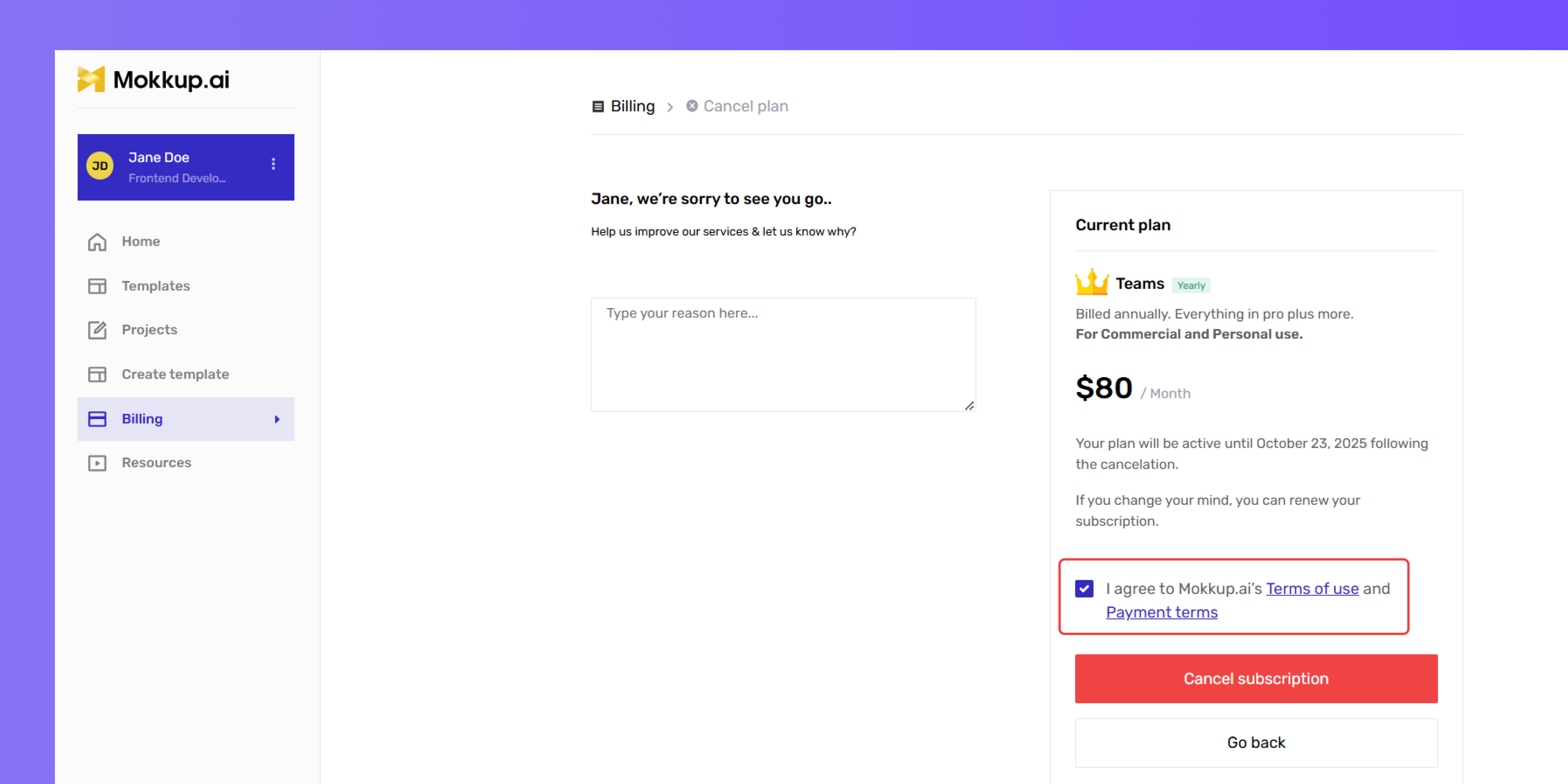
Check the box to confirm that you agree to the terms and conditions.
-
If you change your mind and do not wish to cancel, click the Go Back button located below the Cancel Subscription button.
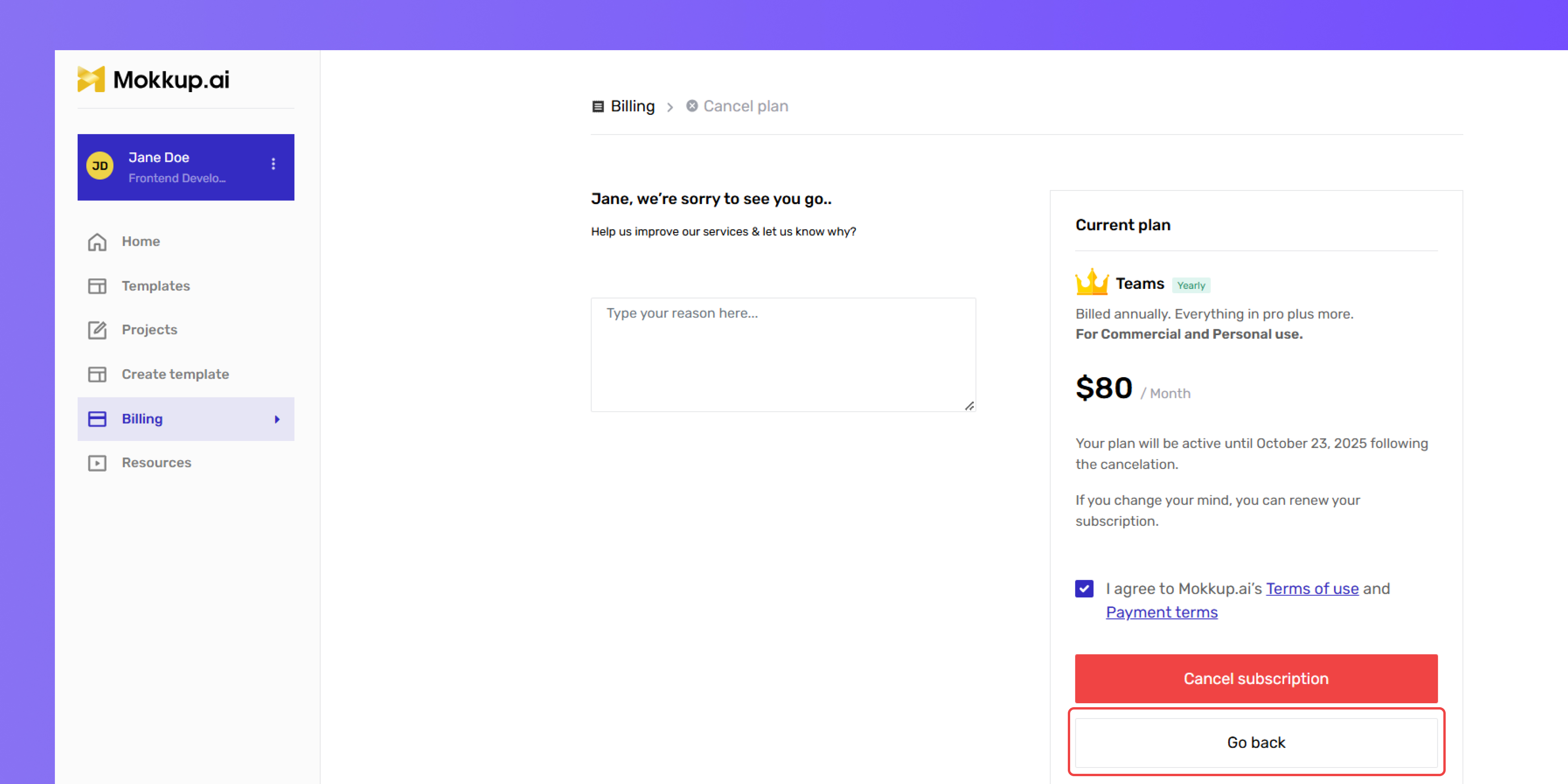
Note: If you cancel your subscription, it will remain active until the end of the current billing cycle, so you will be able to access all Pro features until then. After that, you won’t be charged unless you choose to renew.